| Beginners Guide to FTP | HowToServU_FTP_Server | Java written FTP Server | FTP Commands and Howto's |
| FTP Downloads and Guides (programs) | |||
You have been taking notes in your programming class and working on an adventuresome project. During class you show them to your instructor. He notices what you are attempting and decides the entire class would benefit from it. He asks you if he could make your work available to the entire class as an example. "Oh great," you think to your self. "Will you make this available for download by the other students?" your instructor asks. Immediately you answer, "Of course," not wanting to give your instructor any reason to fail you.
"Oh," your instructor continues, "could you make a place for them to upload their versions?" You respond in the affirmative, still leery of how it would impact your grade if you declined and starting to grow fearful of what might happen if you can't accomplish the task.
"Great," he says. "You can announce the URL tomorrow in class." Your instructor moves on to another student and your heart sinks. You have committed to something that could have a major impact on your grade, you have absolutely no idea how to do it, and it is due tomorrow.
You start thinking of available servers that might be able to handle this. You don't have enough rights on the web server to make these kinds of changes and how would you set up the "upload" area? Then you remember the BSD computer that you setup last week. Maybe it could handle this. You have had good luck with it so far.
Suddenly, a thought hits you, "I could do this with ftp." Quickly, you sit down at the commons and start thinking. A friend of yours happens to be sitting near you.
"What do I need to setup to make ftp available?" you ask her.
"That depends," she answers. "If you use UNIX, it is usually enabled
by default."
Your mouth just about drops. "Could it be this easy?" you think to
yourself. You don't hear much else she says as you run off to find a computer
and get started.
You pull up at your console a few moments later and fervently login. "Ok", you say to yourself, trying to keep calm. "Let's just see what happens and not get our hopes up."
You start typing:
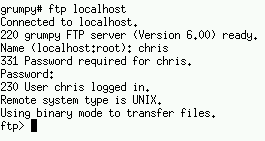
ftp localhost
Immediately it comes up with an ftp login screen. Carefully
you type in your name and password. Your heart almost skips a beat as the
computer accepts your password and lets you in:
"Whew!" you let out a sigh of relief. This wasn't going to be so
bad after all.
Now you need to get the URL. You fire up Netscape and type in your address.
"Oh no!" you say as a Netscape error appears.
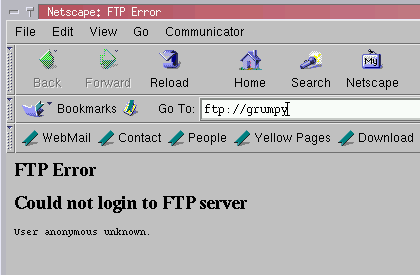
"User anonymous unknown?", you say out loud. "Isn't that the point?" Feeling slightly confused, you decide to try the man page. You type:
man ftpAs you read through the man page, you don't find anything that helps. Your friend walks past the lab and you motion for her to come over. After a few moments she comments, "You are reading the wrong man page. Ftp is the client. You want ftpd, the dæmon."
You hide your embarrassment and quickly type:
man ftpdAs you read through this page, things begin to make more sense.
You realize that BSD comes with the ftp dæmon running by default. The ftp dæmon is another service that comes standard with BSD and is incorporated into inetd, the Internet Dæmon.
You check your /etc/inetd.conf file and find the following line,
just as predicted.
ftp stream tcp nowait root /usr/libexec/ftpd ftpd -l
This ftp dæmon, running on a default system, only allows
authenticated users to login. If you don't have a name and password, you
cannot access the system. Most browsers, by default, try to login as an
'anonymous' user. BSD uses the user 'ftp' as the anonymous user and uses
the home directory as the repository for storing files for anonymous access.
You add the user 'ftp' and give him a secure password. Then you fire up Netscape again and test. You get a real quick response, things look good.
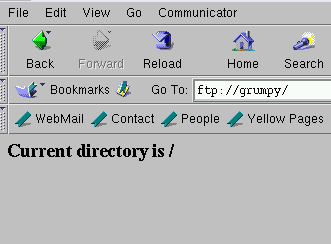
However, you don't see any files, and it's probably because there are no files in that directory. You copy a few files from another directory in to the home directory of the user ftp and try it again.
Hmm... no luck. You start reading the man page again.
You notice the mention of the following two files:
/etc/ftpwelcome Welcome notice before login.
/etc/ftpmotd Welcome notice after login.
You edit both files and add some text. It makes your ftp
login process a little more friendly; however, it doesn't let you see any
files yet.
The man page lists a few files and tells they should be owned by 'root'
and set mode 555. You read through the short list:
~ftp
~ftp/bin
~ftp/etc
The ~ftp directory is already there, but the others aren't.
You create them using mkdir:
mkdir ~ftp/bin
mkdir ~ftp/etc
Next, you change the ownership to 'root' using chown:
chown -R root ~ftp
The '-R' flag includes the subdirectories. You still need
to set the permissions. You use chmod to change
the permissions of the directories:
chmod 555 ~ftp
chmod 555 ~ftp/bin
chmod 555 ~ftp/etc
The man page recommends using ~ftp/pub as the directory
for users to be able to upload files to. However, you decide to use
~ftp/pub as the download directory and make ~ftp/incoming
the public upload area. So you create the directories, restrict access
to ~ftp/pub and give free access to ~ftp/incoming:
mkdir ~ftp/pub
mkdir ~ftp/incoming
chown root ~ftp/pub
chown root ~ftp/incoming
chmod 555 ~ftp/pub
chmod 777 ~ftp/incoming
Now you see the part you have been looking for; in order to be able to see files, you must put a copy of ls, the program that lists files, into ~ftp/bin.
cp /bin/ls ~ftp/bin/
chown root ~ftp/bin/ls
chmod 111 ~ftp/bin/ls
The man page also recommends putting the files /etc/pwd.db
and /etc/group into ~ftp/etc. The /etc/pwd.db
is a user database that has had the password field removed. The /etc/group
file is a list of groups and which users belong to them. If you use
the /etc/group file, you only need the group mappings and are free
to remove the additional users added to each group as it may be a small
security risk. These files are used to associate the user and
group identification numbers with real names. They are optional,
if you don't mind seeing ID numbers in place of the owner and group names.
These files should be set mode 444:
cp /etc/pwd.db ~ftp/etc/
cp /etc/group ~ftp/etc/
chown root ~ftp/etc/pwd.db
chown root ~ftp/etc/group
chmod 444 ~ftp/etc/pwd.db
chmod 444 ~ftp/etc/group
With all your changes done, you switch back to Netscape and reconnect.
Looks like you aren't going to fail tomorrow.