16 bit Windows Tweaks INTERESTING? I have been using the SMARTDRV.EXE, EMM386.EXE, and HIMEM.SYS from a W98SE version of DOS with my v6.22 DOS/W31 setup here on a Pentium 5 60mhz Compaq machine and it seems faster than with the original v6.22 of the same name? Your mileage may vary.
NOTE: Many systems were shipped with proprietary software that compliments the early Windows 16 bit versions. DO NOT reformat legacy hardware systems that are new to you without taking a look at the setup first! If at all possible make at least one backup if W31 is already installed. Compaq, for instance, includes utilities needed to setup CMOS and other diagnostic utilities. The software from Compaq, including the application software, was quite good when used on their hardware but it is not available anywhere for downloading including from the Compaq website.
Tweaking does not refer only to attempted speed increases. Tweaking also means to make changes that will result in a more stable OS customized to suit your hardware and other software. There is NO one right configuration for Windows or for DOS. Each computer will have it's weak points and it's strengths. To properly tweak the 16 bit Windows OS you must first tweak DOS. Don't forget that tuning DOS makes W31 happy too. Check out DOSMAX on the `tweaks' page here. It's one of the better addons for early versions of DOS for memory management. I know people using it with v6.22 MSDOS rather than use the Microsoft memory management built into newer MSDOS. When you are satisfied that you have DOS working as efficiently as it can on your hardware then it is time to tweak Windows. There is quite a bit of useful information for tweaking W31 on these pages that are, or were, being translated from the original German. The syshook.drv is being used here on my system and does seem to have helped stop W31 crashing as often as it used to. The fix1mb also mentioned on the above German website is similar but I haven't tried it. Both attempt to control W31's use of the first meg of memory.
Memory Management - 386 or better
Volumes are written about SMARTDRV and the VM swap file depends on it's use for efficient transfer to/from the swap file. There really aren't many variables for the user to be concerned about. Newer versions are better than older versions and a wide range of settings will ALL work. The FILES and BUFFERS settings of CONFIG.SYS can affect cache efficiency if set too low. I use BUFFERS=53 and FILES=80 after using test software to determine the best sizes for my hardware. See my commented AUTOEXEC.BAT file in plain text format accessed from the top menu on this page to view my settings for SMARTDRV.
SMARTDRV Tuneup: SPEEDCHK.BAT is designed to exercise your HD/RD and caching software to optimize cache size, lookahead and assist in determing the correct number of buffers for your config.sys file. A total of 228 files with different names and lengths ranging from 3 bytes to 526Kb are created which will make *temporary* use of about 1.8Mb of 4k cluster disk space and typically take about 1 minute per run on a HARD disk. Documentation is written into the batch file as comments at the top. Users will typically cut hard drive access times by one half after using this to test their setup, I know I did.
Remember to make backups of your SYSTEM.INI and WIN.INI files that are located in the C:\WINDOWS directory before attempting to match what I have used on my hardware. These settings should work for you but it's good to be safe rather than sorry. W31 is very dependent on a proper configuration of DOS memory. If you do not create the best possible DOS configuration for your system the Virtual Memory Swap File cannot function properly.
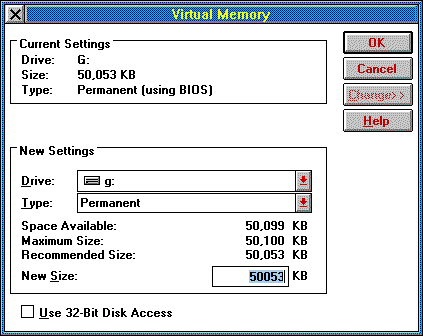
Virutal memory swap files should be made permanent and as large as possible. W31 will recommend 4 x's your installed memory size or one half the free space on the specified partition. W31 will not use more than one half of the partition size even if you type in larger numbers - this is an internal fail-safe you cannot defeat. This multiplier (default of 4) can be reset if you have the drive space. This setting can be found in the online commented INI files from the menu at the top of this page.
Click on Control Panel, find the icon for 386 Enhanced (as displayed), click on that icon. If this icon is not displayed in Control Panel you have loaded W31 in standard mode and must exit windows to the DOS command line. Restart in enhanced mode by typing "WIN.COM /3" and pressing the enter key.
Device contention is set to 4 seconds. This refers to idle time allowed before Windows will look to other tasks rather than wait for that device. I honestly don't recall how I derived the number 4 as optimal but it works and I never change it.
Scheduling of foreground as 150 and background as 50 has allowed me to download as many as four files simultaneously while continuing to browse the web even when I was using an 80386 at 33 mhz. I would recommend using these values.
Never check the Exclusive in Foreground setting. This stops all but the topmost windowed application stone dead. You don't want that.
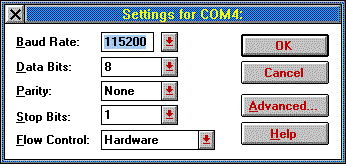
Minimum Timeslice - This is the absolute minimum time a task has to complete before windows will move to the next task. Your modem needs time to speak to the browser or terminal application. Never use a value less than 10 or you will get lockups and have to turn off the machine to reboot (a bad thing to do normally).
Click on the Virtual Memory button once the other setting are at the proper values for your hardware.