|
| how to add a custom av line to your ini file.. |
| ok if you followed the instructions on the previous page you should now have found your worlds ini file ,open it now by double clicking the ini icon.......and it should look something like this . |
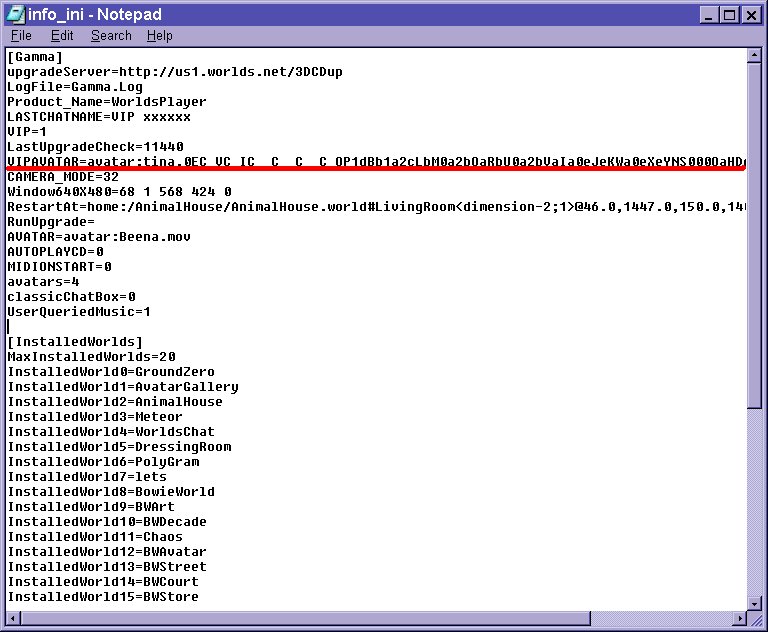 |
| the line we want to replace is the one
i have underlined in red i want you to delete that line out of your ini file and then copy and paste the new custom line into the space where it was |
| <-----start here and keep the left button pressed then drag the mouse along |
| [VIPAVATAR=avatar:axel.0EC__C_FC__C__C_QC__LbMbOaRbUbVaWeXeYIeJeKBbPeNS000QaHDgT2axelT3T2T1Q0f.rwg |
| untill everything u want to copy is hightlighted |
| when its all hightlighted right click the
mouse and then choose copy from the drop down menu and left click go to the ini file and find the place the line needs to go using the pic above as a reference |
| LASTCHATNAME=VIP xxxx VIP=1 LastUpgradeCheck=11482 [ <---left click here and choose paste from the drop down menu and right click it CAMERA_MODE=45 |
| right nearly there now just double check that all you have changed is the one line which started with VIPAVATAR= and that the new line has no breaks or spaces and its time to close and save the ini file...to activate the new line you need to teleport the easiest way is to make a mark in front of a mirror and just jump back into that |
| good luck |
| if something goes wrong here you need to
replace the ini file with the backup copy you made earlier by simply cutting
out the broken one and copy and pasting the new one in its place but if you have followed the instructions carefully you should now be wearing your new avatar |
|
|