Open Poser back up (this is at the bottom of your screen).
At the top of the Poser screen, look for the word "Render" and click on it. Choose "Materials" from the drop down menu.

You should now have a screen that looks like this:

Make sure that your object in the top left corner says "Figure2", then click on "Load" where it says "Texture Map".
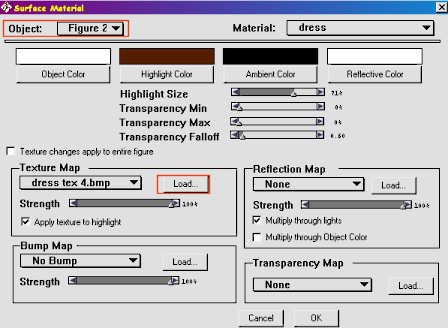
Now you will need to find the "DressTex1.bmp" image that you saved. When you find it, click on it to highlight it, then click "Open".
Your "Texture Map" should now have the correct file name in it. Click "OK".
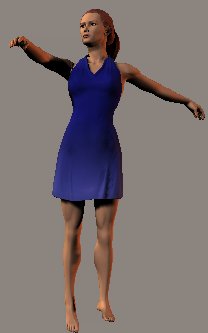
Click the word "Render" at the top of the page and select "Render" from the drop down menu.

At this point, if you do not like the way your dress texture looks, just go back into your paint program. Make another texture and save it, then just follow the steps starting with where you load your image.
Personally, this blue dress is a little boring to me so I'm going to change it. :)
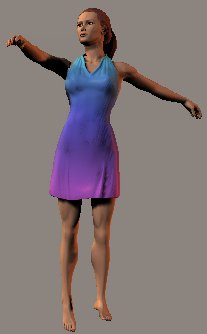
This is the same image with a black background and a light source added:

Back to the Tutorials

