

I'm using the same Tube that I used in my Copy & Paste Tutorial here.
You can click here to get there and download the Tube.
OK.....let's get started.
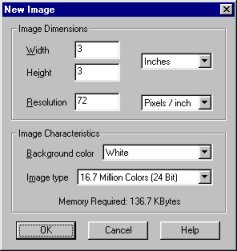
Open an image using these setting's.
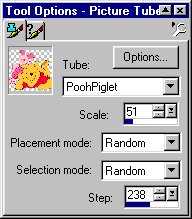
Choose the Tube you downloaded from your Tube's selection.
Use the following setting's.
Left click inside your new image...in the center.
Your image should look like this.

OK...now you need to add a new layer.
Scary huh?? *L* Not really...it's simpler than you think.
Click on your add new layer button like below.

Ok...a new box should have opened up that look's like the one below.
Click on the piece's of paper in the upper left corner

After you've clicked on the piece's of paper a new box should appear.
Don't worry about naming the new layer....just click OK.
After you've clicked OK....your Layer box should look like this.

Ok....just drag the Layer box to the side so you can work in your image frame now.
Left click on the blue bar at the top and drag it out of your way.
Now you need to choose the Background Color your going to want to use.
Click on your Dropper.
I chose the color from Piglet's face....as seen below in the top of the color selection box.

Now choose your Flood Fill and use the following tool option setting's.


Now flood fill the frame...it should look like this.

OOP'S!!!! No...all you need to do now is lighten it.
Going back over to your New Layer box, you need to
drag the slider over to this setting as below.

That little thingy is hard to get ahold of, but if you get your pointer on there
right it does drag. *L*
If you can see your frame...you'll see it lightening as you drag the bar over.
Your finished image should look like this.
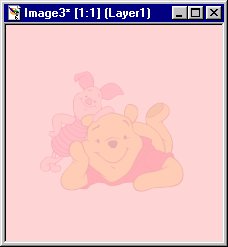
That's it....all you need to do now is save it (preferably as a jpg) and your done.
Click here to see it as a Background.
You can also use an image you already have.
A picture of something for instance....just open it up
and follow the step's instead of making your own image.
If you have any question feel free to Email Me.
Back to Main Tutorial Page
All image's and content Copyrighted
©1999,2000 Heather (Tilted Halo Grafx)
All Rights Reserved
