
Utilizing a Hotmail Account Lesson 2
Now that we have our new web based email account what can we do? What you should understand are the main sections of the Home directory or your account. This graphic shows a small outline for each of the 6 main areas we will be focusing, within the Hotmail web based email account.
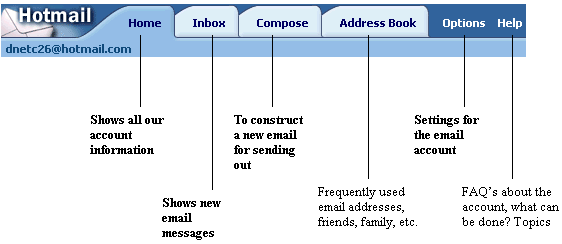
Home will allow us to monitor the entire elements within the email account. This would be a starting point when first logging into your account. It also allows you to see any new inbound messages, and offers a couple of Hyper-Links to additional features.
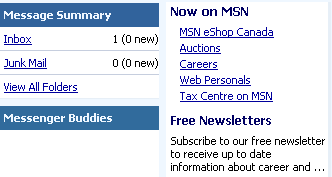
Next the Inbox will display how many messages new an old are held within our email account at any given time. Also with having a Hotmail account you would be able to access email messages from anywhere in the world, only have to have an Internet connection and a web browser.

Information related to email in the Inbox will be categorized under the following headings.
From, will depict who has sent an email massage to this account.
Subject, will display the email topic related to the message area content. This should always be used to give the user some idea of what the email and it's relation is hence Subject matter.
Date is the date for the arrival of the email message into the Inbox destination.
Size - this is an important item, sometimes overlooked. Why is it important? Hotmail has a restriction on the size of email messages that can be transferred to a Hotmail account. The size limit is 1MB (mega byte) in size. This restriction helps to cut down on transfer speeds dealing with email messages through the server. That is quite a lot of data to be sending as an email message with an attachment. Remember if the message takes 15 minutes to send, it will take 15 minutes to download.

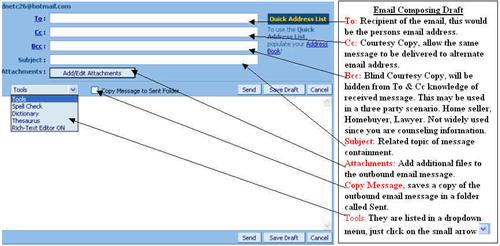
This next screen shot is a view of how an
email message under Composer should look when using a Hotmail account.  Click this tab to open the image outlined below.
Address Book will be the next feature we
will undertake with our new Hotmail account. Please click on  tab, to view the following screen.

We must now add a new entry into our address book. This is a database of email addresses and personal information related to entries within our book. There are only a couple of elements, which are associated to an entry in an Email Address Book. They are a Quick Name (alias) and the Email Address for the person you may send a message to from your Address Book. The other information is solely related to personal data about the individuals entry, name, address, phone number etc.
Since an Address Book is mainly a database of information related to family, friends and business associates it may take some time to enter say 100 entries with all the information this screen is asking us to fill out. This will be the difficult part, the easy part will be after all the information has been entered. So you must ask yourself, do I need all data fields to be filled in for all my Address Book entries? The answer is NO. Why? because only the Quick Name and email address will be used in association to sending an individual an email message from your Address Book entries.
Please do note the " * " are required fields
Here is an example of filling out a required data form for an entry in a Hotmail Address Book.
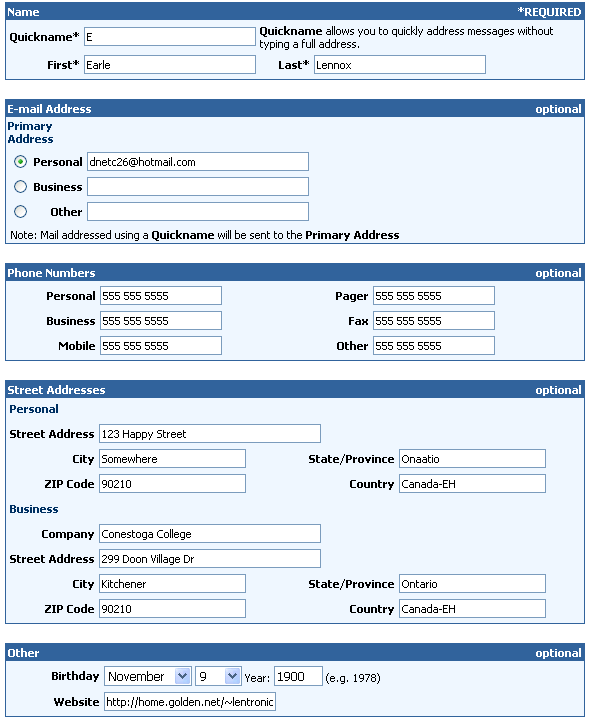
Only items from all that data information entered are as follows.

Utilizing your Options 3
Lesson1 
 Lesson3
