First thing is first, what is a File Server? Well File Server (fserve for short) is a way to transfer files over the very popular chat program called mirc. An fserve can be accessed through a dcc chat and will also send files through a dcc send.
First thing you must do in order to use a file server is go into our channel, you do this by running mirc, connecting to the server irc.dal.net (/server irc.dal.net) and when connected joining #dbz-foundation (/join #dbz-foundation). Or you can simply run mirc and click Here
Once there you will see ads being sent to the channel, or you can type "!list" and get a list of them sent to you, these ads will look like:
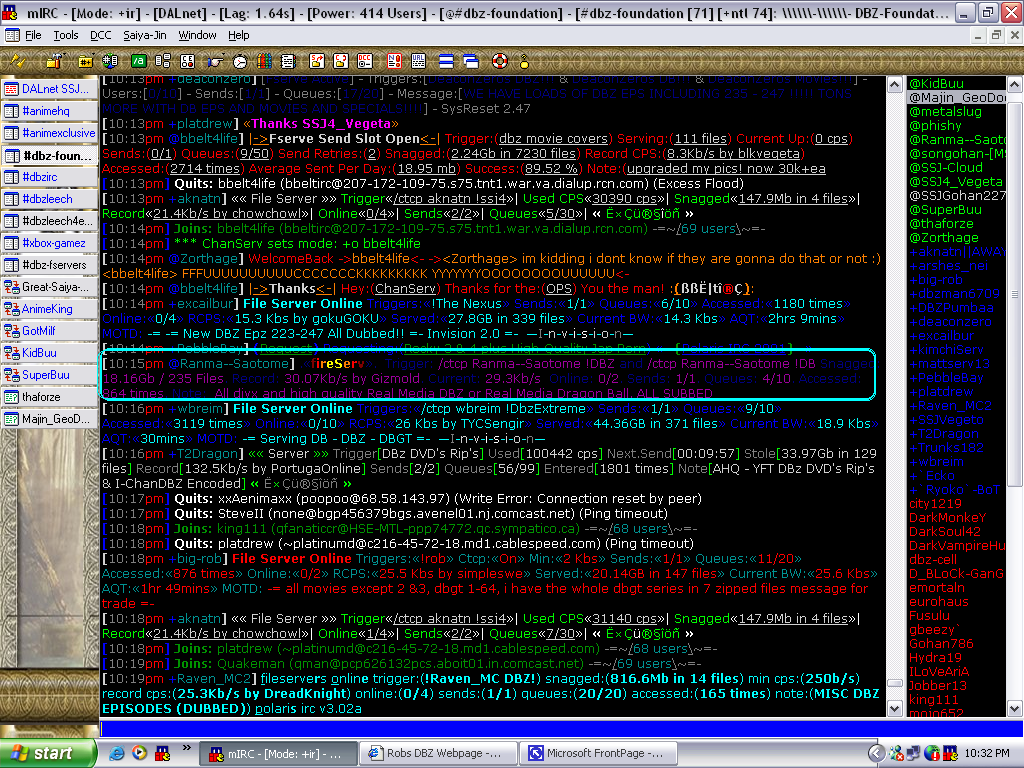
Look at the one ad circled, you will notice that it has 2 triggers used to get into its fserve.
The first one is: /ctcp Ranma--Saotome !DBZ
The second one is: /ctcp Ranma--Saotome !DB
Not all fserves have two triggers, and not every trigger is the same, 99% of the time each fserve ahs a different trigger, you can get a list of all the fserves of a channel by typing !list in the channel.
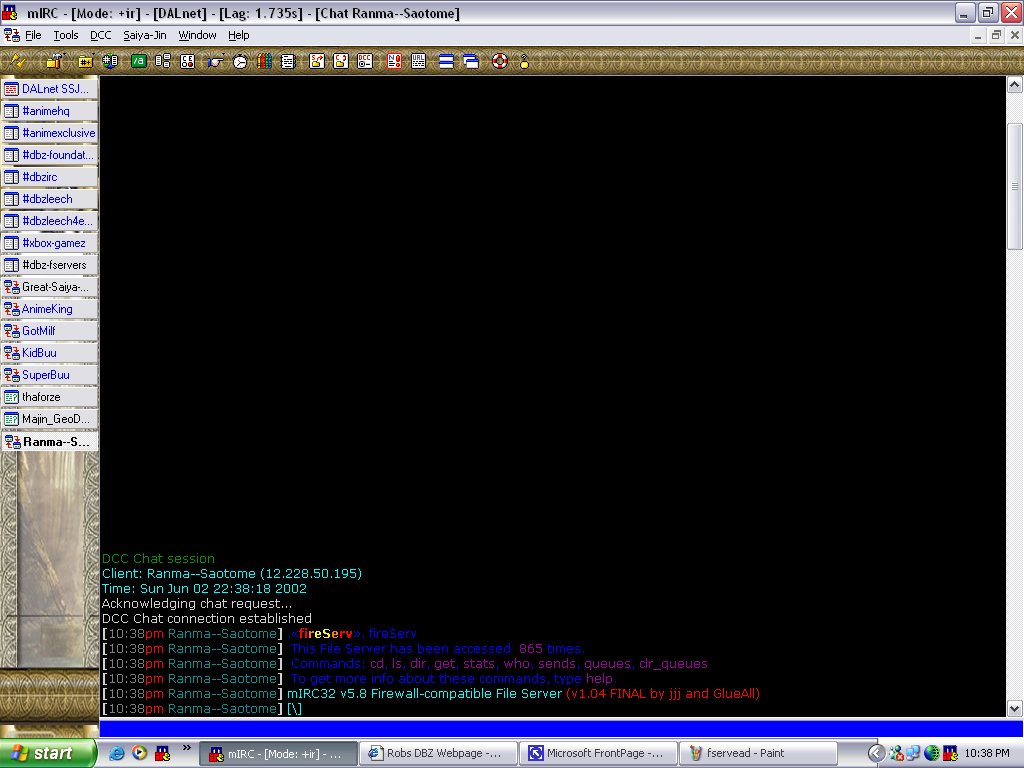
Now, when you type the trigger, a dcc send dialog box should pop up, asking if you want to accept or not, click accept. Once inside the fserve should give you a little basic information about it. Like commands and such.
Next you will want to get a list of the files inside of the fserve. To do this, you will need to type "dir" to get a list of the file in the current directory.
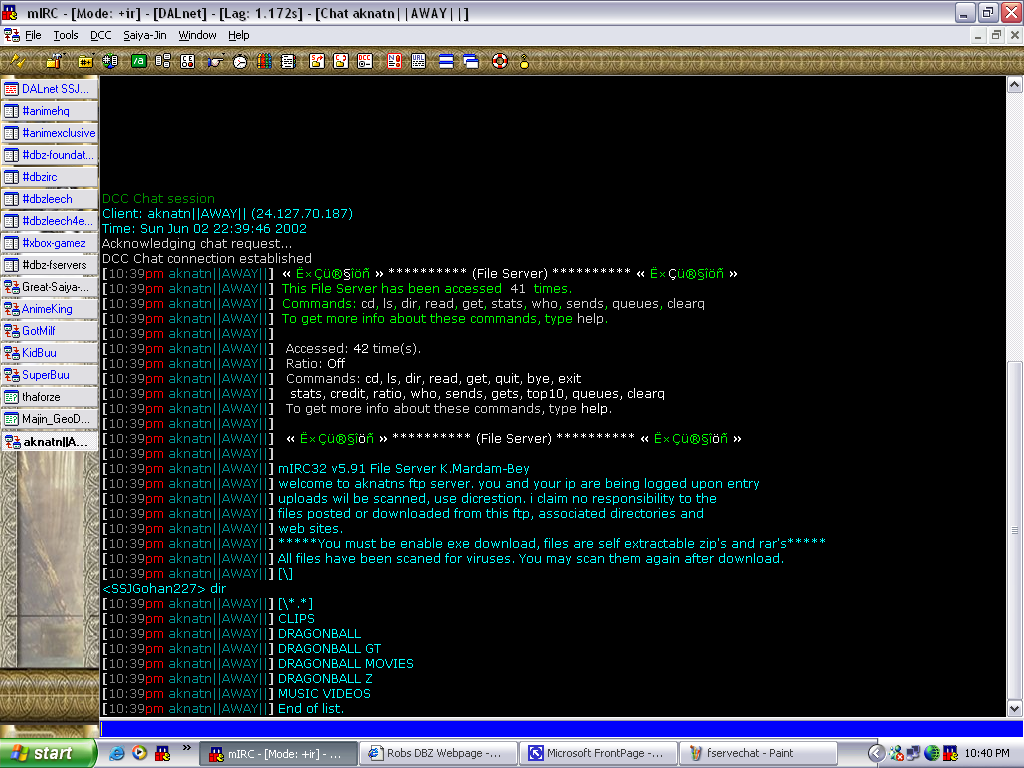
Now, as you see some of the files listed are in CAPS this mean there are more then one folder with files. To go to one of these folders you would type "cd <dir>" example "cd dragonball z". To get back to the main directory, type "cd.."
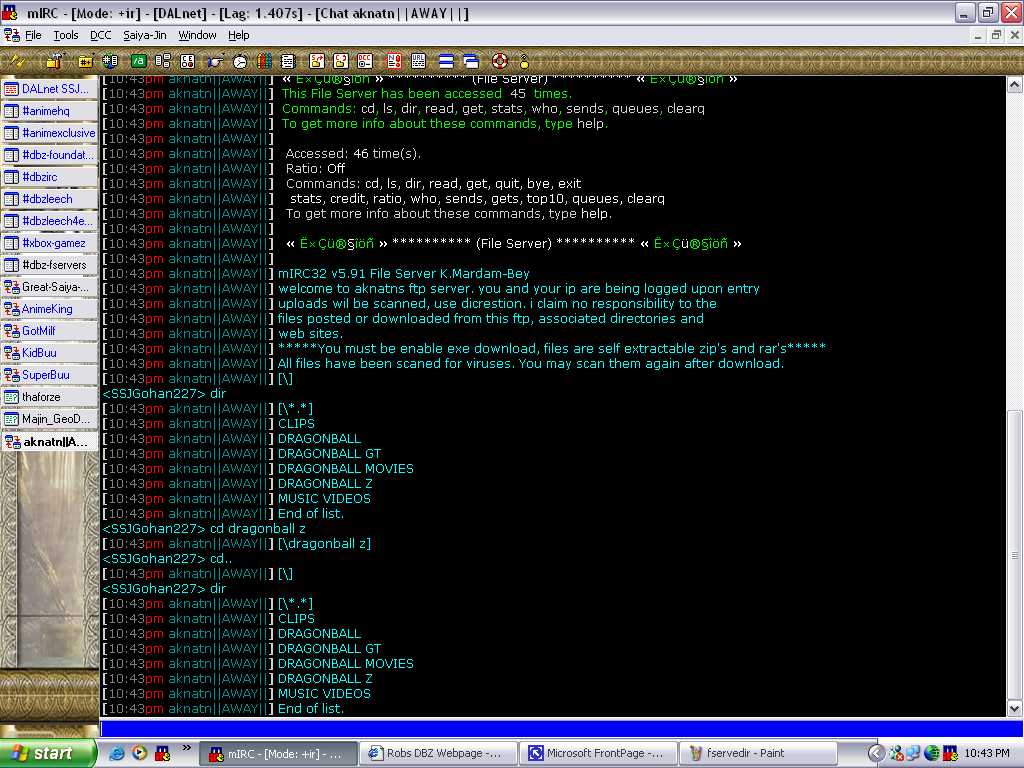
now when you find a file you want, you need to get that file right? To do this, you type "get <filename>" When you do this, if there are people who have sends going. It will put the file in a sort of line, called a queue, when your turn is up, the file will be sent. When the file is sent, you will get a dialog box, asking if you want to accept the file, click accept.
Then your done, the file is being downloaded.
** NOTE: If you going to download any .zip, .exe, .ini type files, you will need to dccallow the user that is sending the file to you or the file will be stopped by the server. "/dccallow +nick" i.e. "/dccallow +SSJGohan227"
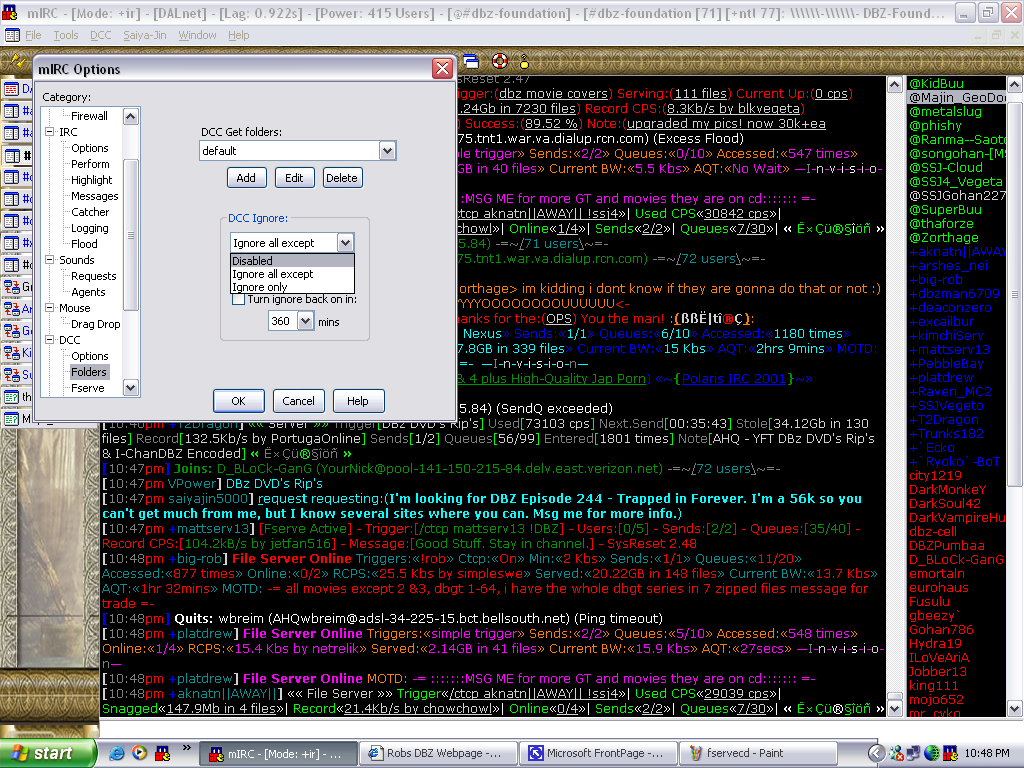
** NOTE: Before you download, you must set an option with mirc. You see mirc has a feature that can block certain file types and by default its set to ignore almost everything, you need to get into the mirc options, by pressing alt+o. You then need to go down to dcc, then to folders and disable it.