

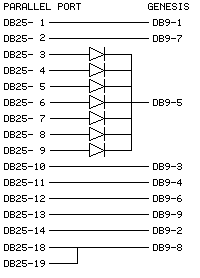
Here is the Sega Genesis interface. Note that
this interface currently doesn't function on all parallel port chipsets.
Newer chipsets may not allow using the 2 pins I use for UP/DOWN reading
as inputs. All diodes are standard signal (1N914) diodes:
Here is the software to run the controller on your computer.
Once you've got the interface built, it's time
to install the drivers so that Windows can communicate with it. Go to the
"Control Panels" window, and select the "Game Controllers" icon.
Select the "Add..." button in the Game Controllers
window, then select "Add Other..." and "Have Disk..." in the windows that
appear. Specify the path into which you've extracted the .ZIP file, and
hit OK.
Select "DirectPad Pro Controller" from the list (this version does not have individual drivers for each joystick type). You will then be returned to the "Add Game Controller" dialog. For the second time, select the "DirectPad Pro Controller" and you're almost done. If you're running a Dual-Shock controller and want force feedback, select the "DirectPad Pro Force Feedback Controller" from the listing, after performing the "Have Disk" operation.
Finally, double-click on the newly installed joystick.
Use the dialogs to configure to the proper interface and parallel port.
