
So you would like to start burning data on a cd. Well read on then.
Start by opening easy cd creater. Something like this should pop up:

Then click where it says data, pointed out by the blue arrow, and you should then get a screen that looks something like this:
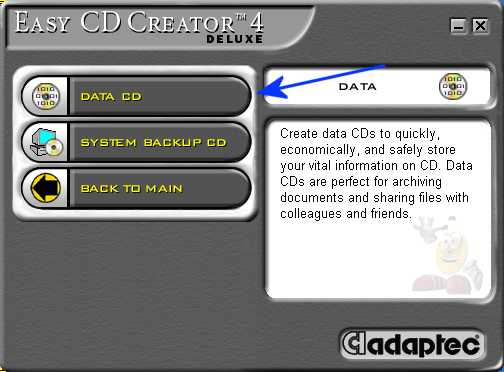
When that is up click where it says data cd, pointed out by the blue arrow. Now another screen should pop up. It will look like this:
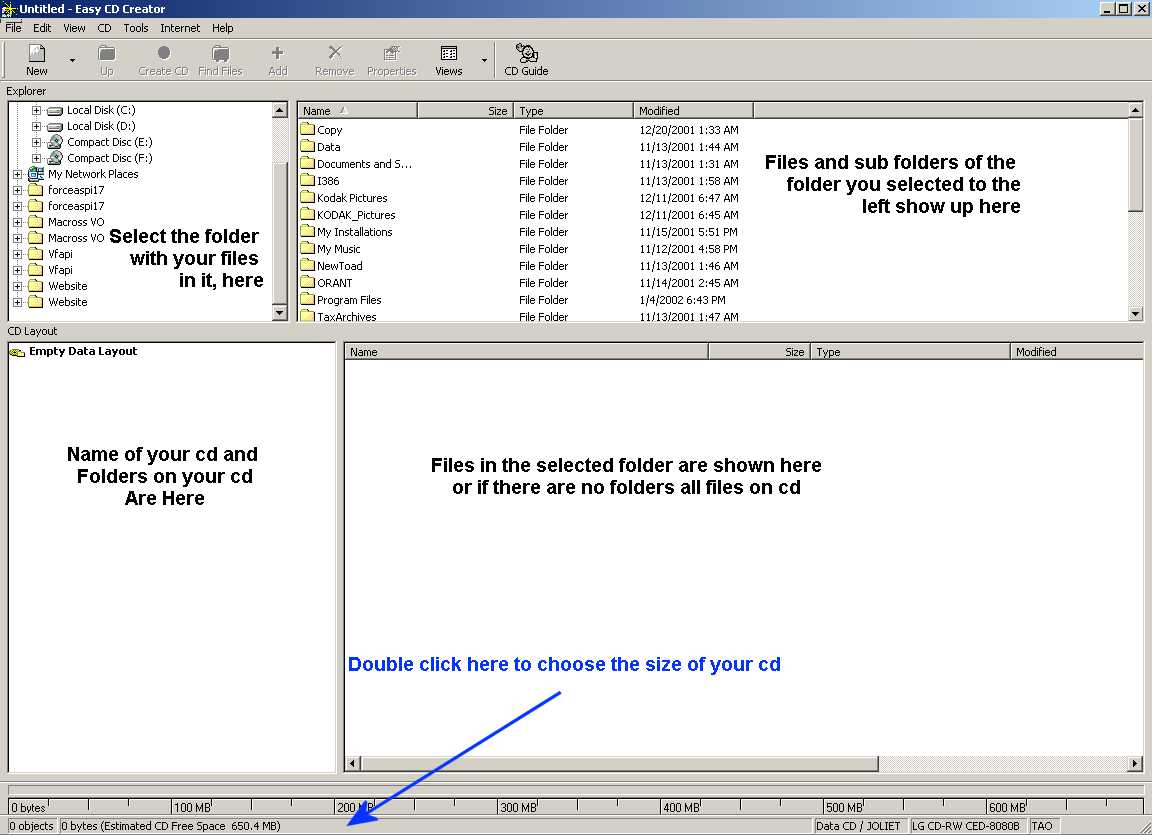
All the details are shown already on the picture. Go to the folder which has all your files in it and select files in the upper right hand box so they will look something like this:
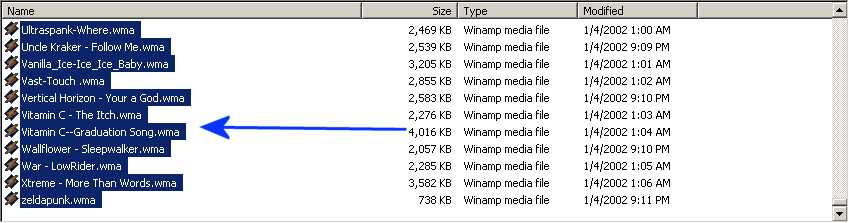
Pointed out by the blue arrow, click on the highlighted text, in the area that is blue, and hold down the left mouse button and drag them into the bottom right area. It will look something like this, when your done:
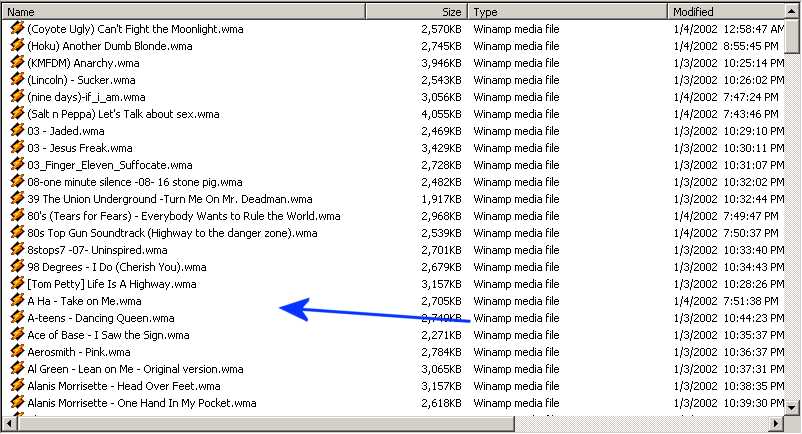
Now go to the lower left hand box and right-click on the name of the cd and click rename. It will look something like this:

Then type in a name that you would want to name the cd as. Like Music Cd if it was going to be a mp3 cd or something.
Now that you have all your files selected that you want on the cd click the create cd button. Shown here:

Then a dialog should pop up that looks like this(If you don't click the Advanced button, pointed out by the green arrow):
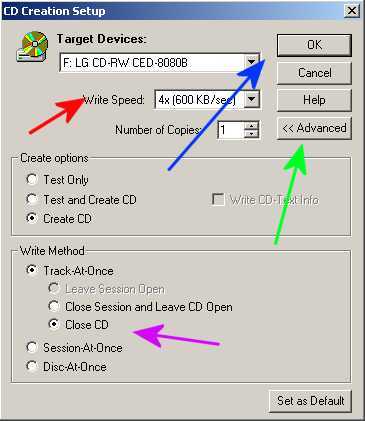
First off select your cd burner that you want to use in the drop down box under Target Devices: Where the red arrow is pointing. Then choose write speed and number of copies in the same area.
Second under Create Options: Test Only is for seeing if your files will burn correctly at your present settings; Test and Create CD tests the cd first if that works then it burns the cd; Create CD just burns the disk immediatly, which is the quickest to get it done but most risky.
Third under Write Method, where the purple arrow is, You can choose how to burn the cd: Track at once burns a single track of one session and under that you can choose wether to leave the session open, which lets you burn more in that session; Close Session and Leave CD Open, which closes that session of burning the cd but lets you write more on that cd latter; Close CD, which closses the cd allowing no more burning on the cd. Session-At-Once burns that entire session at one time, and Disk-At-Once burns the entire disk at one time and closes the cd. The last two options don't work on some burners, namely mine. So if you are having problems change to track at once and burn it that way.
With all your options set how you want them click ok, shown by the blue arrow, and this screen will pop up if you have a cd-rw in the drive:
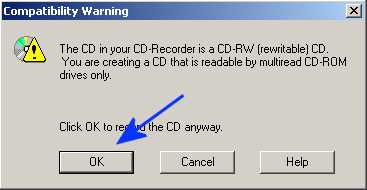
This is just a warning that you have a cd-rw in the drive, incase you didn't know. Just click ok, pointed out by the blue arrow and go on with the burning. The next screen that will show up will be this:
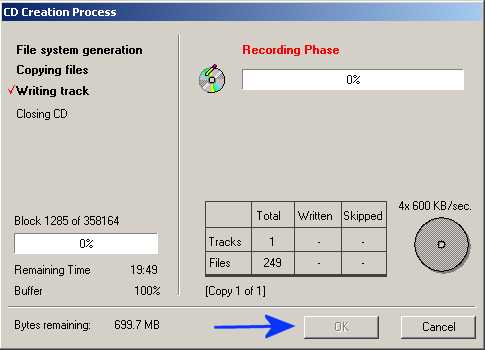
This is what will come up for your test/test and burn/just burn option you selected. The ammount of time it will take depends on how much you put on it and how fast you are burning it at. While burning I sudjest you just leave your computer sit so you don't accidently screw up the burning and ruin a good cd-r disk, if it was a cd-rw you can erase it and if you want to learn how to do that click here.
If you have something on your cd-rw that you don't want or if you just want to put some new stuff rather than keep the old stuff on your cd-rw. You have to erase it. So while in your data cd screen click the CD menu and on the sub-menu select Erase CD, pointed out by the blue arrow on the following:

After you do that the following screen should pop up:

Pointed out by the red arrow, The two different types of erasings. Quick Erase DOES NOT erase all of the data on the cd-rw, it just deletes the header file so the computer does not know what is on the cd, but when you burn it again the cd-burner will just burn over everything anyway so it is pretty much a blank cd. The second option Full Erase, erases everything on the cd, it takes a lot longer than the quick erase and it is pretty much like burning a completely new cd again. So you can pick whichever one you want then when you have selected the right one click Start pointed out by the Blue arrow and leave your computer while your cd-rw is being erased.
