
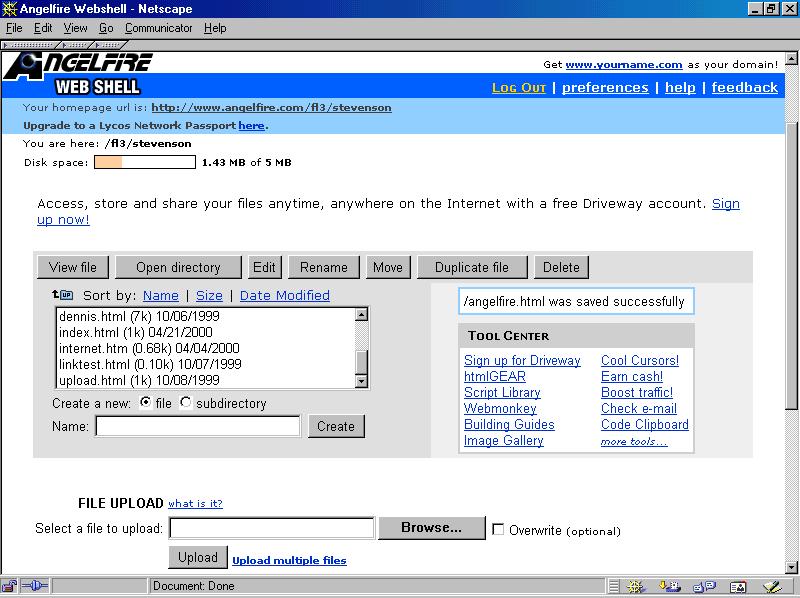
To upload your index file, click the BROWSE button next to text box labeled "File Upload". Find the file you wish to upload, then click the UPLOAD button to the right of the BROWSE button. At this point select "index.html" and press the VIEW button. This will allow you to see your page.
If you have several files to upload select "Upload Multiple files" and follow the same procdure for each file up to a total of ten at once.
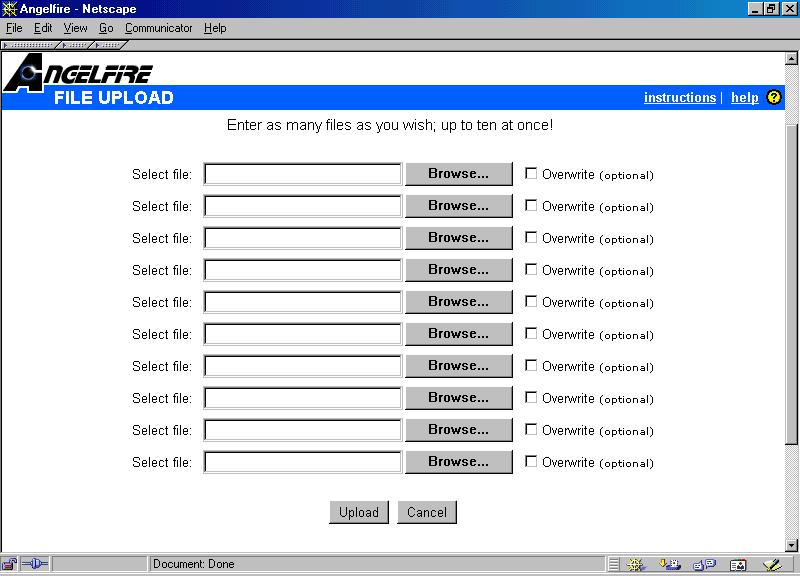
Please be aware that in order to properly display you files, you must
first upload any and all graphics necessary for the construction of your pages.
If you have a file with the name "car.jpg", then you need to upload that image
to your angelfire or other web account. At this point, you will need to literally
reference your images and other pages.
Example:
Your angelfire account is as follows,
"https://www.angelfire.com/fl3/bobspages"
and you have a graphic called "car.jpg".
To create an image link you will need to use the following information in the
image tag:
<img src="https://www.angelfire.com/fl3/bobspages/images/car.jpg">
You do not want to reference in this way:
<img src="car.jpg">
