
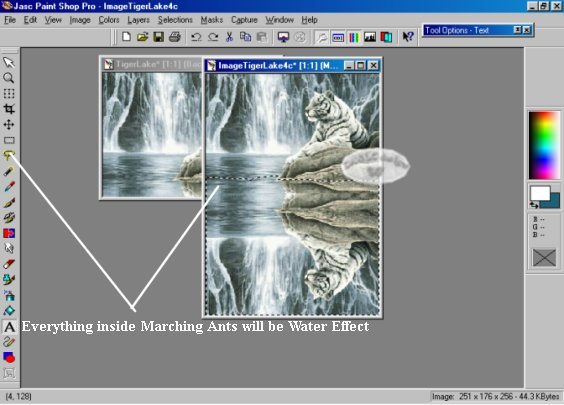
Now select your Free Hand Tool. Select
the area you want to look like rippling water. You may go outside the Image to make sure
you are getting all areas of the bottom of the Image included.
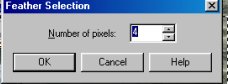
When your done go to Modify>Feather>4
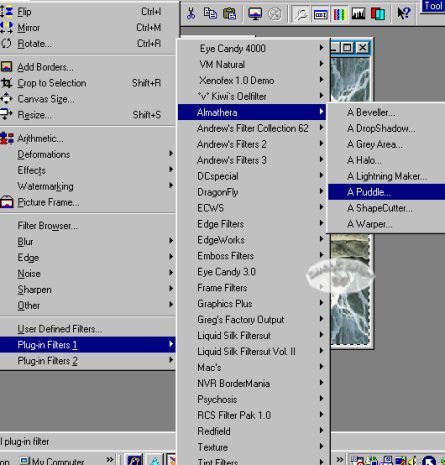
With your selected area go to Image>Plung In Filters>Puddle, Use the setting below
when this screen comes up.
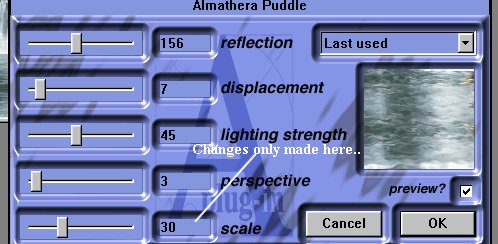
For this Tut we are only going to be changing the Scale from step to step. You may have to
change the others to match above Graphic each time but Scale will change from each use.
When all numbers match the Graphic above choose OK. Now File>Save As>Image1.psp Make
sure you keep this as a psp image file.
Now go to Edit>Undo Puddle so you go back to your original selection Image.
Repeat the Process 2 more times being sure to check that your Puddle Screen matches the
one above..we will only be changing the scale. The 2nd Graphic will be changed to 35 Scale
and the 3rd Graphic will be changed to 40 Scale. Save Image2.psp and the 3rd as
Image3.psp,
Now Open Animation Shop and choose Wizard.
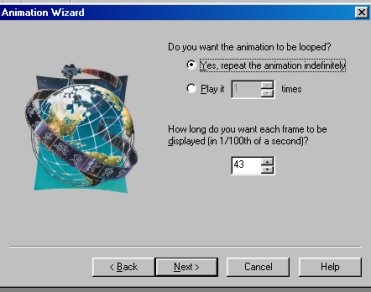
Set your speed at 43. Bring your 3 images into the Animation Wizard. Click on Next when
you are done adding. Go to View>Animation and make sure the speed and order addition is
good..if so File>Save As>the name you choose...you are done.
All Tutorials and Graphics on this site ©byDiana/Laura 2000 do not use without permission.
