
TEXT on a Curve
FILE>NEW image at 400 Width 400 Height, we will want a little room to learn how to do this Tutorial. Make your Image any color and save that color as a "CUSTOM COLOR". We are going to use the background color for a circle and line we will be drawing so that it appears invisible.
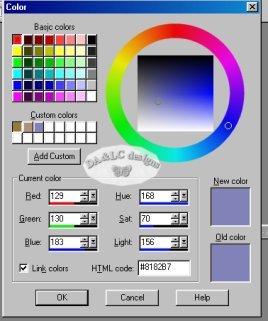
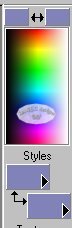
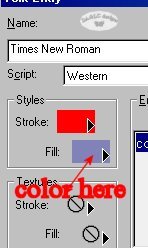
If you would like to use the same exact colors I use fill in the bottom "Current Color" boxes with the same numbers. The color of your line will be decided by what color you have selected in the "Fill" for your Text. So click on your graphic and when the Text Box opens choose your Custom Color then hit cancel. With our new background image on our desktop and both our foreground and background colors the same we will click on our "Draw Tool". For the Tutorial I will have my "Fill" set to the color Black so you can see what I am doing. If you would feel more comfortable doing the same the first time go ahead.
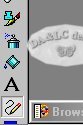
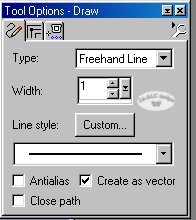
Once you click on your "Draw Tool" go to your "Tool Options" box. Choose Type as Freehand Line, Width 1, and check only Create as Vector...no other boxes should be checked.
Go to your Background Image and draw a wavy line. Once done a box will form around the line.
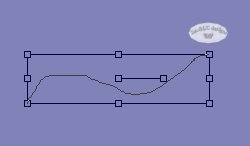
If you are using the same color as your background with your "Draw Tool" you will not be able to see the line only the box. For your next step click on your "Text Tool". Place your cursor over the line you just drew, notice how different your text tool looks? I can't get an image to show you how your "Text Tool" icon will change but do not left click on your image until you see an A with a curved line underneath. This icon is slightly different from your normal "Text Tool" icon. Once you see it then click on your page.
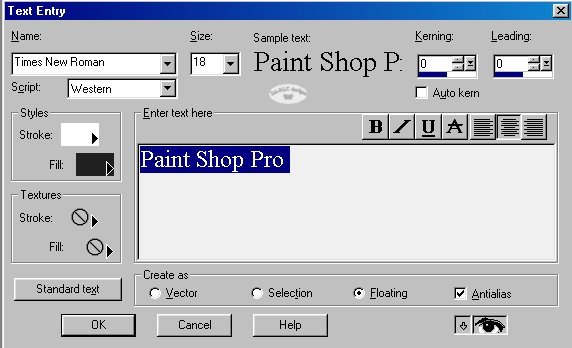
Make sure you have Floating and Antialias checked. And make sure you are NOT using the same colors for your Text as you did for your background or "Draw Tool". Click OK and if you did everything correctly your image should look like this minus the line.

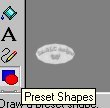
Now lets try the same thing with a circle. Go to your "Preset Shapes Tool"
.
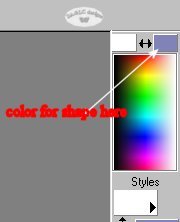
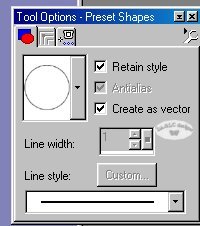
You may use any shape you like but for this Tutorial lets use the Circle. You can make your choices in your Tool Options. I chose to use black for this tutorial but if you want the circle invisible use your graphics color. The "Preset Tool" Sets the color for the shape from the background color..
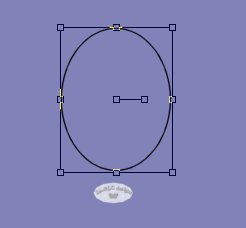
If you have chosen to make your circle the same color as your background you will only see the box.
Left click on your "Text Tool", place it over your image, wait to see the A with a curve underline then left click.


All Tutorials and Graphics on this site ©byDiana/Laura 2000 do not use without permission.
