
Snow Globe & Animation Shop
With this Tutorial I have decided to use the "Water Drop Tube" using the Tube Tool. I have enclosed a Star Tube for those who want a gittler effect. To use the Star you would copy and paste to each Image and not use the Tube Tool. As best you can put your 3 Images side by side on your PSP Desktop, I could only fit 2 side by side. Click on your Tube Tool and select your Water Drop Tube.
In your Tool Options Box you will want to choose RANDOM setting so we get different sizes and shapes of drops.
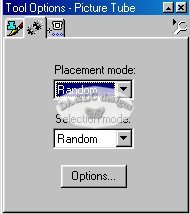
Next we will want to resize our Water Drops in the Tool Options Box until we get a size we feel goes best with the Snowglobe.
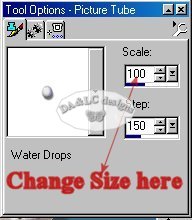
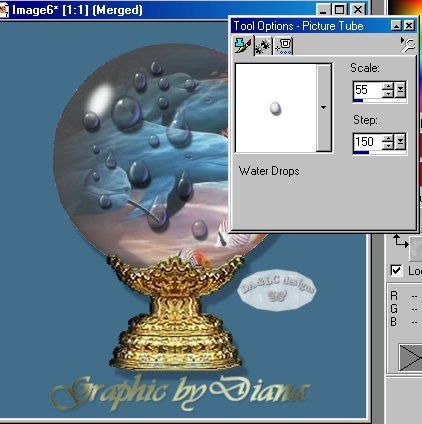
Once you get the size you want EDIT>COMAND HISTORY and undo all your practice drops.
Add Drops to each one of your Images making sure they are random and keep around the same amount of Drops on each Image.
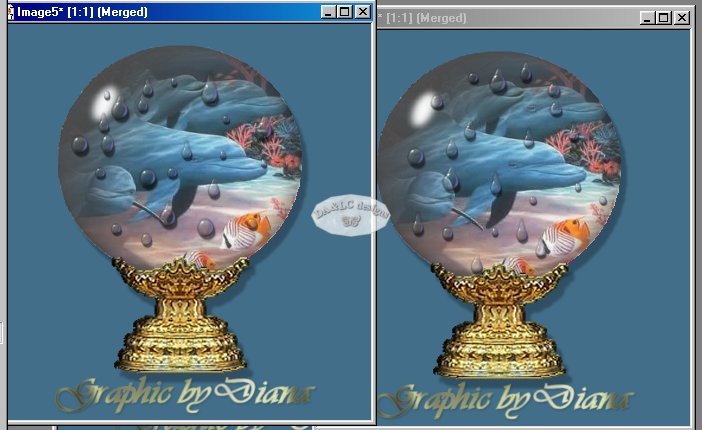
Once done SAVE AS>name of your choice...(remember the names of your IMAGES) and keep the psp extention.
Open Aninimation shop FILE>Jasc Software>Launch Animation Shop.
Go to FILE>Animation Wizard.
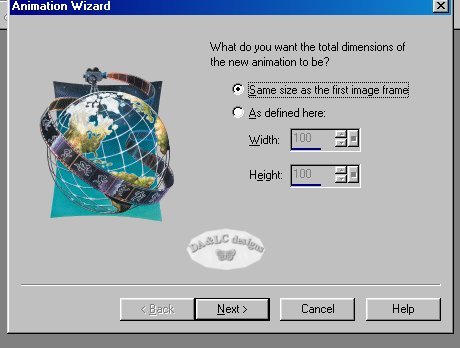
A box will pop up, In the first step we chose not to have our animation larger than the frame so we need to make no choices on the background. Either Opaque or Transparent will be fine. Left click on NEXT>
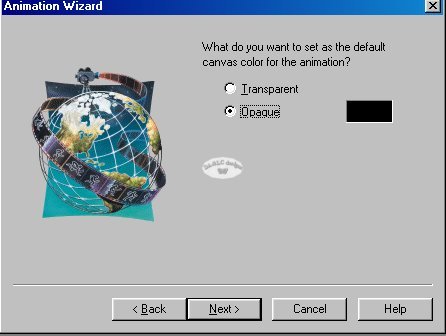
another box will pop up..because our animation will be the same size as the graphic we don't have to worry about what setting we choose...just left click on NEXT>
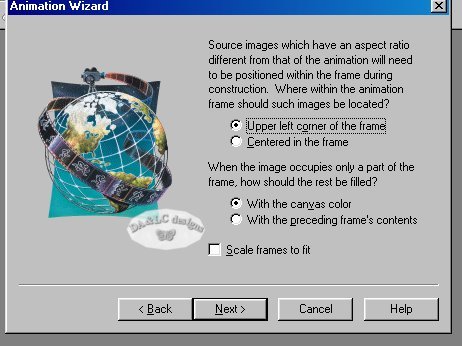
another box will pop up..we will choose to Repeat our animation indefinitely. We will also choose to have our frames show for 10/100 of a second. If you do not like the speed of your animation after it is done you can change it in ANIMATION SHOP later. Left click on NEXT>

another box will pop up...Left click on ADD IMAGE...browse to your desktop and add each Image we saved. Left Click NEXT>
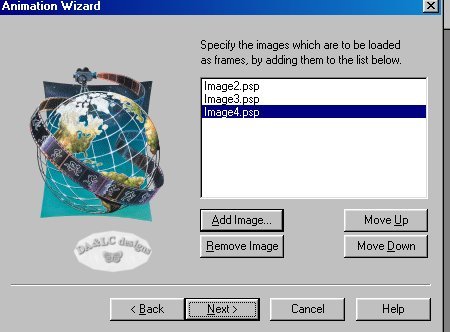
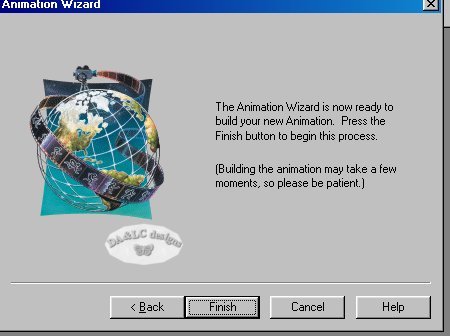
another box will pop up and left click on FINISH>
Your Animation Shop Desktop should look like this.
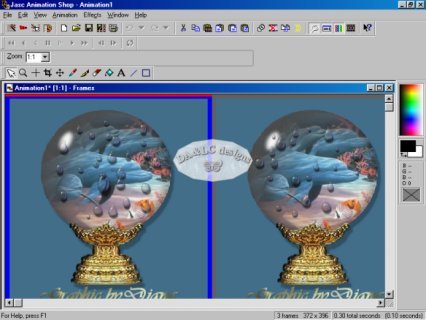
On your Toolbar go to VIEW>ANIMATION. A screen will pop up with your new moving animation. If you like it go to FILE>SAVE AS the name of your choice (leave the extension as GIF) and accept all choices and your done.
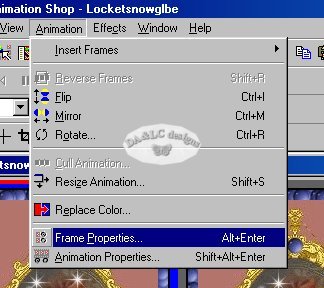
If you do not like the speed of your animation before SAVING AS go to ANIMATION>FRAME PROPERTIES
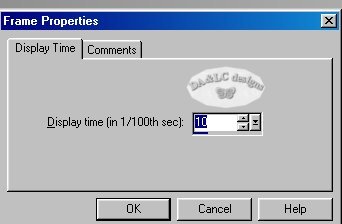
a box will pop up and you can change your speed there.

We are not limited to the amount of frames we put in BUT we must always keep in mind the end file size because of loading time and emailing the graphic, so I choose to keep mine as small as possible. Some servers and/or email programs restrict the sizes of files their members are allowed to receive through emails and you do not want to make it so big it can't be delivered. Also I have received emails through AOL with huge Animation's that took forever to load... I deleted the emails without ever seeing the graphics because I got tired of waiting...don't let that happen to your hard work.
All Tutorials and Graphics on this site ©byDiana/Laura 2000 do not use without permission.
