

Downloading 'stuff' is the FUN part of the Internet This is how you get all those fun things, useful things and funny things onto your computer (Including viruses - great fun!)
If you do not currently have an active updated anti virus program running on your computer go immediately to Tutorial 5 - (Do not pass go, do not stop and peek, do not dawdle at all.)
Sounds terrifying to some, but actually it's one of the easiest things to do.
There are many different ways to download from the net. Some files are offered for you to download, others are simply there and you can save them (like a photo you like) and others you have to look for (like a background).
Downloading is the process of saving anything from another computer (in this case the Internet which is millions of linked computers) onto YOUR computer
Before downloading anything I recommend making a new folder on one of your hard drives (if you have more than one I'd put it anywhere but on C drive). Call it Download. Make sure to save all downloaded files into this directory and you'll save hours of searching for strangely named files in obscure places ;-)
First, select the file you want.
Some files have a download button. Click it
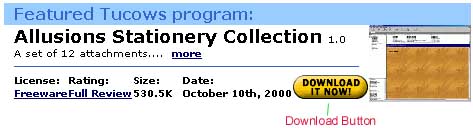
Some have a download link. Click it.

Some files will be just a link. In that case right click on the link and select Save Target As...

Internet Explorer will then ask the following:

I suggest you tick the
"Always ask before opening this type of file " option whenever you
get the chance. That way you get a choice each time.
(The kinds of files you might want to run from their location
are probably images, wav sounds, and mpg or avi videos)
Choose Save this program to a disk if you want a copy on your computer. (By disk it means anywhere on your hard drive, not just to floppies. Many programs these days are far too big to fit on a floppy disk, and it is much slower, so save to the hard drive first, then if you want it on a floppy for some reason copy the completed file there afterwards.)
Netscape won't ask, it jumps straight to the window below.

Watch where you are saving the file to. I suggest you save it to your Download directory rather than letting the program bury it where it wants like above.
Once you've selected a folder, and given the file a name (or accepted the one it suggests) Click save and the file will download to your computer. When it's finished Internet Explorer will show something like this.
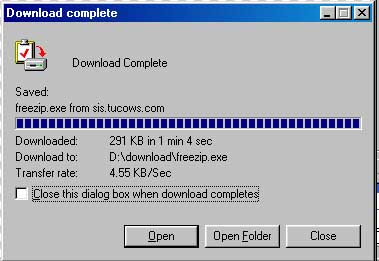
Netscape doesn't notify you of a complete download like above. You need to remember where you saved the file to, go there in windows explorer and open the file.
With Internet Explorer, you can simply click open.
Done! Simple isn't it :)
If you'd like to read a web page in more detail at your leisure (even when you aren't connected to the Internet) it is easy to save it to your hard drive so you can access it off-line.
Open the web page you want.
Go to the File menu and select Save Page As...
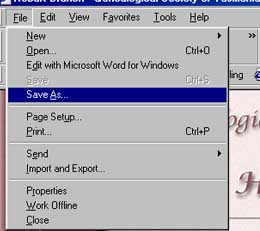
A file dialogue box will pop up. Find the folder you want to store the page in and select save.
This will save an html file that will open later in your browser. It will also store a new folder named the same as the file. The folder contains the images and other attachments that were on the page. If you move either the file or the folder to a new location you must move the other as well.
To open the file either:
In your browser: Go to File and select open, then browse the folders until you find the required file
or
In Windows Explorer go to the folder and click on the file (.htm or .html) to open the browser window and display the page.
NOTE: This will only save the page you can see. When you view it off-line if you click on any link you will get a cannot connect error.
If the web page has links to more pages that you want to save there is a quicker way than opening each page and saving.
 For example - say you wanted to save all the tutorials on this site.
First you would go to the tutorial index page and save it as above.
Then Right click on the link to Tutorial 1. Select Save Target As.
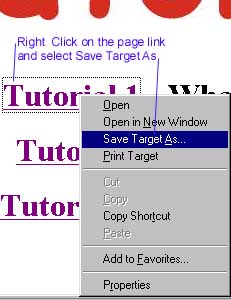
Save it to the same folder as the index page.
Repeat this with the other links you want to keep.
When you later open the Tutorial Index page you can click on the tutorials and move back and forth between them, just as if you were online.
If you only need to keep some of what is said on a web page you can copy and paste it into a notepad, word, wordpad or word processor file.
Note: If you want to save text and pictures you will need an advanced word processor like Works, Word, Ami Pro etc. Notepad however will efficiently save just text.
Highlight a couple of lines of text above this line.
Right click on the highlighted text and select copy.
Open Notepad (start menu > Programs > Accessories >Notepad)
Paste the text into the notepad and save with an appropriate name in the folder of your choice.
You can also highlight and print part of a web page in some browsers (depending on the format of the page and the browser)
Highlight some of the page and go to the File menu > Print.
Click the Selection box if it is available, otherwise you will need to specify a page number to cut down the print.
When you see a photo, graphic, animated gif, or any image that you like on the web (except on a few protected sites) you can save a copy to your hard drive for later viewing.
Let the item load completely. Then right click on the picture and select Save Picture As...

Select the folder to save the picture to (it may be a good idea to always save images to My pictures in My documents or some other specific folder so you aren't searching everywhere for that perfect .gif later on).
Look carefully at what the default name of the image is before you click the save button. Saving a file called 234.jpg isn't nearly as enlightening as if you take the few seconds to give it a file name like TrinityChurch.jpg before saving it.
To save a background image from a web page Right click on the background and select Save background As... and choose the folder and name. Click Save.

When files get large they not only take up more space but they take longer to send and receive across the Internet Many such files or collections of files are compressed by special programs and sent as "zip archives". ( xxxx.zip )
Zip files can be opened by many programs designed for that purpose. If you have Win Zip(it comes with a variety of programs) then you don't need the following. However if you find Win Zip complicated, or too expensive you might consider the freeware program Free Zip.
Free Zip incorporates itself into Windows Explorer and allows you to manipulate and view zipped files without opening another program.
To download Free Zip
To open a zip file that you have downloaded, copy or move it into it's own folder then double click it in the folder. Free Zip will automatically extract the contents of the archive into the folder. Once a zip archive is extracted (opened) then you can treat the files just like any other file.
Back to the Tutorials
