

I don't want to reinvent the wheel here so if you are really
new to computers
please visit these sites for the very basic
mouse movements, scrolling, hyperlinks etc.
Grand Island Public Library Tutorials
The cursor is what moves on the screen when you move the mouse. It is often an arrow. When it moves to a space you can type in, it might change to an upright line. When it goes over a hyperlink it will change to a little hand to show you can click there.
Generally you need to double click to open a program, operate an icon or select something and single click to highlight something. There are a few exceptions - icons in the Quick Launch Bar only need single clicks. You might also have your desktop set to act like a web page in which case icons will appear as links and only need single clicks.
Mice usually have 2 buttons (if it has three ignore the centre button.)
Most Windows 95+ programs have functions triggered by the right click. It is worth experimenting in various programs like Word etc to see what a right click does.
The general rule is that a right click will bring up a menu of options.
Left click is used to select a choice
 Right Click in
this window (brings up a menu). Left Click to select refresh (will reload the
page)
Right Click in
this window (brings up a menu). Left Click to select refresh (will reload the
page)

To highlight an item in a menu or document you need to either pass the cursor over it, or click it with the cursor or click and drag.
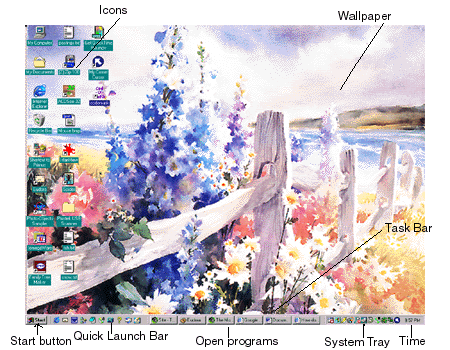
The desktop is the area you can see on your monitor when Windows is open.
So called because like your workdesk you can have layers of things open upon it. With most computers it is possible to have several programs open at once. Each program opens a window. Windows can be layered on the desktop. Sometimes they can be hidden behind another window. If a window is maximised it usually covers all the desktop except the task bar.
The wallpaper is the background of your desktop. Often the default is plain
green.
Any .bmp format picture placed in the C:\Windows directory can become your wallpaper.
Small images can be tiled to fill the screen, or a larger image can be centered. Some images can be stretched to fill the screen. Choose tile, stretch or centre from the drop down menu on the bottom left of the backgrounds screen.

Right Click on the desktop (anywhere where there isn't an icon or open window.)
Left Click 'Properties'
This opens the Display Properties Box. Click the backgrounds tab. Select the image you wish to use.(Any bmp image copied into the Windows folder will appear in this list.) For more wallpaper files see the links page)
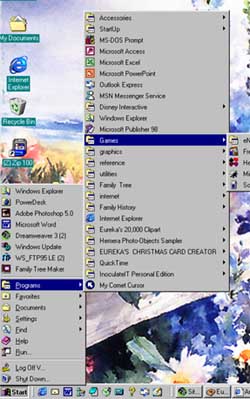
The start menu appears when you click on the start button on the taskbar or on the windows button on the keyboard.99% of the programs you install will add themselves to the start menu. So if you install a new program and can't figure out how to open it, look on the start menu first
 Use
the start menu to open a program
Use
the start menu to open a program
Click the start button. Click Programs. Click Accessories. Click Notepad. (Gee that was easy wasn't it ;)
Icons are the pictures that represent programs on task bars and on the desktop. Double click an icon to launch the program.
There are two types of icon. Those that are represent something which is stored on the desktop, and those which are shortcuts - a link to the program or file which is stored somewhere else on the computer.
You can tell shortcuts by the small arrow in the corner of the icon. (it is possible to remove this with some programs, but most people don't)

If you delete the icon for the snow.txt then you would lose the file as it is stored on the desktop.
Spider is however just a shortcut to a program that is stored elsewhere on the computer. You could delete the icon from the desktop without affecting the program.

Title bars appear at the top of any open window.
Depending upon your settings they are usually brightly coloured when active
- which means they are the front window, and duller when inactive - which means
that they are behind other windows.
The minimise / maximise and close buttons are very important. Look at this window. If the middle button (maximise/restore) has two little squares in it then this window is maximised - that is it's as large as it can be and you can't see any other windows behind it.
If it shows only one square in the middle button then you should be able to see the edges of the window and adjust the size.
Click the maximise
restore button until it shows one square. Now go to any edge of the window and
put the cursor over it until it changes to a double headed arrow. Click and
drag it to resize the window.
Click the minimise
button. Now you can see any window open behind it, or the wallpaper. To show
the window again click it's button on the task bar (see below)

This is the bar that appears either along the bottom, top or side of the desktop. It contains the start button, the system tray (where the clock is) and shows the open windows as buttons on the task bar. You can use the task bar to quickly go to any window without having to search.
Look at the title
bar of this window (probably internet explorer or Netscape.) Now look at the
task bar - one of the buttons there should look the same as the beginning of
the title bar. Click it. This window will minimise (that is it will disappear
onto the task bar. Click the button again and it will pop back up to where you
had it.
The three most important skills - you can cut copy and paste everything from images to files, documents to words.
When you copy or cut something you place it on the clipboard. When you paste, the last image the clipboard received is pasted.
There are several ways to cut, copy or paste. Learn all of them, they each have their own applications.
To practice bring up a notepad window and type in a few words.
Right
mouse button technique Highlight a word.
Right click with cursor on the highlighted part.
left click to select copy
Move the cursor somewhere else and click in the document
right click, and select paste.
If you select paste a second time it will repeat the same word.
Repeat the same routine but select cut instead of copy. Cut will actually remove the selected item from the document.
Keyboard
techniqueHighlight a word.
Press the ctrl (Control) key (and hold), then the 'c' key. (Copy) (This shortcut is written Ctrl+C))
Move to somewhere else in the document and click.
Then press and hold Ctrl then 'v' (Paste) (Ctrl+V)
To cut instead of copy press Ctrl and 'x' (Ctrl+X)
Menu
techniqueHighlight a word
Go to the edit menu at the top of the window and click
Select copy
Go to a different place in the document and click
Then click Edit again and select Paste
To cut select Cut instead of copy.
Deleting something is as easy as selecting it and hitting the delete or backspace buttons.
Delete erases the letters or spaces ahead of the cursor.
Backspace erases the spaces and characters behind the cursor.
You can also select something and right click on it and choose delete.
Back to the Tutorials
