
| Creating a bootable Windows XP SP1 CD (Easy CD Creator) |
|---|
| You will need the following items: 1.) A copy of the original Windows XP CD or ISO 2.) The latest version SP1 (currently in Beta, only) ~132MB 3.) The boot file which you can download here (bootfiles.zip / 1.07KB) 4.) CD Recording Software (Roxio Easy CD Creator Platinum v5.32 was used in this example) Created a folder called XP on your hard drive (C: is used in this example). A minimum of 800MB is required. In this folder create three sub-folder called CD-ROOT, XP-BOOT, and XP-SP1. The end result will look something like the following image. 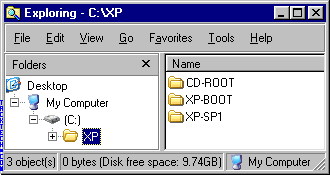 Copy the entire Windows XP CD (or extract the ISO) into folder CD-ROOT. Copy your Service Pack 1 file into C:\XP Rename the Service Pack file to XP-SP1.EXE Extract the Service Pack from the Run Dialog using the command: C:\XP\XP-SP1.EXE -U -X:C:\XP\XP-SP1 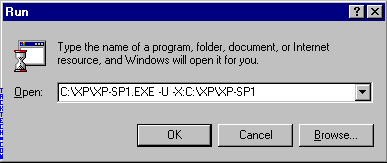 Apply the Service Pack 1 to the Windows XP in CD-ROOT using the following command from the Run Dialog: C:\XP\XP-SP1\UPDATE\UPDATE.EXE -S:C:\XP\CD-ROOT 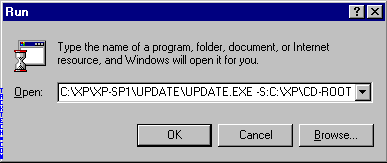  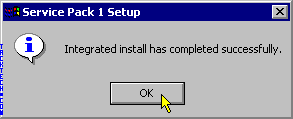 Extract the BootSector file (boot.bin) from bootfiles.zip in to the folder C:\XP\XP-BOOT Start Easy CD Creator. Select File > New CD Project > Bootable CD from the menu.  1.) Set Bootable CD Type: to No Emulation 2.) Set Load Segment: to 0x7c0 3.) Set Sector Count: to 4 4.) Press the Browse ... button 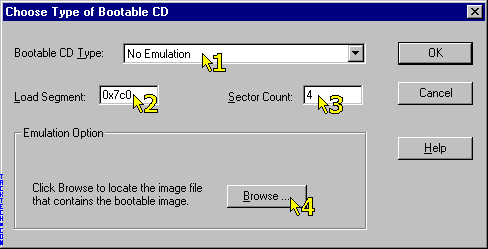 Locate the BootSector file (boot.bin) in the folder C:\XP\XP-BOOT 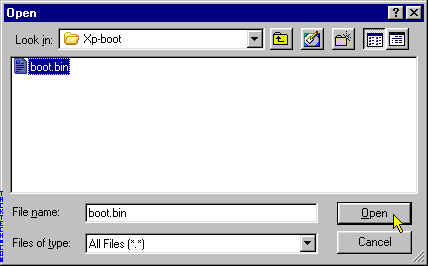 Press the OK button 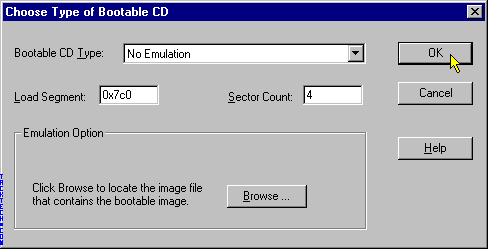 Select File > CD Project Properties 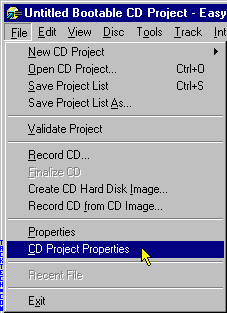 Enter the Volume Label as WB2PFRE_EN Set the File System to ISO9660 Set the Physical format of CD to Mode 1: CDROM 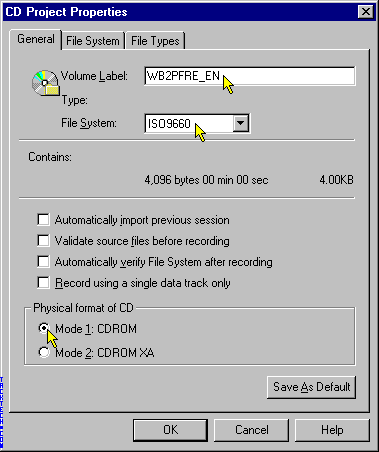 Enter MICROSOFT CORPORATION in the Publisher Name:, Prepared By:, and Copyright: Select Use original file date Select Any MS-DOS 8.3 character file names. Click OK 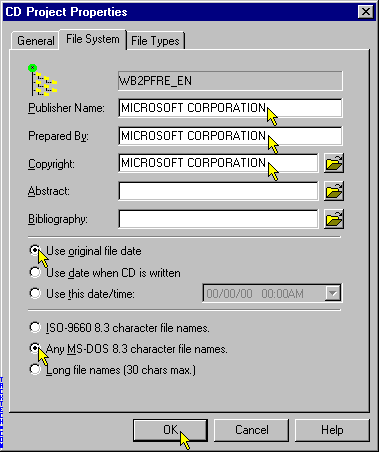 Select Add all Files Make sure that the Do not add Hidden files and Do not add System files are both unchecked Click OK 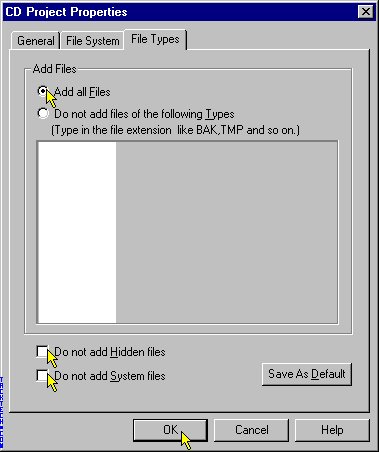 Select all files and folders in the C:\XP\CD-ROOT folder Click the Add Button Click the Record Button 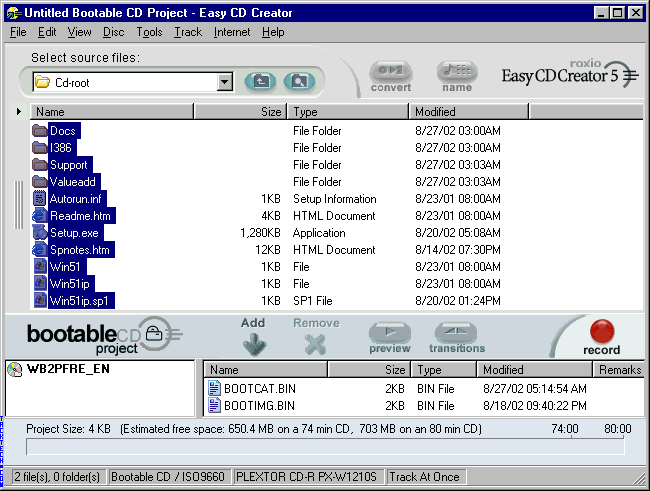 Select Record CD under Recording Options Select Disc-At-Once under Recording Method Click Start Recording Button 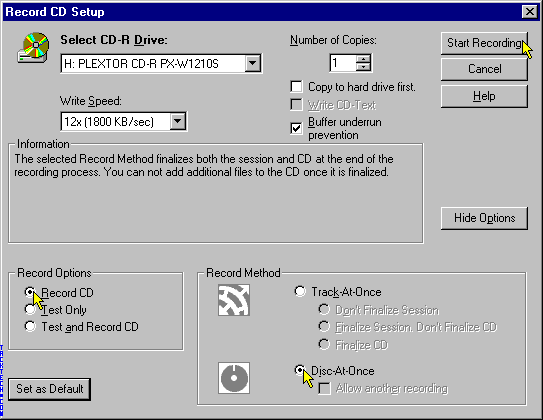 Wait for CD creation to finish. Click OK 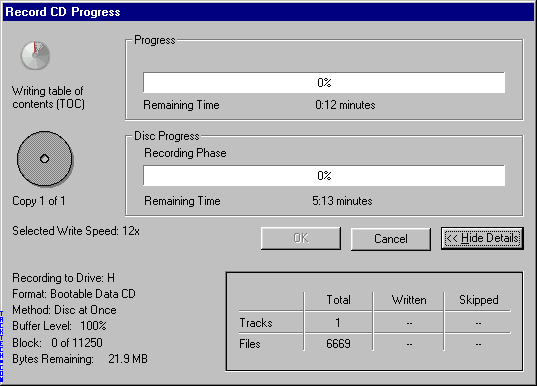 Process complete. You're done. Source: https://www.angelfire.com/extreme/Daytony/Creating_a_bootable_Windows_XP_SP1_CD__Easy_CD_Creator_.htm |
