Lesson 2 - Visual Studio Toolbox
What is in this section?
- Toolbox Design
- Pointer
- Picture Box
- Label
- Text Box
- Frame
- Command Button
- Check Box
- Option Button
- Combo Box
- List Box
- H Scroll Bar
- V Scroll Bar
- Timer
- Drive List Box
- Directory List Box
- File List Box
- Shape
- Line
- Image
- Data
- OLE
- Saving
Toolbox Design
This covers the general toolbox for Visual Studio 6.0. The Toolbox is on the left side and looks like this.

So what do all the buttons do? Well I will explain their GENERAL use now.
 Pointer
The pointer is your basic mouse cursor. You can NOT put it on the form, and it really does not do anything. Everytime you use another tool, it goes back to the cursor immediately.
 Picture Box
The picture box does exactly what it sounds like. It puts a picture on your current project. You can select the picture and everything. For now....Change your form so that it is this size.
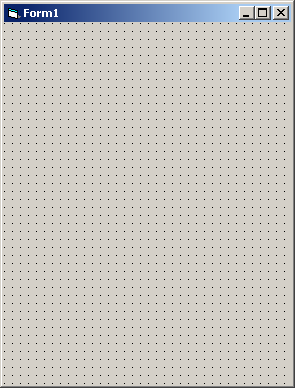
Now click the "Picture Box" icon, and make a blank picture box on the form like this.
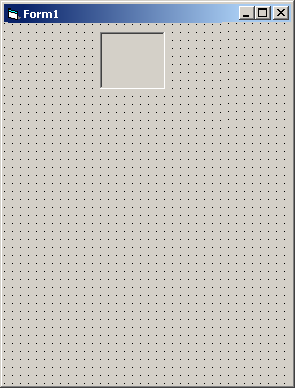
Now, you can add a picture using the properties table to the right. DON'T do it now, just wait. We'll do it in Lesson 3 =).
 Label
Label
A label is usually a form of text put on to something. For example, you might write "This is a text box" above a text box. The thing that makes it difference than a text box, is that the user can not change it. You can not type in a label, it says whatever you want it to say and ONLY what you want it to say.
Click the label button, and draw a label under the picture button. Don't worry about exactly where it goes, we will resize and edit it later.
 Text Box
A Text box is a general box, filled with text. You can write codes to change this text, or change it depending on what is clicked. The difference between a text box and a label is that users can TYPE in a text box. You can ask for someone to type something, and then depending on what they put in the text box your program will do different things.
Click the text box button and make a text box in the bottom middle-right of the form. Make it twice the size of the picture box.
 Frame
Frame
A frame, is well...an option used for a couple different things. It is hard to explain without being too confusing. You will learn about these a little more later in the tutorial.
For now, click the Frame button and make a frame the same size as the picture box. Place it at the top-right corner.
 Command Button
A command button is a button that the user can click on. Clicking on this button can do many different things. You decide what those many different things are in the code for the click button, discussed later.
Click the Command Button button and put it at the bottom left of the form. Your form should now look like this, in case you are getting lost with your buttons and boxes.
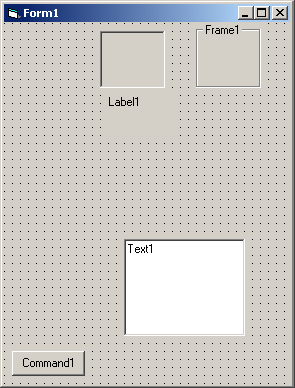
 Check Box
A check box is a box that a user can click to turn something on or off. For example, you can set up a command button to only be clickable if a check box is checked.
Make a check box in the middle-top-left of the form window.
 Option Button
An option button (also know as radio button) is almost the same as a check box. You can also set up the command button to only be clickable if a check box is checked. On the other hand, radio buttons are used more for things like picking certain options out of a list.
Make an option button right below the check box.
 Combo Box
A combo box is a list that only shows you one option until you click it. Once clicked, the rest of the options are shown and you can pick one.
Make a combo box right below the option button.
 List Box
A list box, is basically a combo box that is completely stretched out. All the options are listed -- all the time for quick viewing.
Make a list box to the left of the text box. Again, just in case you're lost...
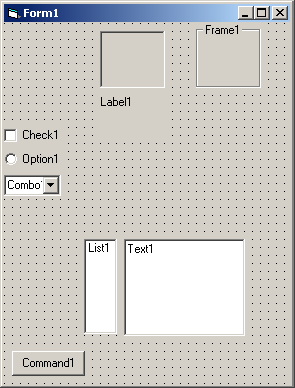
 H Scroll Bar
A "H"orizontal Scroll Bar can scroll certain text boxes and such left to right. You may have seen these at the bottom of web-pages before.
Make a "H"orizontal Scroll Bar below the text box, with a width of about 2.
 V Scroll Bar
A "V"ertical Scroll Bar can scroll certain text boxes and such up to down. You may have seen these at the side of web-pages before.
Make a "V"ertical Scroll Bar to the right of the text box, with a width of about 2.
 Timer
Timer
The timer is used for..well...keeping time. Certain things can happen depending on the time, or if time runs out, etc.
Make a timer under the list. Here is yet another visual update.

 Drive List Box
The drive list box lists all the drives on your computer. (IE: Open your "My Computer" folder. It will usually show you them all) This can save something to a certain drive, although it is use more for openning drives.
Make a drive box right under the combo box.
 Directory List Box
This is the same as the Drive List Box except it lists all of the folders in the drives. This can be used for saving files, or it can be used with the File List Box (see below) to open files.
Make one under the Drive List Box, but make it 3 times more wide, and 2 dots further right.
 File List Box
The file list box shows you files in a certain folder on your computer. This is usually used with the Directory List Box (See above) to open files on your computer.
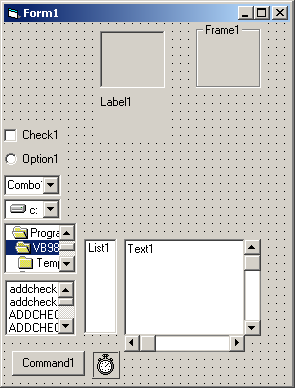
Make one under the Directory List Box. Make it the same size as the Directory List Box. It should now look like this...
 Shape
Shape
The shape feature is used to make a...well...shape. What do you want? =P.
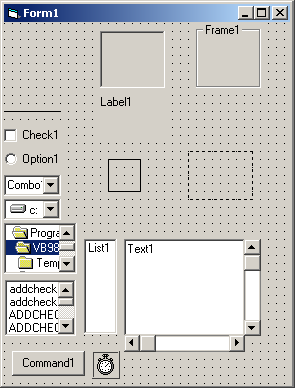
Click the shape button and make a square (it should automatically be a square) under the label. It should have 9 dots inside of it.
 Line
Line
The line features make a...you guessed it...line. Yep. A line.
Make a line two spaces above check 1.
 Image
Image
The image button is what alot of people use to make their own neat backgrounds and such on their programs. You can have them show up at certain times, or do certain things...which we will get to later.
Make an image box a little bigger than the square and leave it empty for now. You'll use it in lesson 3. For an updated visual...
 Data
Data
The data button lets you put up a data box. It can be scrolled through, and shown a couple different ways. We'll get more on this later.
Make a data box above the text box, and list box.
 OLE
OLE
The OLE button gives you a bundle of other features that you can add into a box. You can add microsoft files, to making bitmap files, etc.
For now, make one in the top left corner. When the option screen comes up, select "Create New" and "Bitmap Image". Then hit Ok. Like this...
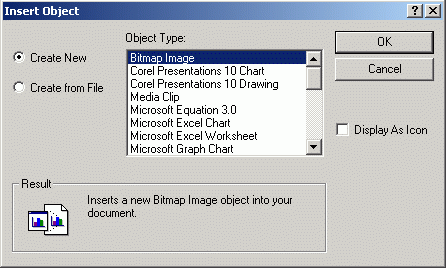
When the actual drawing comes up, click somewhere else on your form to stop the drawing. (Do NOT draw in the box) Your final form should look like this.

Saving
Now that you got your form made, we will need it for lesson 3. So you will need to save it. This is a good time to show you how, if you can't figure it out yourself =).
Now, there are a couple ways to do this but we are going to do my favorite =). This goes back to lesson 1. Click on "File" at the top left corner and select "save". A box will come up. Do not change ANYTHING except what the name you are going to save it to.
When the first window comes up, type testtool and click the save button. Here is a visual, if you...for some reason...need one.
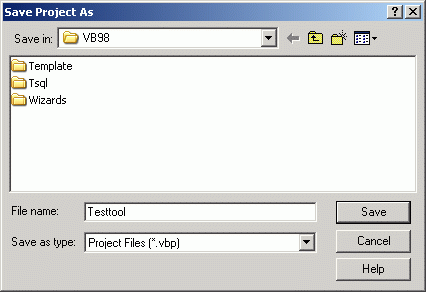
(NOTE: The folders and stuff may be different on your computer!)
Now another screen will come up that looks almost exactly the same, but it saves a different file! Name the second file testtool as well. Both file names should be the same.
After saving, close Visual Studio. Yes, even if you are going to do Lesson 3 immediately. CLOSE IT. =).
Then that is it, you're done and you're ready to take the quiz =).
Continue to Lesson 2 Quiz
Back To Main

