Lesson 1 - Getting To Know Visual Studio 6.0
What is in this section?
- Openning Visual Basic
- The File Tab
- Saving
- Standard EXE Interface
- Project Table
- Properties Table
- Form Layout Table
Openning Visual Basic
Once you open Visual Studio (Its wherever YOU put it during installation) you will see a window that looks like this.

This is the basic intro to the program. Depending on what type of program you want to make, you will choose a different function. For right now, choose Standard EXE. That is what we will work with first.
The File Tab
The file tab is like any other file tab. You can do the following things from it.
New Project - Start a new program
Open Project - Open a program you already started
Add Project - Add a project to the already open project
Remove Project - Remove a project from the already open project
Save Project - Saves your project. More on this below.
Save Project As - Save the project as something different.
Save "Insert name here" - Saves "Insert Name Here" ONLY.
Save "Insert name here" as - Saves "Insert Name Here" as something different.
Print - Prints current work
Print Setup - Brings up options for your printer
Make "Whatever".exe - Turns your coding into an actual file that other people can use.
After that are a list of the last programs you were working with. You can pick one to open it.
Saving
You can save one of two ways.
1: File --> Save Project/Save Project As. This will save EVERY part of your project. I suggest naming them all the same thing.
2: The floppy disk icon at the top. This saves anything that has changed since last saving. Again, I suggest naming them all the same.
You can also save just the part you are working on with the button under "Save As". I don't know why you would want to, but you can.
Standard EXE Interface
When you open Visual Studio, and choose Standard EXE from the openning menu, you will come up to a screen that looks like this.
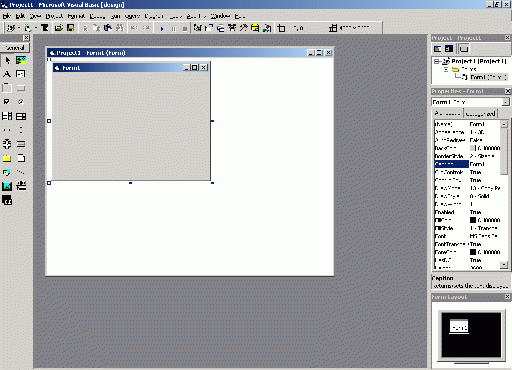
This will display what your end project looks like. This helps you picture what you are coding. Double click the form anywhere to show the coding.
Project Table
The project table is usually at the top right of your browser. It looks like this.
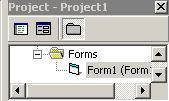
It shows you every part of your project. You can use it to easily go from one form to the other.
Properties Table
The properties table is below the project table. It looks like this.
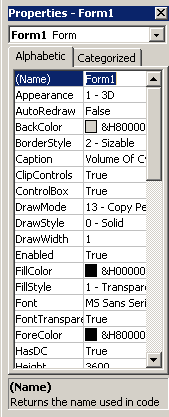
This shows you the properties of whatever you have selected. You need to change these in order to make different types of programs. You will learn which ones to change, when, and why later in the tutorial.
Form Layout Table
The Form Layout table shows you what your program will look like at launch. It looks like this.
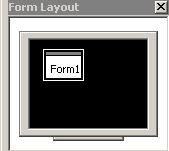
When you open your program as a .EXE, it will be whatever size it shows there. You can change this property in the Standard EXE window or in the properties window.
Continue to Lesson 1 Quiz
Back To Main

