
I'm in LMU LearnECDL - now what do I do?
After successfully logging into LMU Learn ECDL you should see the following screen:
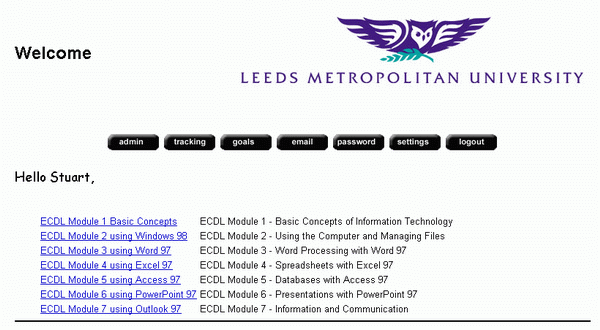
It is then up to you to decide which module you would like to study, it is a suggestion that Module 3 using Word 97 be your first choice, and it is this that we shall follow for this example.
After clicking on the ECDL Module 3 using Word 97 option you will see a screen as below:
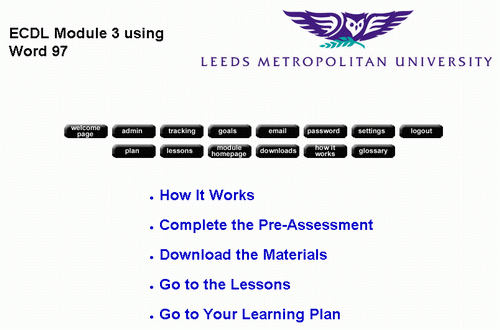
The first step to take is to Complete the Pre-Assessment by clicking the corresponding link. This will take you to a 50 question pre assessment that is designed to identify your strengths and weaknesses in this module in a similar way as the pre test in WebCT was. This is however a different type of test, with different types of questions as highlighted below.
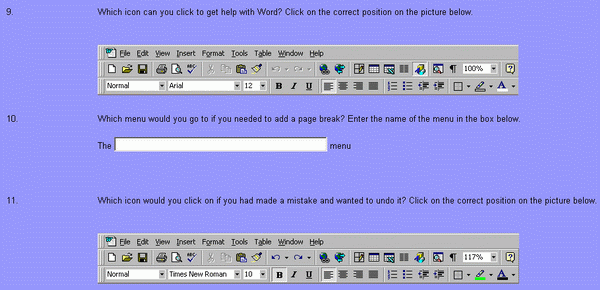
The diagram above shows that the test uses a combination of questions whereby the answer is entered by simulating performing the action in Word, or by typing an answer into a dialogue box. Accuracy is essential for a successful test, and users will find this more challenging that the WebCT multiple choice test - never the less this is a good way of testing your knowledge so is an essential step in the LMU LearnECDL process. Once again it is permissable to have a copy of the package that you are being tested on open so as you can check answers - it is all a part of the learning process.
Once you have completed your test submit it to be marked, you will receive marked responses such as the ones in red below, identifying if a question has been answered correctly or not.

At te bottom of your test you will see a total score and have the option to view your suggested learning plan (below) - it is strongly recommended that you choose this option.
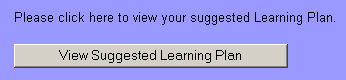
Your suggested learning plan will look something similar to the diagram below, the checked boxes indicate areas in which the pre assessment has identified personal weaknesses in this module. It is now when you have the option to add further modules to your suggested learning plan from the weaknesses identified in the WebCT pre test. You should have made a note of the areas in which questions were answered incorrectly. If you wish to add these subject areas to your suggested learning plan you now have the opportunity to click on any blank check boxes that may represent these subject areas.
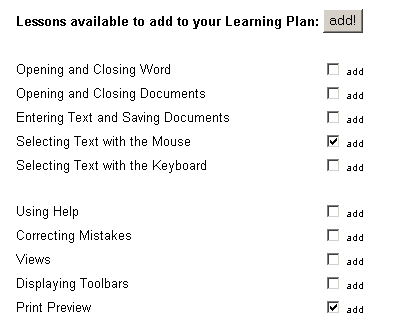
When you are satisfied all of the required subject areas have been identified, press the add! button. This will take you to the option below. You have the option to add further lessons to your learning plan, if you are satisfied the lessons in your learning plan are adequate for your needs, simply click the hyperlinks to take the lessons.

Clicking the above hyperlinks will take you to your lessons and the associated excercises that accompany them.
