
Downloading Sample Documents within the LMU Learning Centre
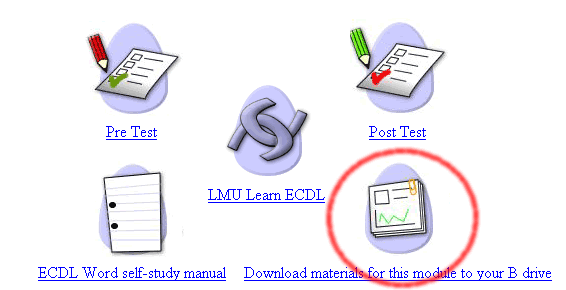
The Sample Documents that are required to complete exercises within lessons, can be downloaded to your B drive from WebCT by clicking on the 'Download Materials..' option in your module main page as circled in red below.
This will copy the files that required to a folder on your B drive, the folder will be named after the module you are learning, so for example if you choose to download Materials whilst studying the Word module the folder with the documents within on your B Drive will be called 'Word'. To access these files after you have downloaded them, open up a copy of word, and choose the File menu, and then Open..., direct your browser to you B drive, and double click on the Word folder. The files that you require are within here.
If you encounter an error message whilst attempting to download sample documents in this way, there is an alternative way to copy the necessary files to your B Drive. This is using 'My Computer' (below).

My Computer is located on
your desktop, which is the first screen that you see when you log into Windows.
It is usually located in the top left hand corner of the screen. To return to
your desktop minimise all of your windows by clicking the Minimise bar -  that can be found at the top right hand corner of each open window.
Once you are on your desktop, follow these steps.
1. Double Click on My Computer.
2. In the window that opens double Click on the G Drive (Filestore G:).
3. In the window that opens double Click on the LSS folder.
4. In the window that opens double click on the ECDL folder.
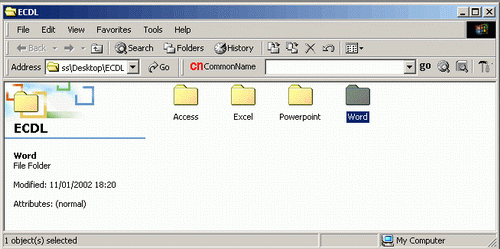
5. In the window that opens SINGLE click on the folder that represents the module you are currently studying, i.e. Word, Excel etc., so that the folder is highlighted in the window, but so that the folder remains closed (as below).
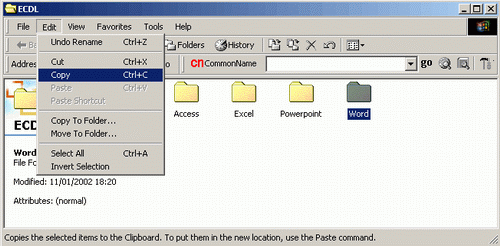
6. Click the Edit menu and choose the Copy option (as below).
7. Close down all of the windows that you have just opened, apart from the My Computer window.
8. In the My Computer window double click on the B Drive (Par B:).
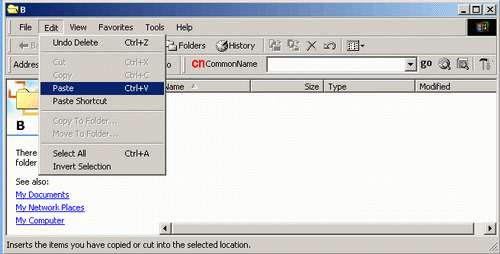
9. In the window that opens click on the Edit menu and choose the option to Paste (as below).
This should copy the folder from the G drive on to your B drive, if this does not work, try it again, if you continue to have difficulty go to the Information Desk and ask for an IT Help Assistant to show you how to do this. When you use these files LMU Learn ECDL will tell you to open them from the C drive in a folder called Online Learning. Ignore this and open them from the Word folder on your B drive.
