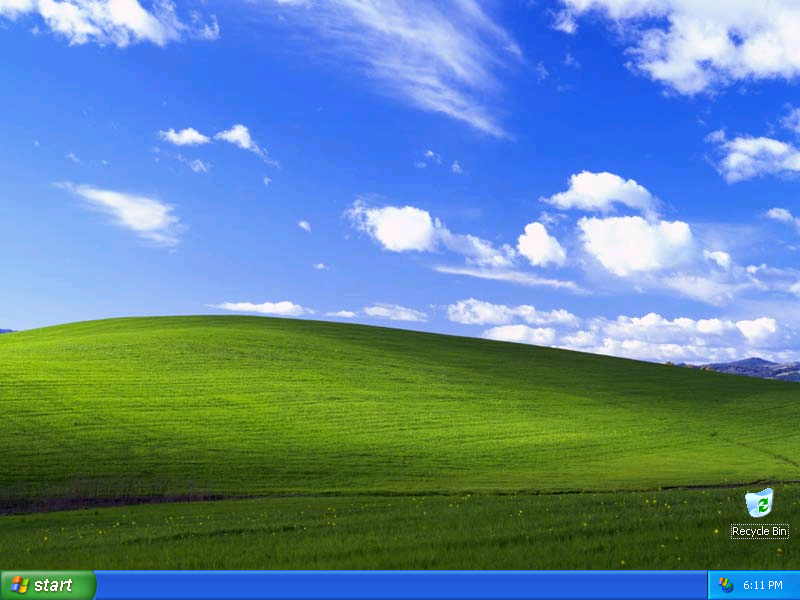
The Recycle Bin icon is the only icon on the desktop. We can change that. First, in order to reduce the time it takes to download these pictures, I'll get rid of the green grass and blue sky picture. To do this, take your mouse and click click the right button. Then select the Properties menu option. This will bring up the Display Properties dialog box.
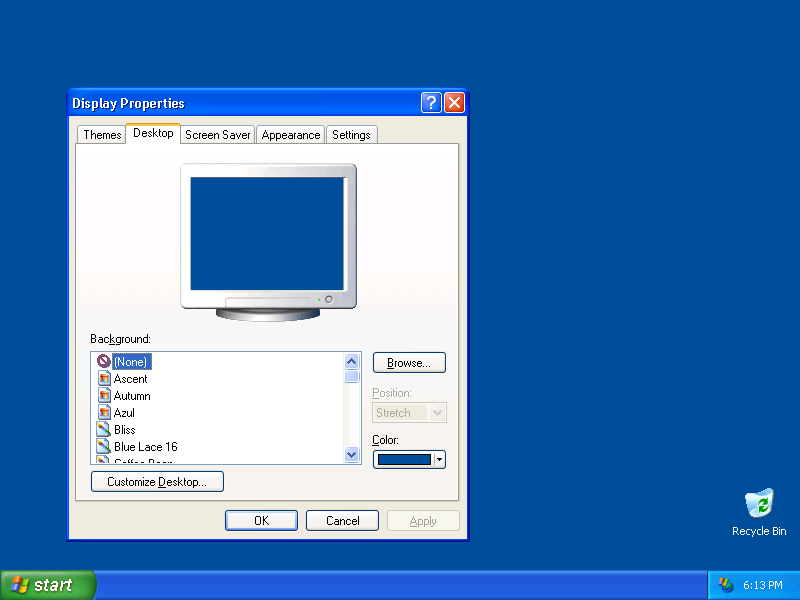
Select the Desktop tab and change the Background setting either to None or to a picture of your choice.
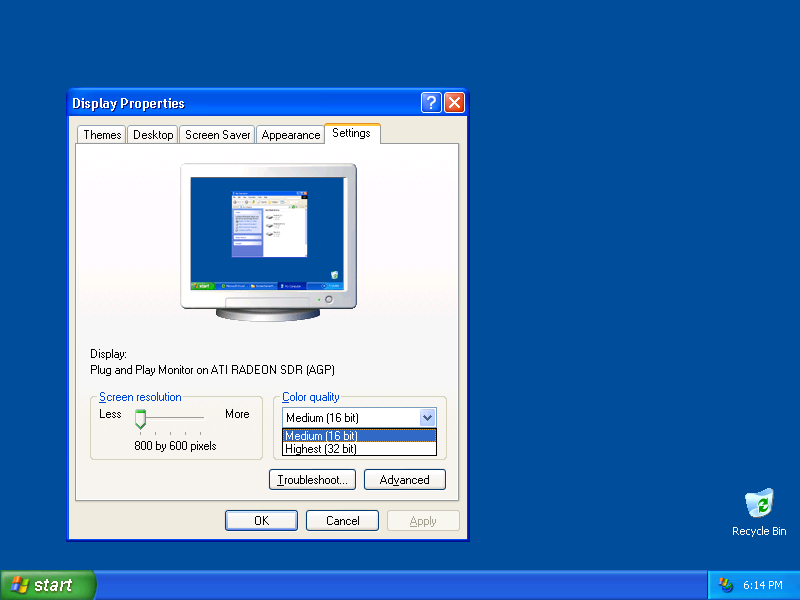
Now click on the Settings tab. You will immediately notice one major difference between Windows XP and earlier releases of Windows. The standard 640x480 16-color VGA mode is no longer the default screen resolution. Instead, 800x600 in 32-bit true color is the default resolution. This is due to the fact that Microsoft is trying to steer people away from 16-color and 256-color palletized video modes, and I suspect this is partly because the Internet Explorer web browser was never really good at rendering images in 256 colors. Opera does a much better job, but I'm only speculating on the true reason here.
In any case, I really prefer not to run in 32-bit video as this tends to slow down screen redraws on older PCs. At least drop the screen depth to 16 bits as shown below. If you actually need 256 color mode or a 640x480 resolution, click on the Advanced button and you will be able to do so.
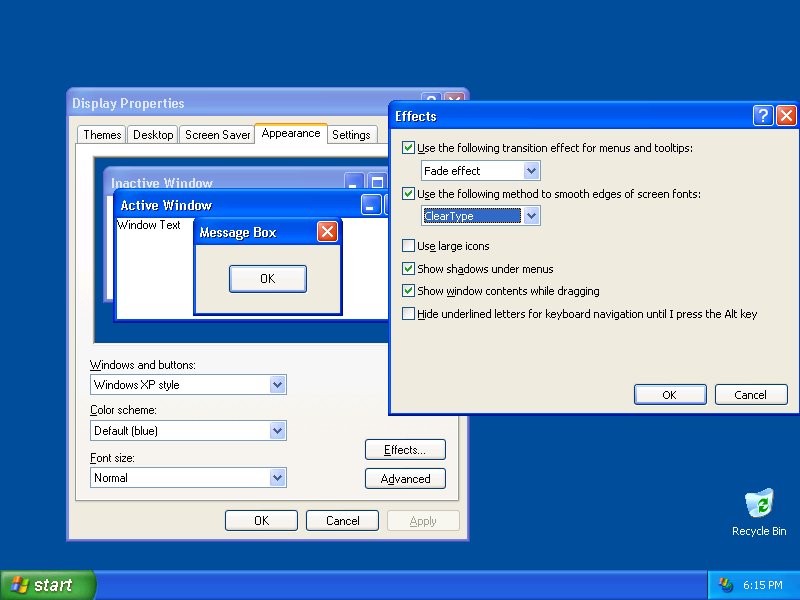
The next step, if like me you've long ago thrown away your fuzzy 21-inch monitor and replaced it with a nice sharp LCD display, is to activate a very cool new feature in Windows XP called ClearType. It's on the list of my 15 reasons to upgrade to XP, because it just plain makes LCD displays display text better. It makes the tiniest font readable, especially on my tiny Sony VAIO pocket computer. To activate ClearType, click on the Appearance tab and then click Effects, and select the ClearType option as shown. You may or may not like the way ClearType draws text, so experiment with the feature turned both on and off.
Now let's take a look at the actual Start menu. Click on the big green Start button in the bottom left corner of the screen. What you will see is a mixture of the old Windows 98 style Start menu merged with all your common desktop icons. My Computer is now just another menu. So is My Documents. The Run and Search menu are still there. The old Shut Down menu is now called Turn Off Computer.
What used to be the old Programs menu is now listed as All Programs. Same menu, which leads you to all your Accessories and installed programs.
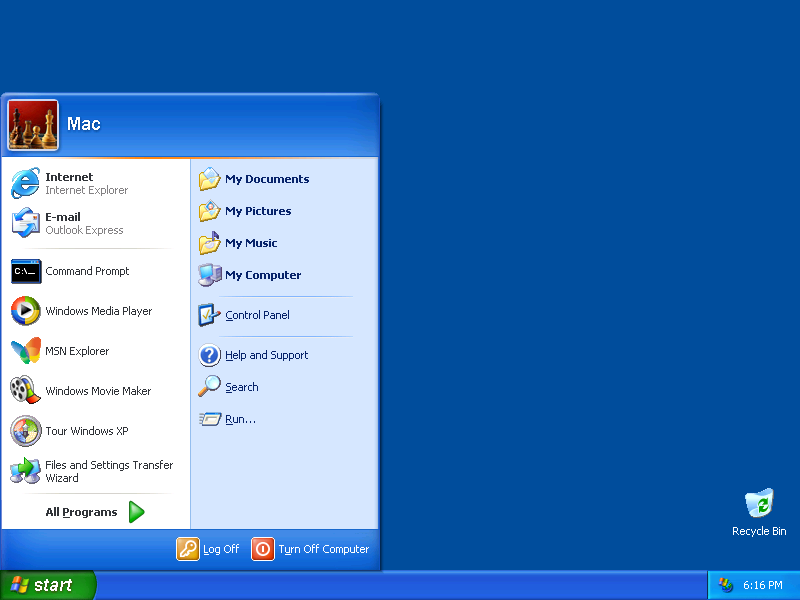
There are two other additions to the Start menu. First, you will see your login name (in this case, "Mac"), and an icon beside it. Each user can select a custom icon or picture to be associated with his login. This is to more easily distinguish the logged in user, and also to distinguish between users at login time. Users of MSN Explorer will be familiar with this already.
The second addition are the icons in the left half of the menu. These are the list of most recently accessed programs, and the list of favorite programs. This is Microsoft's way of getting you eliminate the clutter of icons on your desktop. After all, what do you have on your desktop? An icon for Internet Explorer, an icon for Outlook or Outlook Express, and usually another shortcut icon for each application that you've installed.
So what Windows XP now does is it allows you to put shortcuts to your favorite applications on the top of the Start menu, as Internet Explorer and Outlook Express are shown, and it automatically keeps track of the last few programs that you launched and displays those in the bottom left area of the Start menu.
By default, Windows XP makes Internet Explorer and Outlook Express your favorite web and email applications. You can change this by right clicking each item.
The idea here is to eliminate the clutter of icons on the desktop and simply keep track of what you frequently use. By default, Microsoft starts off this list with 6 items - the Command Prompt, Media Player, MSN Explorer, Movie Maker, Tour, and Transfer Wizard. You can right click each item and select to remove it from the list, or click Pin To Start menu to promote the item up to the favorites list.
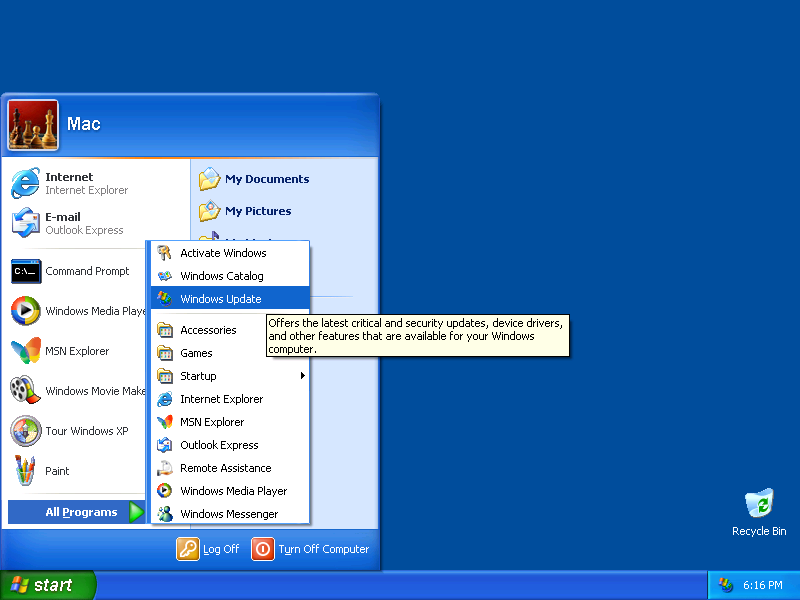
Before we go tinkering with more settings, let's grab the latest Windows XP patches. Click on All Programs, then click on Windows Update. This is a ritual you need to perform about once a week any version of Windows to make sure you're up to date on any security fixes and bug fixes in Windows.
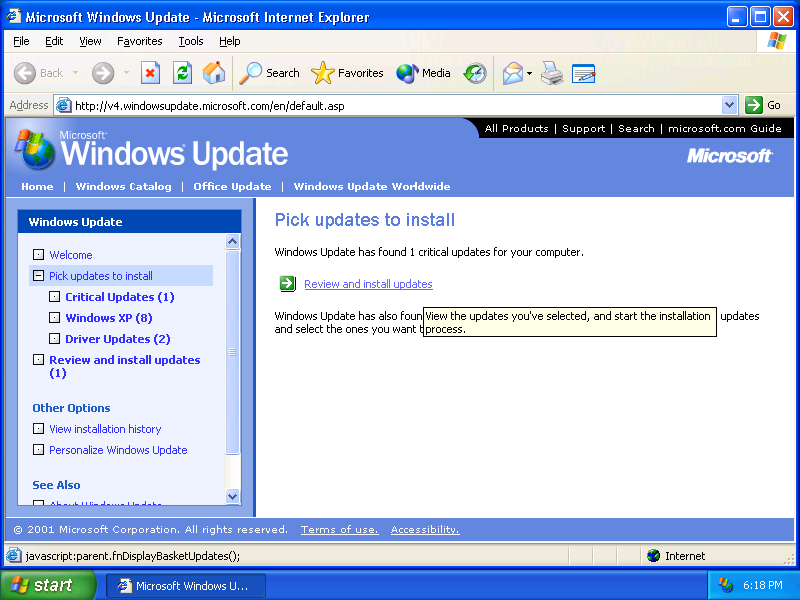
After a few seconds to about a minute, the Windows Update page will display the fact that a number of new updates need to be installed. Note, the Windows Update page is different in Windows XP than in past versions of Windows. Instead of immediately getting a list of patches and updates, you need to manually click on each of the 3 categories shown: Critical Updates, Windows XP, and Driver Updates, and select each item. In the case of this initial update, select all the items. Once you have done this, click Review and install updates and then click Install Now as shown below.
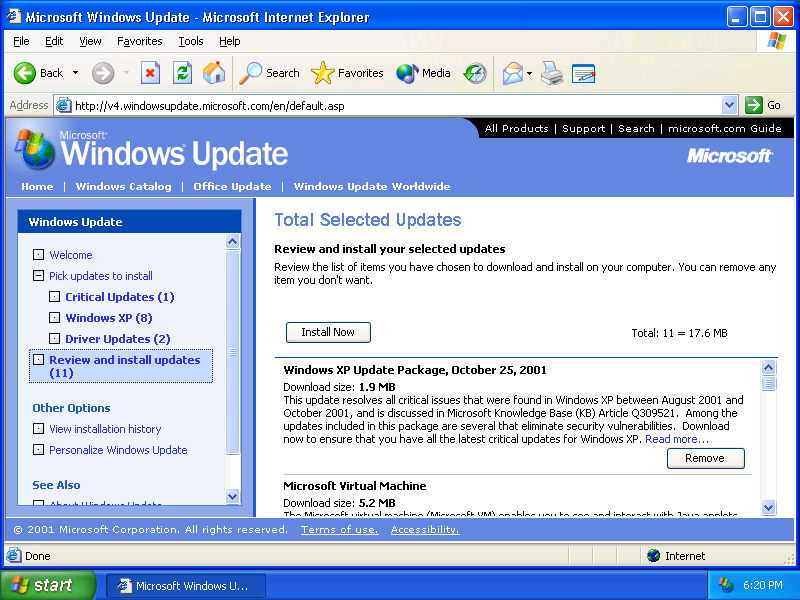
After several minutes to an hour (depending on your Internet connection speed) you will be prompted to restart the computer. Click Yes and allow your computer reboot.
Once your machine is back up, it is time to tweak a few more settings. Bring up the System Properties dialog. If you read my tips on the Secrets page, you know that you can do this by simply pressing the Win+Pause keys or by right clicking the My Computer menu.
You will be presented with basic specification about your computer, such as the release version of Windows XP, the type of processor, the processor speed, and the amount of RAM in the computer. In this case, I was configuring Windows XP on my Athlon XP system as shown here.

There are two features I like to immediately disable in both Windows XP and in earlier releases of Windows. Whether you disable these or leave them on is a matter of preference.
The first is System Restore. Yes, the brain dead feature first introduced last year in Windows Millennium is ba-a-a-ack, although in a much brain dead way. Rather than being feature that is next to impossible to disable as in Windows Millennium, the Windows XP implementation of System Restore is easy to find AND can be disabled on a drive letter by drive letter basis. This makes it possible to, for example, keep your C: drive with your Windows system files protected, but keep your other partitions with data files protected on an as needed basis. I still prefer to shut the feature off completely, so do so by clicking Turn off System Restore on all drives.
The next feature that irks me is the Automatic Updates. I don't like the thought of Windows automatically download patches or for that matter snooping around the net while I'm not looking. I prefer to run Windows Update manually once a week and do so while I'm watching. So I click on Turn off automatic updating. Again, this is a matter of your own personal preference.
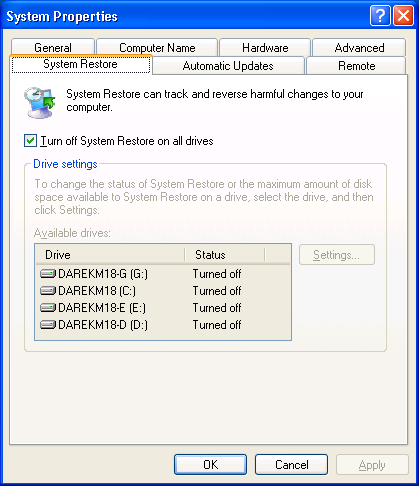
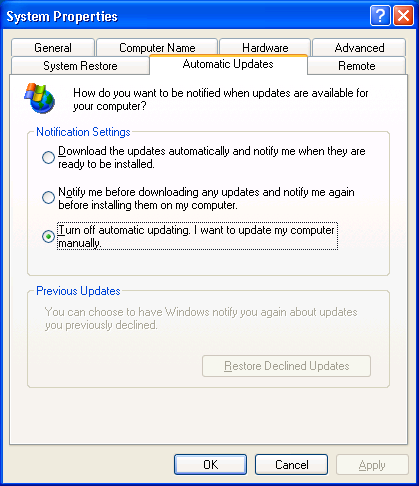
Next I like to fix a very annoying appearance issue. Notice in the previous screen shots how the ? and X buttons at the top of each window are VERY LARGE. I find this to almost be insulting, as their default size is much larger than in other versions of Windows. So off to the Control Panel we go, which you can reach from the Start menu.
Notice the new look of the Conrtol Panel. All the various control applets are grouped by one of 9 categories, as shown.
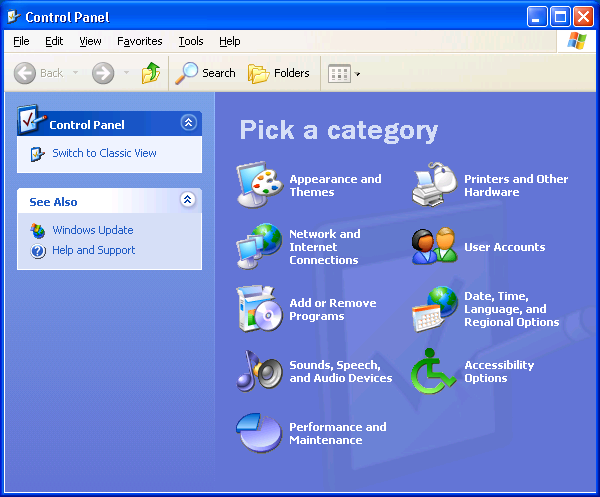
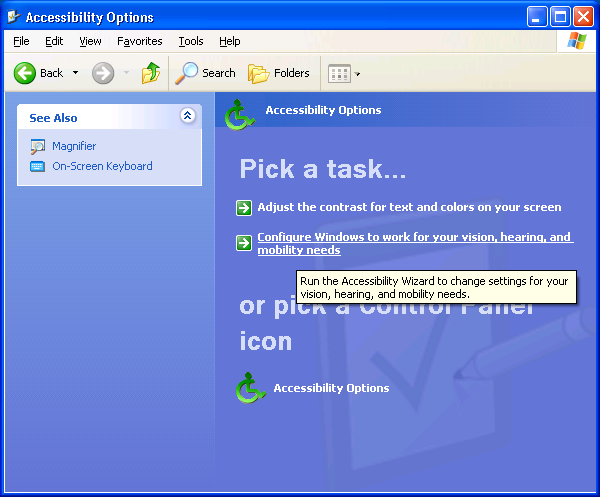
If you wish to see the old view of just having dozens of icons in no particular order, click on Switch to Classic View. The setting we're looking for is under the Accessibility Options icon, so click on that, then click on the Configure Windows to work for your vision, hearing, and mobility needs. Click your way through the wizard (and be sure to click on Disable Personalized Menus, another annoying feature in Windows XP).
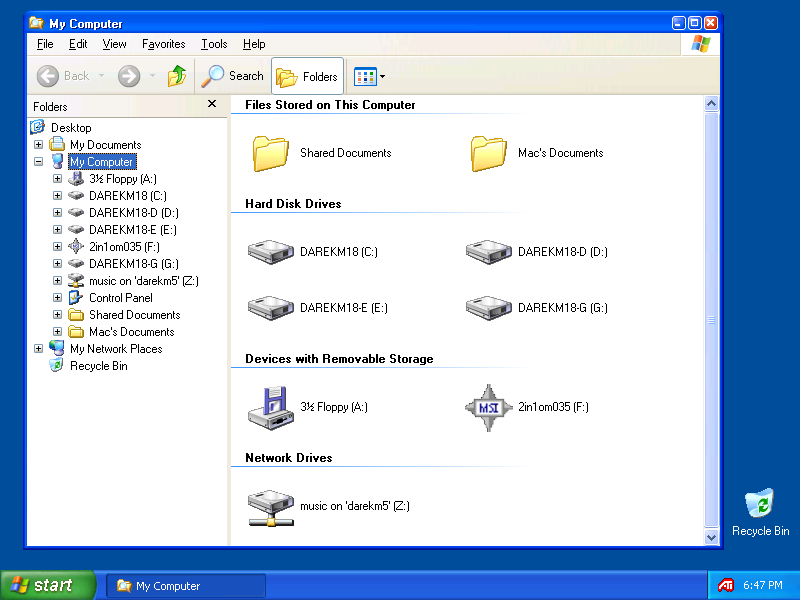
While on the subject on old and new looks, press Win+E on your keyboard, or click on My Computer, to bring up the Windows Explorer. Notice the new look of the Explorer. Disk drives and icons are now grouped by function, i.e. by hard disks, by floppies and removable drives such as CD-ROMs, and by networked drive letters. The familiar tree view on the left side is still there.
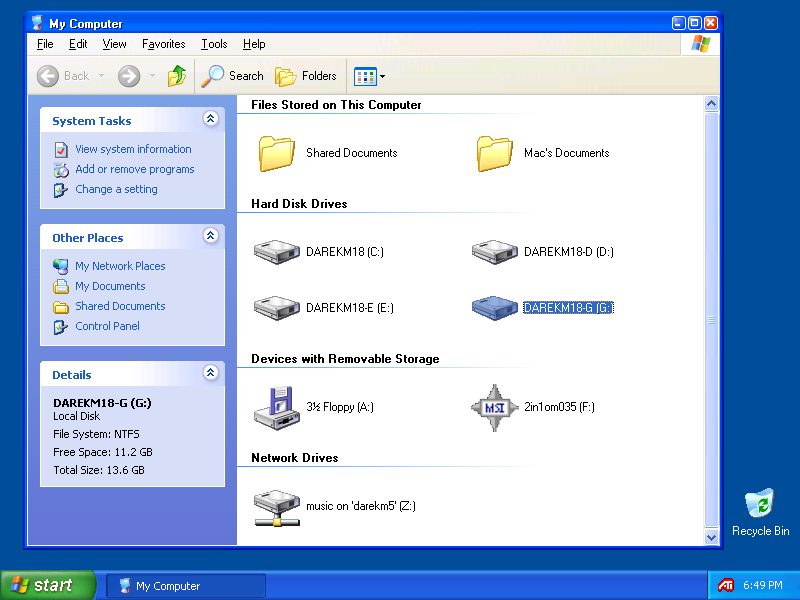
You can replace the old drive tree with a new pane which displays drive information and lists common tasks to perform. Do this by click on the Folders button (to unselect that option), and then click on a drive icon, such as C:. You will see the new pane which displays drive information. As you click on other icons (files for example) the System Tasks list will change, listing tasks such as Rename this file and Copy this file.
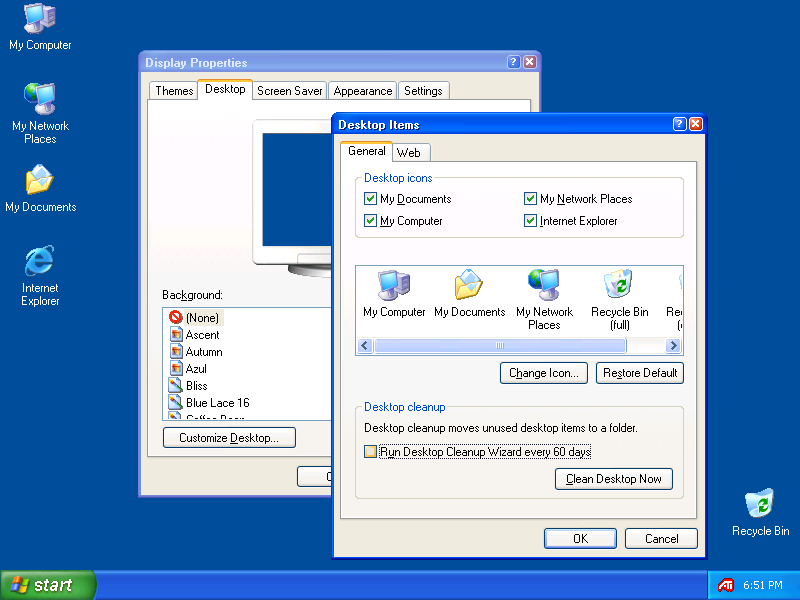
I find it awkward, or maybe it's just force of habit, to hunt for My Computer in the Start menu. So I like to put my standard desktop icons back where they belong. Bring up the Display Properties dialog again (by right clicking the desktop and selecting Properties) and go back to the Desktop tab. Click on Customize Desktop and then select which icons you wish to appear back on the desktop.
I also suggest turning off the Run Desktop Cleanup Wizard option. Otherwise you will be prompted on almost a daily basis to remove any icons from your desktop.
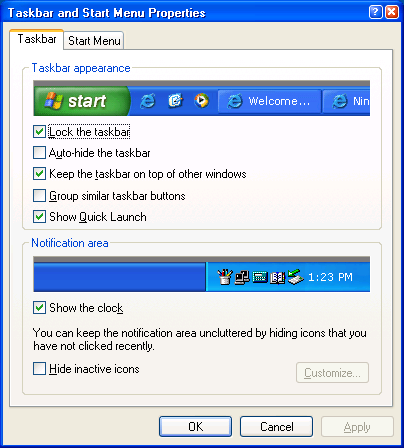
Next, we will customize the task bar. You have probably noticed that the familiar row of icons next to the Start menu is missing, compared to say, Windows 98. This is another option that we can modify and which in Windows XP is turn off by default.
Right click on the task bar (the blue strip along the bottom of the screen) and click Properties. You will see the Taskbar and Start Menu Properties dialog. Enable the Quick Launch option if you wish to see the familiar small icons for the Internet Explorer, Media Player, and the minimum desktop icon.
Now click on the Start Menu tab. This is where you can choose to get rid of the new style Start menu and go back to the older simpler one. Do this by clicking on Classic Start menu. Being brave, we'll stick with the new look. In that case, click the Customize button next to the Start menu option and you'll see the Customize Start Menu dialog as shown.
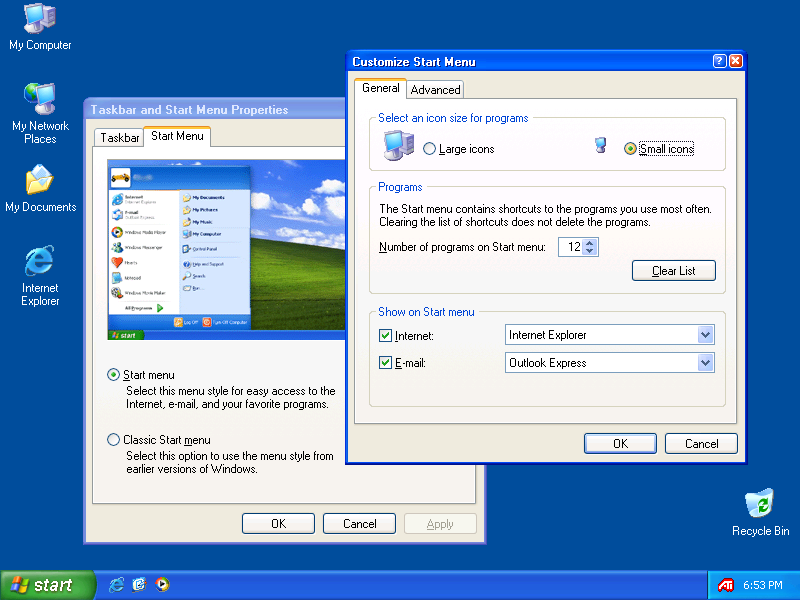
I personally prefer to select Small icons for my Start menu, and I like to increase the Number of programs on Start menu setting to something more than the default value of 6. If you're like me, you run at least a dozen programs on a regular basis.
We're almost done now. The next thing you want to do is clean up the hard disk. First, run the Disk Cleanup utility (it's in the Accessories \ System Tools menu) and tell it to remove any temporary files and System Restore files.
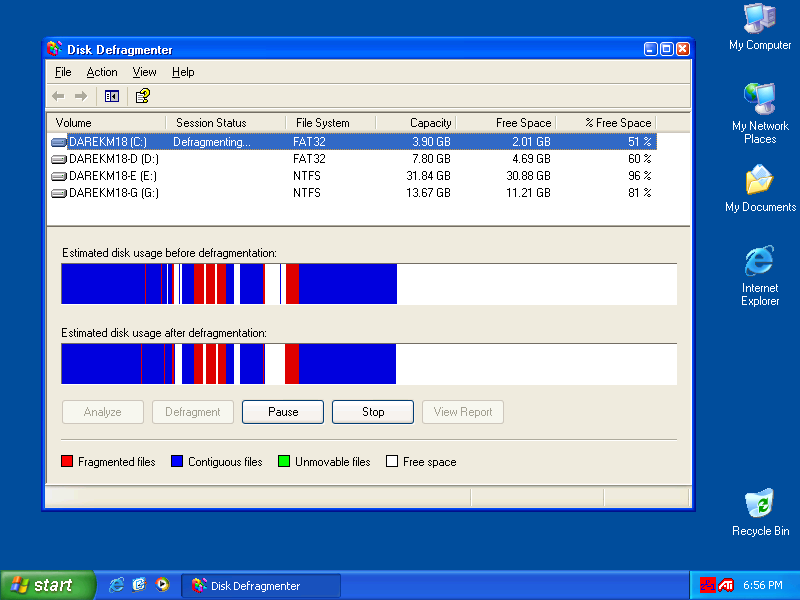
Next, defragment the hard disk by running the Disk Defragmenter utility (also in Accessories \ System Tools). If you are familiar with Windows 2000's disk defragmenter, you will have no problem with the one in Windows XP. It's just about identical, and very similar to the Diskeeper product on which it is based.
Defragment each of your hard disk partitions as shown for the most optimal disk performance. Unlike in Windows 95, 98, and Me, you do not need to exist all other applications before running the defragmenter.
Double click on the clock in the bottom right corner of the screen and verify that your PC is actually set to the correct time and the correct time zone.
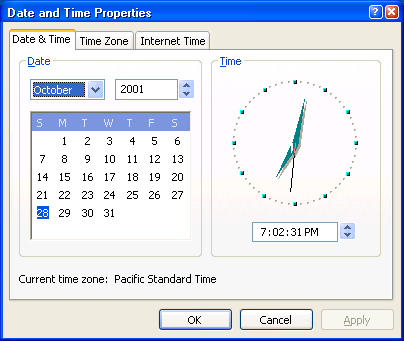
The new Internet Time tab allows you to enable your PC to synchronize its time by itself over the Internet. Again, if you don't mind your computer snooping around the Internet by itself, enable that setting.
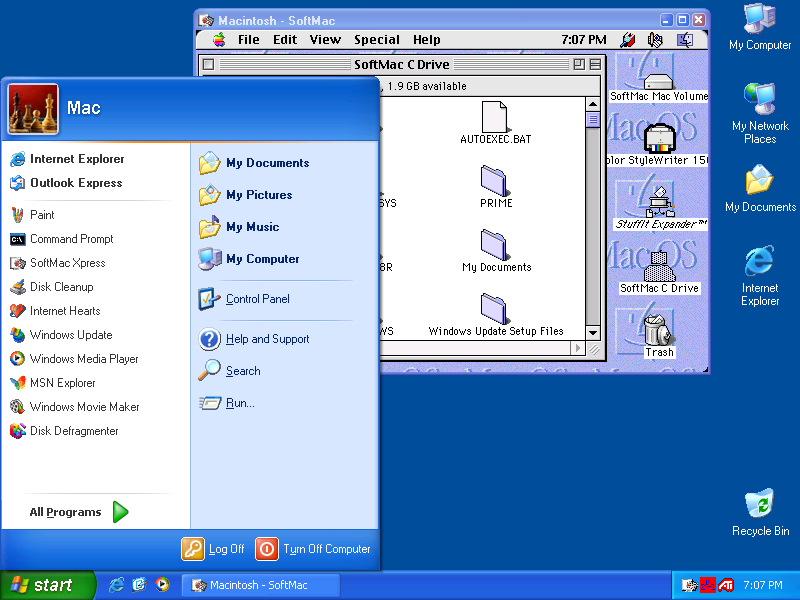
Finally, if you're a Mac user, you may wish to drag your desktop icons over to the right side of the screen as shown. Shameless plug: Then throw in your latest SoftMac XP CD-ROM and install it to you PC. Enjoy the best of both worlds - Windows and Mac - on one desktop. Pictured is our latest SoftMac Xpress 8.11 release from that CD-ROM which features the ability to mount your PC's drives directly on the Mac OS desktop, as shown.
Notice also that by running SoftMac Xpress, Windows has automatically placed a shortcut to the program on the Start menu. As your Start menu fills up, you can either increase the size of the Start menu program list, or delete icons as necessary. Remember, the icons are merely shortcuts. The actual program icons are still located under the All Programs menu tree as in previous versions of Windows.
One last nifty feature to show before we finish. When dealing with a large number of picture files, you can now select either Thumbnails or Filmstrip views in the Explorer. The Thumbnails view is shown below. Very handy for organizing screen shots!
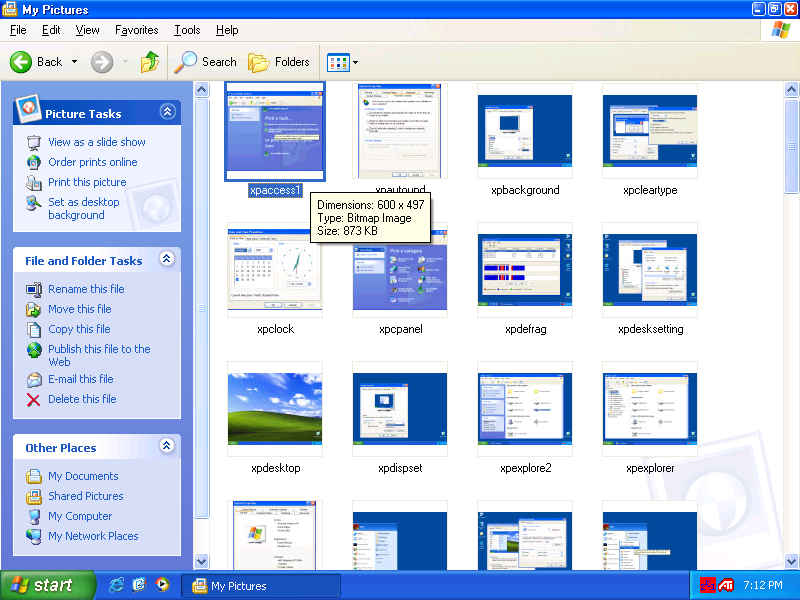
And there you have it. The 60 minute guide to customizing and optimizing Windows XP. As you can see from the screen shots, it is not as scary as you may think at first. And in under 60 minutes we updated Windows XP with the latest patches and updates, modified the look of the Start menu and desktop to our liking, cleaned up the hard disk, and got up and running with some software.
Remember to run Windows Update at least once a week, and especially do so if you are still running Windows 98. There are many crucial fixes (such as DirectX 8.0a, security fixes, etc.) which need to be applied to the original Windows 98 release.


 Copyright (c) 2002
<
Copyright (c) 2002
<

