Site hosted by Angelfire.com: Build your free website today!
How to copy or backup XBOX games to DVD media

Damo's Guide:

Burning XBOX backups to DVD media


This tutorial ONLY covers making backups of your original XBOX games. 

PLEASE READ BEFORE CONTACTING ME...

  1. I don't give out any files, this includes EVOX and GDFIMAGE.
  2. I am *not* an expert at mods or xbox equipment.
  3. I know only about the equipment and software I used.
  4. If your looking for files, go CLICK HERE.

Items Needed: 

  • XBOX (I have ver. 1.1)
  • Mod - Chip installed
  • EVOLUTION-X Dashboard installed (I am using v .3921)
  • Computer
  • DVD BURNER (I use a Sony DRU 500)
  • DVD/CD Burning Software
  • DVD-R or DVD-RW (I usePrinco DVD-R Media )
  • Cross over network cable
  • Xbox Game(s)
  • FTP Client Program (I use FlashFXP)
  • GDFImage program (creates ISO's that XBOX can recognize)

 
In A Nutshell Version:

  1. Insert game disc
  2. FTP into XBOX and access the DVD-ROM
  3. Copy ALL files from XBOX DVD drive to a folder on your computer
  4. Run GDFIMAGE on the folder containing the game files in order to create an “XBOX FRIENDLY” ISO
  5. Burn the ISO onto a DVD disc
  6. Put game in XBOX and enjoy!  


1 - CONFIGURE YOUR NETWORK SETTINGS


STEP 1:

Connect your Xbox to your computer using a *CROSSOVER* cable. The ends should be different.  If the ends don't look like this, then chances are it's not a crossover cable.
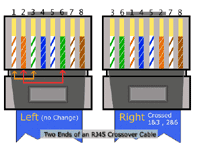

 STEP 2:

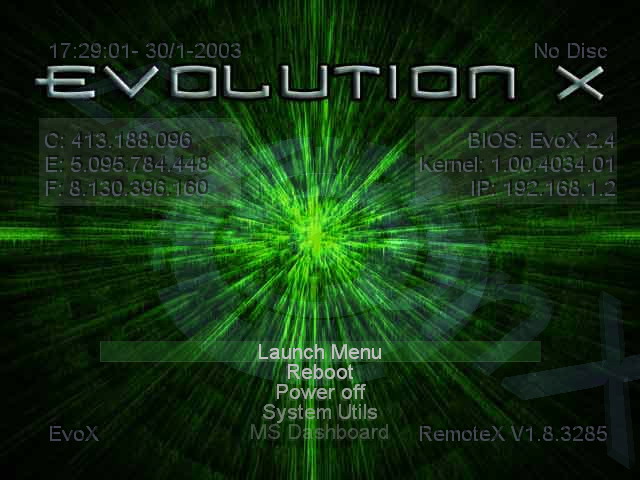
Make sure your computer and Evolution-X (your dashboard) are configured to have an IP on the same subnet. Check to see if the first three sets of numbers of IP are the same and you have 255.255.255.0 as subnet mask.  Assign your XBOX 192.168.0.2 through your evox settings which has a section that should look like this:

 [Network]

SetupNetwork    = Yes
StaticIP = Yes
Ip                      = 192.168.0.2
Subnetmask      = 255.255.255.0
Defaultgateway  = 0.0.0.0
DNS1                = 0.0.0.0
DNS2                = 0.0.0.0
SkipIfNoLink      = No
SetupDelay       = 0

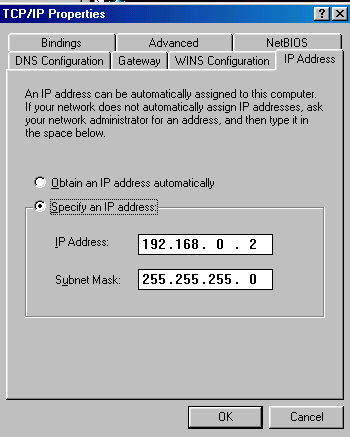
 Assign your computer 192.168.0.2 by going to: Control Panel, Network Connections, Local Area Network, Properties, Internet Protocol (TCP/IP) Properties:

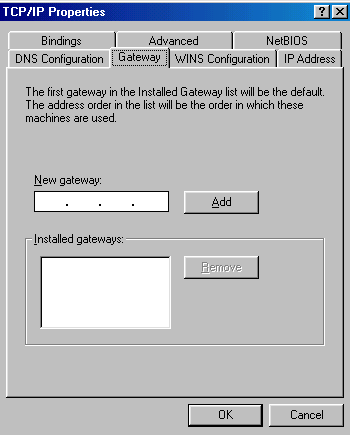
BOTH should have a subnet-mask of 255.255.255.0 (for ease's sake).  Only worry about the IP address & subnet-mask.  Gateway & DNS aren't important at this point.


2 - FTP TO YOUR XBOX

STEP 1:

Turn your XBOX on and make sure you're in the main Evolution-X screen (either from a boot CD or from the XBOX hard disk itself).  I was unable to FTP into my XBOX if I started any apps or games. 


STEP 2:
Insert your game into the XBOX and let it read.  When it's ready, you'll see “GAME” at the top-right hand corner of the Evolution-X menu screen.

STEP 3:
Open up FlashFXP and connect to your XBOX (User - Pass = xbox - xbox)

STEP 4:
Access the “D” drive (your Xbox's DVD rom), select all the files and copy the contents to your computer by “RIGHT-CLICKING” on your selection and choosing TRANSFER or TRANSFER AS, CHOOSE FOLDER.  Be sure you have the some space free. Most of the games are around 3Gb but some (Metal Gear Solid) are bigger!


3 - CREATE AN “XBOX FRIENDLY” ISO FILE

STEP 1:

Run GDFIMAGE.EXE in order to create an ISO that you can burn onto a DVD.  If you get any errors, more than likely it's a space issue.

GDFImage works like this:


GDFIMAGE.EXE <Path to folder with game files> <Path and filename of ISO you want to create>
Or
GDFIMAGE.EXE c:\xbox\ripped\madden c:\xbox\isofiles\madden.iso


4 - BURN THE ISO TO DVD


STEP 1:
Open up RECORD NOW MAX and choose the .iso file created.  This will bring up a window where your asked to burn as an image or the files and folders within the .iso, You want to burn files and images within onto the DVD. 

Once it completes, take it out, and try it. If it doesn't work right away try these things: 

    1. Eject and insert disc again.
    2. Power down XBOX and power back up (with disc in)
    3. Try burning to different media
    4. Try the forums at http://www.xbox-scene.com


If you are still having trouble and have read EVERYTHING in this tutorial & tried all of the above, feel free to contact me:


Web Master Damon Bond 2004©