Starting a New Program
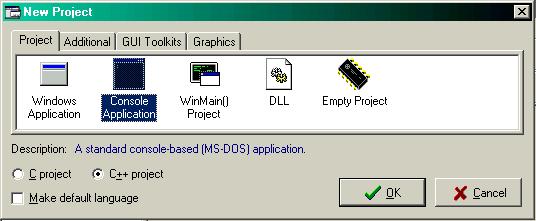
The purpose of this lesson is to show you how to start a new program, enter a piece of code, compile it, and run it. Onwards to the first step. To start a new program, open Dev-C++ and click File --> New Project. A dialog box like the following should appear:
Here is where we select the type of program to create
Select the "Console Application" icon as shown in the screenshot and click OK.
New term: Console Application
A "Console Application" is simply a program that runs in MS-DOS. Console programs are typically text-based and do not use message boxes, dialog boxes, graphics or sounds. Why write such a boring program, you ask? Console applications are typically written nowadays as practice, as a learning experience, and are usually not released commercially. Back in the early 1990's, that was different. Games were often written as console apps back in the day, before computers were powerful enough to process a lot of graphics and high-quality audio. At the present day, most programmers use console programming as a way to write simplified programs as a way to learn the language of programming. All of our programs in this beginner's tutorial will be console applications.
Back to the project. After you click OK, you will be prompted to type a name for your project. Let's call our project Project 1. Type Project 1 into the box and click OK. You will be asked where to save the project. Just type Project 1 in the save box and click Save. A mini-window will open with the following lines of code:
#include <stdio.h>
int main(int argc, char *argv[])
{
return 0;
}
Entering Code
Don't be discouraged if this looks confusing at a first glance. It really is not. We'll analyze the code in the next lesson, but for now, change your code to the following code:
Compiling and Running Your Program
Now come the final two steps of the programming process. To compile your program, click Execute --> Compile (or press Ctrl+F9). If there are any errors, you have probably entered the code wrong, so try copying and pasting it back into the code editor. If there aren't any errors, proceed to run it by clicking Execute --> Run (or press F9). Your program should run before your very eyes, and close right away. If you saw correctly, you should have seen the words "Hello world!" printed on the screen. On the next lesson, we'll teach you how this was done.