
Adding Text And Changing Colors
Now that you fired up DreamWeaver MX and you have
your blank web page dont you think we should
put something on it? How about we put your name
and some information about you. To do this
look on the toolbar and click the "align middle"
tool and then change the font size to +7.

Now that your cursor is in the middle of the screen type
your name. Press enter two times and change the font size to -7
and then type some information that you want to be on your
web page about you. Remember, dont put out any
valuable information such as your credit card number,
your home phone number or your social secruity number.
Now lets move on and change the text color and background
colors. To do this go to the control panel and click
Modify - Page Properties. You should now be at a window
that looks like the image below.
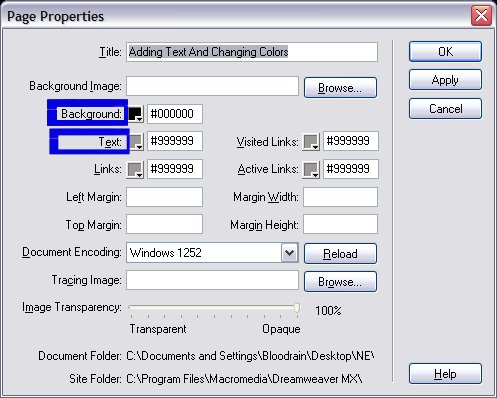
Now click on the box next to background and choose your color.
Thus, by doing this changes your background color. Cool huh?
If you want to change the text color simply do the same thing,
click on the box next to text and choose your color. Congratulations,
you finished this part of the tutorial.
