


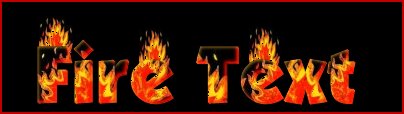
1. Download the Fire Graphic(s) on the right; (Right click on image and save).
2. Start a new banner with background color set to black, (16.7 million colors) large enough to accommodate the text you are going to use plus any graphics you will be adding. Set your foreground and background colors to black.
3. Select Text tool, use a wide font and type in your banner. Position text low enough to accommodate flames at the top of the banner if you plan to add them. Leave text selected. (note: due to putting black on black, text is outlined in white so you can see the placement; this is not part of the graphic).

4. Choose Flood Fill tool/Pattern/Option. For Option, select one of the two sizes of fire you downloaded. Fill the letters with the pattern. If the fire doesn't fill enough of the text, choose the other size and fill again the letters that need it.

5. Using the color picker, select one of the yellows in the fire as the foreground color. Then go to Image/Special Effects/Cutout. Uncheck Fill Interior; select foreground color for Shadow. Set opacity to 65, Blur to 5, Vertical and Horizontal settings to 1. Click OK.
6. Again, do Image/Special Effects/Cutout. Leave Fill Interior unchecked, choose red for Shadow. Set opacity to 90, Blur to 5, Vertical and Horizontal settings to -2. Click OK.

7. Leave Text selected, choose Edit/Copy. Choose Edit/Paste as New Image. The copied text should now be on a transparent background. You will use this copy in step 9.
8. Choose Selection Tool/Rectangle/Feather is 0. Select the top 1/2 of the flame on the fire graphic you selected, Copy and Paste as new image. Resize (Image/Resize) the fire graphic to suit the effect you want; for this example I unchecked Maintain Aspect Ratio, then resized it to 55% of the width and 90% of the height. Place the flames wherever you want on the text. To achieve a variation in size and height, you can keep resizing the fire. To make the flames look like they are coming from behind the letters, place the flame lower on the letters.

9. When all the flames have been positioned to your satisfaction, go to the second copy of the text that you saved, select Copy. Click on the original banner and select Paste as Transparent Image. Position the copied text exactly over the original text. This makes the flame appear to be coming from behind and through the text, and also hides the flat bottom of the flames if you positioned some of them below the tops of the letters.
10. That's all! Add additional graphics if you wish, choose Save As and type in a name for the banner.
Updated: September 8, 2002


Back to Main Page
Back to RaggBagg index

