

This tutorial is meant to provide a guide for updating your KDE using the supplementary packages provided by SuSE.
First of all we have to mirror and download all necessary packages. If you don't want the source-rpms (which you normally do not need) you can use the following command to download everything you need:
wget -r -c -nH --cut-dirs=9 --reject=src.rpm ftp://ftp.gwdg.de/pub/linux/suse/ftp.suse.com/suse/i386/supplementary/KDE/update_for_9.0/A few small notes: please use a ftp mirror near your location. Also make sure the path is correct for the ftp you have chosen. The "--cut-dirs=9" parameters means that wget doesn't create the first 9 directories - you should also change that number accordingly to the FTP you are using.
This may take a while - maybe even a few hours - depends on your connection speed :)! However, once you are done we can go for it and update your KDE. Maybe you first want to backup your home directory, or at least your personal data. Normally you shouldn't get into any troubles - but hey you can never know :).
Anyway, as a first step we will add the directory, which we downloaded all files to, to our yast source directories.
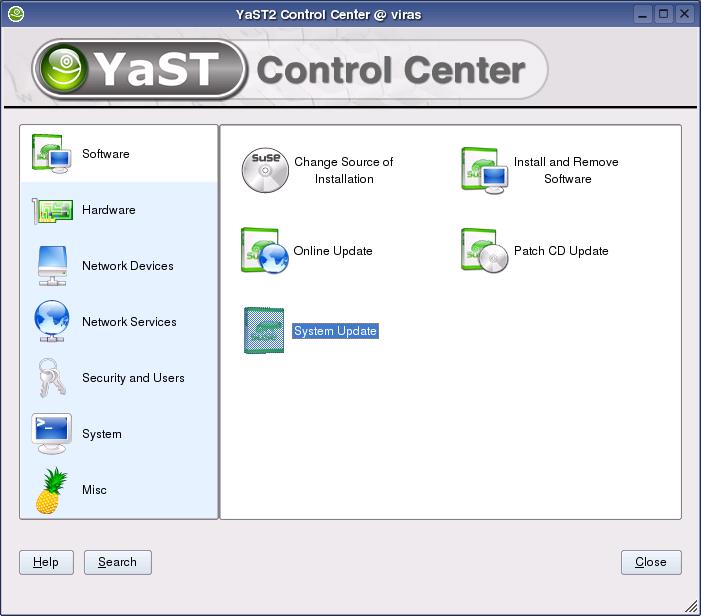
Start Yast and click on "Change source of installation".
Once the module is loaded, click on Add->Local directory. Chose the "yast-source" directory in the directory you just downloaded the KDE-Updates to. Now move the installation source (the one you just added) up to the top position.
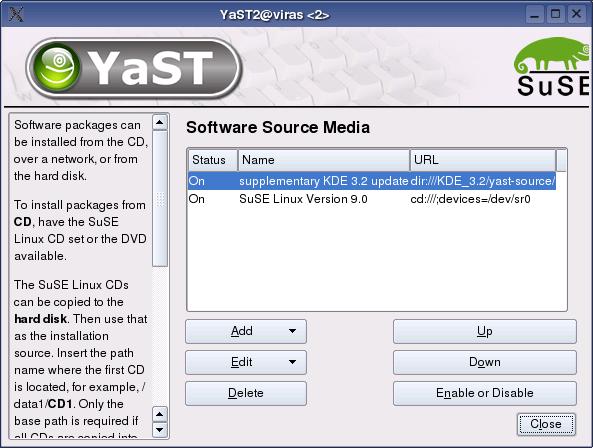
We are done here, just click on close.
Now select "System update". The window now popping will allow you to specify what you want to update. You will have to change some settings.
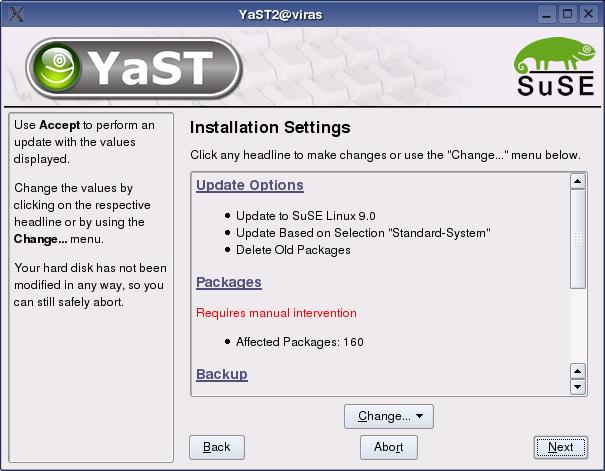
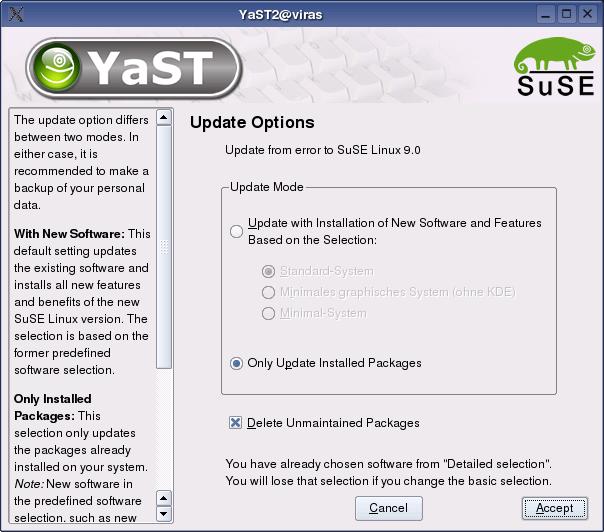
First click on "Update options". In the new window select under "Update Mode", "Only Updated Installed Packages". Tick it and click on "Accept".
Now back in the window where you can change your update settings, you maybe will have to resolve some conflicts. You can do so by clicking on "Packages". If you want to make a backup you can leave the settings as they are, but since I don't want to waste HDD-space I changed it so that it doesn't create any backup :)! Once you are done click on "Next".
YaST will start to update your packages. Stay calm, this may take a while.
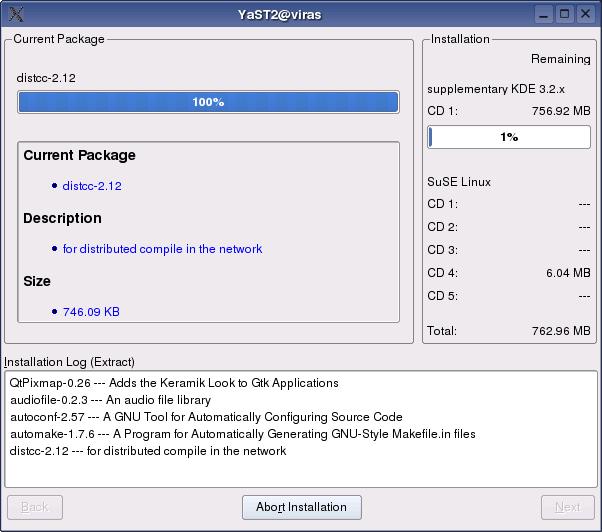
Once YaST finished installing the packages you just have to reboot your X-Server (login and logout) to apply all changes. Voila we are done!
PS: I didn't have any troubles - so backuping your home-dir is not a must :)!
Hope this short guide was a help, if it wasn't then it aint tweety's fault. Hee hee and aw ra best.
