
Here we will configure the FileZilla client software so that it will connect to the FTP server.
To begin start up FileZilla. When FileZilla is run for the first time it asks a question dealing with security for your computer, the choice of that question is up to you, it will not effect how you connect to the FTP server.
Once FileZilla is opened you are sitting at a screen similiar to this one.

At this point FileZilla is not set up to connect to anything at all, so you have to configure it to connect to the FTP server.
Start with clicking on the File button on the menu bar at the top. From the list select the "site manager" option, and this opens another dialog box.
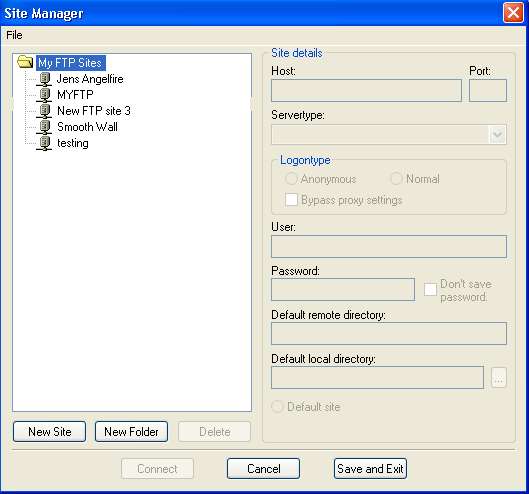
Yours will not have anything in the My FTP Sites side of the dialog box. To add a site click on the New Site button on the bottom left side. Type in Archgriffins FTP Server or whatever you wish for the name.
Next you have to fill in the Site Details on the right side.
Starting with the Host enter: 68.60.141.228
For Port Enter: 1400
Leave ServerType as FTP
Make sure Logon Type is set at Anonymous
It should look like this
Then click the Save and Exit button on the bottom right.
That is how you configure for an Anonymous FTP server.
Now for the trick to gain access to this server which happens to be behind a firewall (or maybe you are).
Now you are all set to connect which is the next step, but first...
Important Note:
For the Host you entered. This is the tutorial for how to set
up the FileZilla software and as of writing this that is the current IP address.
Since I am on a DHCP server, my IP will change, I am working on a software solution
that will e-mail me, when the IP address changes, and that will in turn send
an e-mail to all of you giving you the new IP address. All you do to change
this is Start FileZila, click on the File menu button, then click the Site Manager
option and on the left side select the FTP setup you made for this server, then
change the Host number to the new one. After that everything will be normal
again.
Go Back -- Go Home -- Go Forward
Extra Note
This will not stay an FTP server forever. I am currently researching more in
to the SSH for the file transfers. This would stop anonymous logins, and you
would have to actually login to the server. But this would be a secure and encrypted
way of transfering files. Unfortunately this would more then likely end the
FileZilla reign, and go in to something more like WinSCP. SCP is the protocol
used to transfer within an SSH server, but I will always keep it simple and
you will all be warned before the change, pending I have your e-mail address
to warn you.
