
To:
1.DownLoading Game
2.Character Getting
3.Screen Shot Making
4.Stages
5.Motif
6.Setting up battles
7.Characters with same file names
If you don't understand any of this contact me
And if anything requires something downloaded, check my links page for a link to a place to get it
2.DownLoading Characters and getting them to work:
1. Find a character you wish to download, and make sure you have winzip.
2. Second, you'll see something saying download here, click that and say open when the little thing asks. Let it download from there. In case the file won't open properly once downloaded Some times when you download a file, either your program won't open it, or it'll come up missing stuff. If this happens try one of 2 things, clear out your cache of tempory internet files, in other words dump all the tempory internet files, or 2 instead of clicking open when you're downloading the file, click save as, and download it onto your hard drive.
3. Once it's done downloading go into WinZip and extract it into a folder in your mugen folder, in your chars folder, with the same name as a file with a .def extension. Put this into the thing asking for the place to put the files, I'll post a example next time I get a character. A note, make sure that there is a file labeled snd in the files you get, or that there is a snd file available at the site where you found the character, or you'll have problems, and may end up with a mute character or a none fuctioning character.
4.Next you must go into the data file and find the folder of the current motif you're using. That would be by default KFM, or if you got my download it would be SFA3 or something like that.
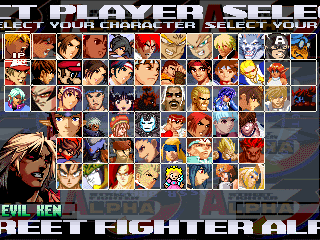
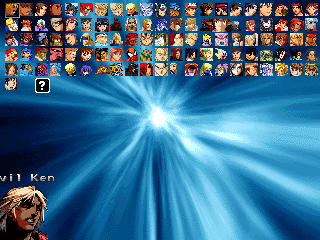
5.Next find the file select.def. This has been updated Open this with note pad. Once in there find where it has KFM, stages/KFM.def, and under it if there's the same word repeated over and over, replace it with the folder name of the character you wanna add. If this confuses you contact me
 |  |  |
3. How to make screen shots
1. First find a situation you want a screen shot of, be quick you may lose your change. Use the pause button to catch this times better.
2. Press F12 to take the shoot, it will appear in your mugen directory as mugen.pcx. It will appear as the last screen shot in your directory.
3. Once you have a screen shot in pcx form, the next step is to convert it, using any paint program you have that can open pcx files, and then convert them to a web format, either png, jpg, or my favorite gif.
4. Once converted all you need do to show them off is find web space for them, through something like imagestation.com or some other image host. Or e-mail them to me, or put them on a site of your own at angelfire.
4.Stages
1. First, as usual, find and download the stage.
2. With winzip extract it to your stages folder.
3. Then go into select.def, go below the characters and you'll find an area for stages. Put stages/The Name of the stage.def.
4. Enjoy playing with your brand new stage.
 |  |  |
6.A couple bugs and a couple fixes
2. Also when you try and play it may complain of an illegal operation was happen. I can only say it happens and the problem may not involve Mugen itself, it may be a problem with your computer. This I can't say what to do, cept first before going all through you computer try to go into data/mugen.cfg and find the sound option and turn it off. This will help if you have an issue with your sound card, which was one reason I couldn't play for a while. Turning off sound will make it ignore the sound all together and not run into a sound related glitch.
3. Last for now is the one that had me not playing for monthes. Issues with the memory on your computer. This one's either easy or hard. The first thing you should try is close all unnecasry programs running in the back ground, this will free up some memory. If that doesn't work, ask an expert, I don't have the answer to it then. This glitch accurs when you try and click on the link and will make itself apparant, so you'll know if it's a memory problem.
4. This is a simple one. Some characters just won't function right for some odd reason. They may jump off the screen, glitch, or some other major bug that makes the match unfinishable. Well if this happens just press Esc and end the match, or just wait for a time out. And if the problem persists and makes the character unusuable just delete the bum, they're not worth the head ache.
6.Setting up battles
2. How to make a character either fight you later, or not at all: Well to explain a little mugen's rounds are broken up into levels of difficulty, first round: normal guys, second round little nastier, third round: more so, fourth: "semi finals", fifth: "last boss". Each section has a certain number of fighters you must fight, depending on how you set it, I will tell you this later on.
3. How to set the amount of fighters in a round = To change this you go to the bottom of select.def and find options. In there you find the mention of the aracade.maxmatches = or something of the like, or team.maxmatches =, and those followed by a bunch of numbers seperated by commas. Well as you may guess those are the numbers of fighters in each round, to change that simply increase the number or descrease it. And if a round has 0 in it, it means you don't get that round, to make that round avaliable, just make it a number greater than 1 and set some characters to that round number, simple as that.
7. Characters with same file names
1. One of the major ones is when you try and play the computer comes up with something saying you can't do something with the display. I haven't experienced it, but it complains it can't display it in the proper mode. This one is a toughy to fix, and I don't have a good answer. Except the best way to fix it is, to search the net or anywhere else where you find good computer files and stuff, and find something called a Vesa Driver. The Vesa Driver is something that allows your computer to deal with Dos Based programs and play them. Most computers have them, some don't though. If they don't like I said search the net and try and finds some. Warning: This may cost money if you don't find the right place.
1. How to have a fighter on a specific stage: After you put the name of the character in the select.def file you simply put (, stage\*name of stage*.def). The comma is a must or it won't read it right. This will ensure you fight that character on that stage every time you run across them in the tournement.
The important thing is you can set characters to be placed in specific ones depending on how hard you feel they are. To do this, after you set a stage put *, order=*order you want** 1-5 to have them in that round or 99 to not fight them at all.
This means characters with the same name on the .def file. This would usually copy over the other guy, but you can easily fix that so you can have both characters.
1.First you download the character.
2.Then when you make the folder for the character, just name it something different from the .def file.
3.Then rename the .def file of the character with the changed folder name to what you called the folder. And it should be that easy.
