
Before I get into the explaining of how to do it let me tell you some things I've learned. I would suggest you take them to heart.
Ok this ties in with the Background and Colors as well as the graphics. There are times when AOL browsers cause problems with color schemes, background images and graphics. I've had this happen a lot recently. What happend to me is I had made this really cool background for a page and a web board I run. What happend is the AOL browsers had trouble viewing the page. It made big, colored ink splotches go across the page, and the AOL user couldn't read the page. Seeing as how I'm NOT on AOL I have yet to come up with a solution for it. Ever since my first run in with that problem I have made sure one of my AOL friends uses the AOL browser to view my page and tell me if the splotches are there. I've been told using net safe colors help. But I tried that... it didn't work. So until AOL gets good {yup I'm among the many AOL haters of the world} thats going to be a problem. So if you're not on AOL and don't have the browser to check your work PLEASE have an AOL user check it for you.
My next tip is just plain common sense. If you plan on having your page so graphic intense its not even funny then please provide people with a Non Graphic version. Thats what I've started to do. I'm on a 56K modem so if it downloads slow for me I know its going to for someone on a 28.8 modem and even worse for the 14. Plus there are people out there who just don't have time to be downloading a ton of graphics. They're there for the information you provide so if they have to download a grip of graphics... well if they're like me and have little time they'll back out and find some page that has the same info but a faster DL time. I like looking at graphics since I like to make them... but there are just times when I wish the person had given me an alternative to their page. Its a lot more work but its also a lot more user friendly to provide an option.
Ok now lets tell you how to put that image on there. You want the tag to point to your Image Source. The Image source being the URL for that image. So the tag looks like this:
<IMG SRC="imageurl">
So say your image is rocksock.gif your Image Source tag would look like this: <IMG SRC="http://www.domain.com/rocksock.gi">
Simple huh? Now in some cases you don't have to put the whole URL but I would recomend doing it though.
Now you have your image. 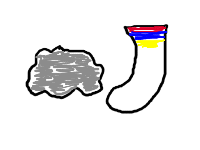
Lets do something more to it. Lets name the image. Naming the image is handy because while its loading the viewer can see what image is loading. Plus when you put your cursor over the image after a little while the name will pop up. To add a name you add the ALT tag.
<IMG SRC="rocksock.gif ALT="Rock and Sock">
You MUST put the name in " " if you don't and you have spaces only the first word will show.
Your image is now named.
Say you want to manipulate the pictures size. Its too big to fit on your screen or too small. You add Height and width to it. Adding Height and width is VERY important. Do that to all your images even if you don't need to. It will define the box that is going to hold the image before it downloads. That in turn allows the viewer to read on while the image is loading.
You have a picture the is 200x150 your image tag would look like this <IMG SRC="rocksock.gif" ALT="Rock and Sock" Width="200" Height="150">
Say your image takes a long time to download. You can add the Low Source command. What you do is you create a second picture that is lower in file size. Perhaps black and white? Perhaps blurred? Just something that is EXTREMLY small in size. The AOL problem occasionally arises with this so be careful.
The comand to add the Low Source is LOWSRC="smallerimageurl" So now your Image tag should look like this.
<IMG SRC="rocksock.gif" LOWSRC="rocksock2.gif" ALT="Rock and Sock" Width="200" Height="150">
If you want to see a sample of the LOWSRC command in action visit my Kariya page. The link is at the top of the first page.
Only a couple more things we're going to do with your image. We're going to link it to another page. If you've already jumped to the links tutorial then this will look familur. Adding a link to an image is much like adding a link to text. Its easy!
Before your image command put <A HREF="destinationurl">IMG COMMAND </a>
So your tag will not look like this <A HREF="http://www.domain.com/><IMG SRC="rocksock.gif" LOWSRC="rocksock2.gif" ALT="Rock and Sock" Width="200" Height="150"></a>
Uh oh theres a border that you don't want around your image. After the Height tag... or what ever your last tag is put in BORDER=0 adding in a number will alter the border width. Even if your image isn't linked adding the Border tag will add a border if you put a number aside from 0 in it.
There are a lot more things you can do to the image with a few simple HTML commands. But they're more advanced then this and I'm only going to cover the basics. I will provide a link a place I consider an HTML writers bible. So if you want to explore the more advance features of images you can.
