Here you will see how to change any type picture file
(supported by Paint Shop Pro) into a JPEG file. JPEG's are usually smaller file
size than most other types, and by changing to this type incorrectly, can be
much lesser quality.
I am using Paint Shop Pro 7. This may not work with other applications.
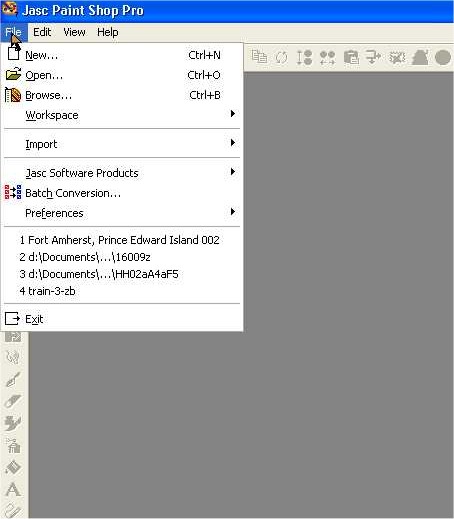
First, you must open the file you wish to change. Do this by
going to "File" --
Then Open
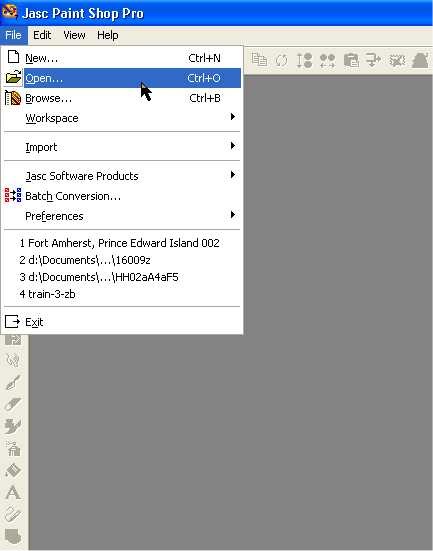
Then choose the image you wish to change.
This is the photo that I will work with.
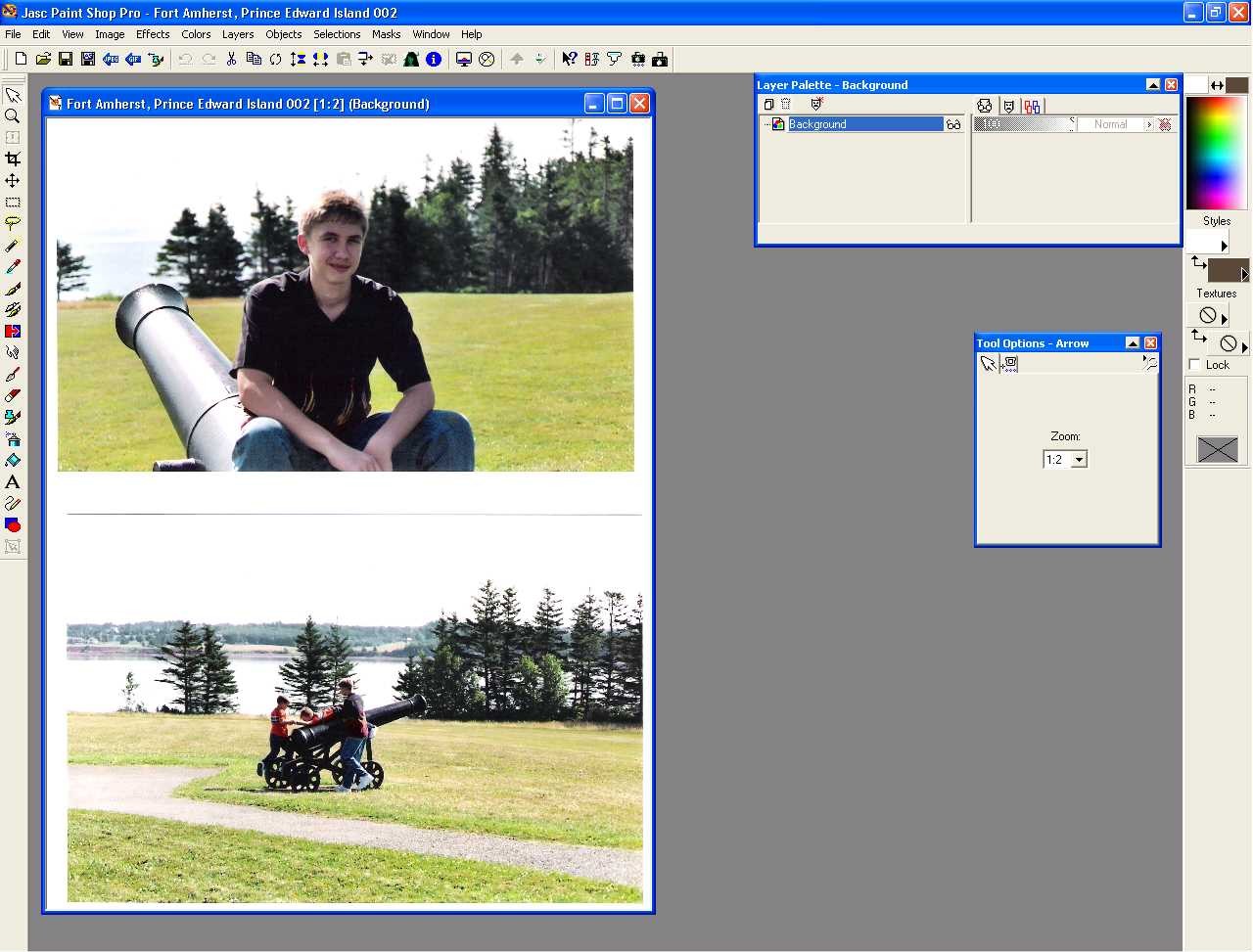
Now I need to go to File/Export/JPEG Optimizer -- This will
open the tool I need to finish this.

As you can see below I need to zoom out so I can view more of
the image in the preview panes.
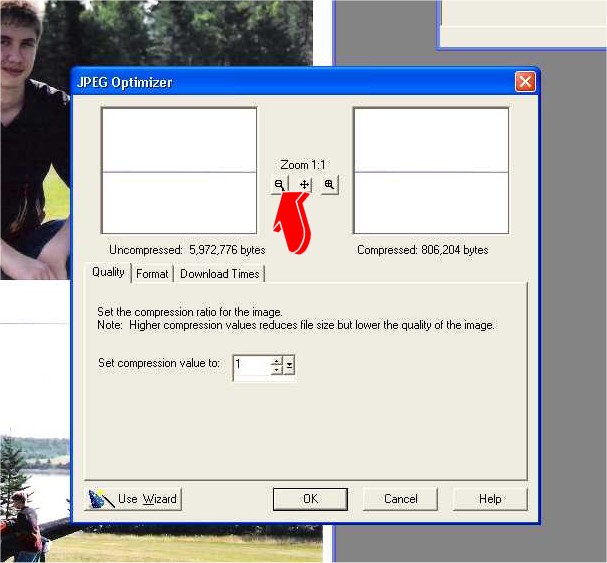
AH, much better! Please notice the white hand cursor over the
right preview. You can move the image around until you get the view you want.
*do this by left-clicking and dragging*
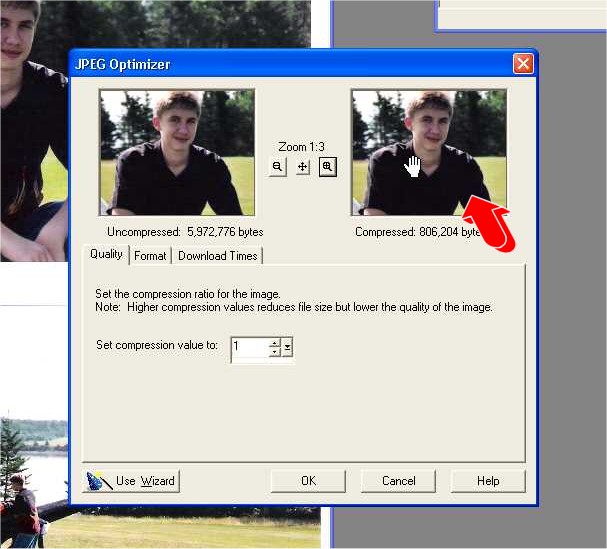
If you look below, you will see that with the compression
value set at one, we still have a very substantial file size.
The uncompressed size is 5,972,776 bytes, or nearly 6 MegaBytes.
The compressed size (set at 1) is 806,204 bytes, or not quite 1 MegaByte.
We can make this smaller yet. :)
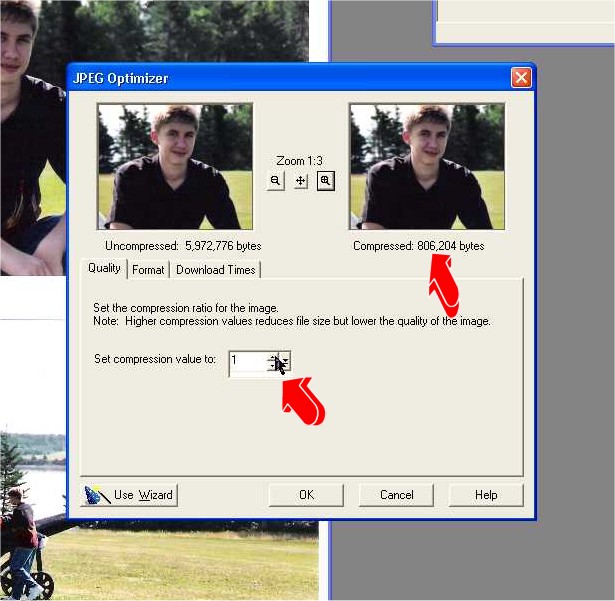
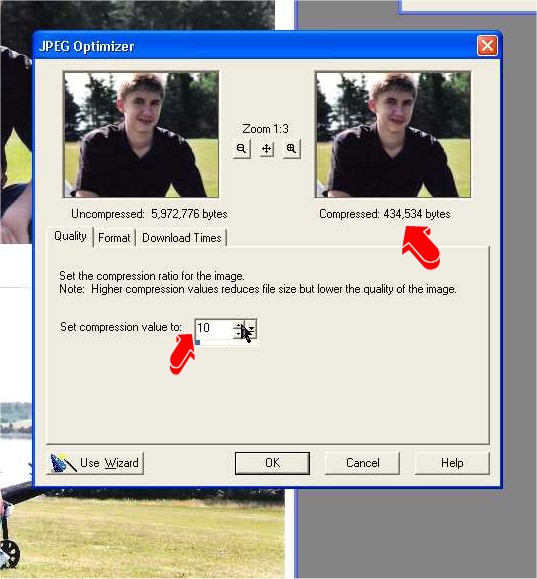
Let's change the compression value to 5 ---- Wow! We knocked
off over 300,000 bytes! (300kb)

Even better! we've knocked it down again to about Half a Meg!!
If you zoom in here, you'll notice the beginnings of distortion. Nothing bad,
yet.
Personally, I never compress photos more than about 25. More than that and you
are into more and more distortion, and who wants that?
When you have it compressed to a reasonable file size, click
OK. The window below will pop up.
Navigate to where you wish to save this new, improved image............

Rename it.....and VOILA, you're done!