Upon entering the application, the user
encounters a login screen where he enters his user id and password.
Please click the screen shot below to see the bean view of this part of the application.
|
|

|
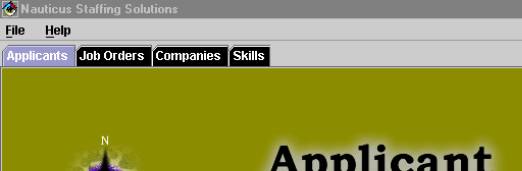
After a successful login, the user is
taken to a tab layout menu form where he can access the different
forms through the menu or via the buttons. Please click the
screen shot below to see the bean view of this section of the
application.
|
|
 |
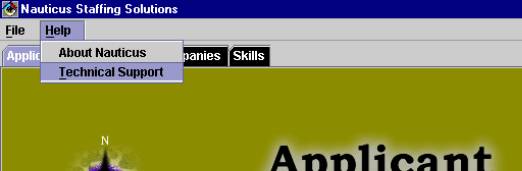
The tab layout menu also includes a menu bar where the user can
choose to view the "About Nauticus" Screen (the same as
the splash screen) or the "Technical Support"
screen. Please click the screen shot below to view these other
two screens.
|
|
 |
|
Here is a look at the functionality offered by the
buttons on each form:
- Add - saves information pertaining to a new company.
- Update - saves the changes made to an already existing
company.
- Delete - removes the company from the list and the database.
- Clear - clears the text boxes.
- Cancel - clears the textboxes.
- View/Delete Mode - enables/disables buttons depending on
whether the user wants to view, edit, or delete.
The companies form retrieves a list of companies from the database.
When selected, information pertaining to that company is displayed.
The user has options of adding new companies and modifying or
deleting the profile of an already existing company. Please
click the screen shot below to view the bean view of this part of
the application along with a sample of the validation implemented on
this form.
|
|

|
The job orders form retrieves a list of
companies from the database. Upon selecting one company, a list of
job orders for that company fills the second list box. When
selecting a job order, the profile is displayed including a list of
skills required for the position. The user has the option of adding
new job orders for a specific company or modifying or deleting the
profile of an already existing job order. Please click the
screen shot below to view some of the validation implemented for
this form.
|
|
 |
|
The applicant form stores a list of all
the applicants in the database. When clicking on one, the profile
for that specific applicant is shown as well as his/her skill set.
This form offers the same functionality as the other ones where a
user can add a new applicant as well as modify or delete the profile
of an already existing applicant.
|
|

|
Finally, when an applicant or a job order
comes in and this applicant or job order has a skill that is not
included in the list of industry skills, the recruiter can access
the skills form where he/she can add a new skill or modify or delete
an existing skill. When selecting a skill, a second list fills with
applicants that have that skill. Please click the screen shot
below to view the bean view of this form as well as a sample of the
validation implemented for this form.
|
|

|

