|
|
|
|
| MS
Access Database Features |
|
Within the database my team and I created, many
features were included:
- An
attractive splash screen welcomes the user to the database.
- Pictures of vehicles to lease or purchase were stored in the database
and displayed on forms.
- A "thank you" letter was created and merged with the
fields from the database so they could be printed and mailed with ease.
- A pop-up form was implemented in order to ensure all required data
was retrieved from the user. Once a new vehicle was added to
the database, a transaction form also had to be filled out. The Transaction
form popped up automatically once the vehicle form was
complete so the user would not forget.
- As you can see from the screen shots provided below, different views of the
same form provided the user with various levels of usability .
In the "View Mode" (Figure
1.1), the
user can only scroll through the records to view client information
without the worry of deleting or changing information. The
fields are shaded to indicate read-only. The "Edit
Mode" view (Figure
1.2) is similar to the
View Mode in that the user can scroll through records, but s/he can
also edit the records and any changes are saved automatically.
in the "Add Mode" view (Figure
1.3),
the user can actually add a new record and this is indicated by the
blank fields, which seemingly await to be filled with data. When
the "Save" button is clicked at the bottom, the data entered
is validated. If there is an error, the user is prompted to
enter correct data and the data is then saved.
back
to top
|
|
Visual
Basic for Applications (VBA) was used extensively in our application:
- An
application was built to
automatically calculate the total Purchase or Lease payments (with a
residual value for the lease payment) to add functionality (see
Figure 1.4). The
totals were then summarized and displayed on a printable form (see Figure
1.5).
- Help
was made available on each page of data entry for the user.
On a click of a key (F1), a help balloon would display helpful
tips.
- An
Active-X calendar control was used to make date entry quick and easy.
- An
input mask for the zip/postal code field was used, based on the choice
of country entered into the country field.
back
to top
|
|

Figure 1.1 - View Mode on the Vehicle Information Form
back |
|

Figure 1.2 - Edit Mode on the Vehicle Information Form
back |
|

Figure 1.3 - Add Mode on the Vehicle Information Form
back |
|
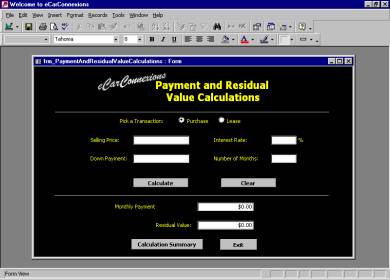
Figure 1.1 - Calculator Form
back |
|
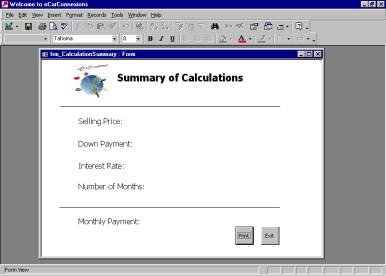
Figure 1.2 - Summary of Calculations Form
back |
|
|
|
|
|
|
Essentials of eBusiness /
Java /
Visual
Basic /
DB2 /
Peer Evaluations /
Biography
|

