Reformat a Hard Drive Apache
Systems
Reformat a Hard Drive Apache
SystemsReformat a Hard Drive Apache
Systems
| Home | Networking | Printing | Routers | Tutorials | Firewalls |
Audience aimed at : Windows 95, 98, ME Users
Below are the complete instructions to walk you through the process of
formatting partitions on your hard drive.
1.) Restart your computer with the Startup/Boot disk in the floppy disk drive.
**NOTE:**
If you are using a Windows 95 Startup disk, a command prompt is displayed and
you can skip to step 2. If you are using a Windows 98, Windows 98 Second
Edition, or Windows Me Startup disk, select the Start computer without CD-ROM
support menu option when the Windows 98 Startup menu is displayed.
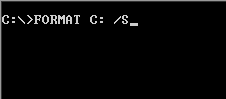
2.) When a command prompt is displayed, type format c: /s, and then press ENTER. This command transfers the system files and should only be used when you format drive C (or your "active" drive). **NOTE** (If you are formatting with an Windows ME boot disk you cannot use the /s switch. Windows ME will not let you transfer system files to a disk without an operating system already present.) For all other partitions, type format drive: (where drive is the letter of the partition that you want to format).
3.) When you successfully run the format tool, you receive the following message:
WARNING, ALL DATA ON NON-REMOVABLE DISK DRIVE C: WILL BE LOST!
Proceed with Format?
4.) Press Y, and then press ENTER to format drive C.
5.) After the format procedure is finished, you receive the following message:
Volume label (11 characters, ENTER for none)?
**NOTE:**
This is an optional feature that you can use to type a name for the drive. You
can either type an 11-character name for the drive, or you can leave it blank by
pressing Enter.
6.) Reboot. You are now ready to install your operating system.
The last step is how to install Windows 98.
Another way
From the floppy drive the simple command "format" wields the power to rewrite any partition with a bunch of empty space. You've got to modify the command just a bit so the computer knows what to format. In most cases, you will type in "format C:". The computer will give you one last chance to back out and make sure you're OK with losing all the data on the selected partition, and then formatting will commence. A percentage marker will increase, showing your progress to completion. With a formatted hard drive, you should have no problem initiating a fresh install of Windows.
Quick Guide To Partitioning A Hard Drive
there are many ways to partition a hard drive and the following only presumes one method which uses DOS partitions for use with FAT32.
example we are going to use a 4 gig hard drive and divide it into 4 partitions which the PC will now see as four independent drives 'C', 'D', 'E' & 'F'. Each drive (partition) we want sized as below
'C' partition = 2 gig
- 'D' partition = 1 gig
- 'E' partition = 500mb
- 'F' partition = 500mb
If you add up all the above partition sizes you will see it adds up to the full 4 gig of the entire drive (500mb = half a gig)
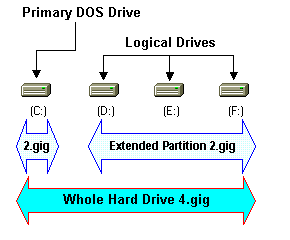
Now take a look at the diagram below and lets see how these partition's are laid out across the 4 gig drive
No matter how many partitions you divide the drive into, it is first divided into only two, A Primary DOS Drive and a Extended DOS Partition. The Primary DOS Drive will be the first partition and then all further partitions will reside within the Extended DOS Partition as 'Logical DOS Drives'. So if you want to split a 4 gig into two half's of 2 gig each then you will have a 2 gig Primary DOS Drive and a 2 gig Logical DOS Drive using all the available space of the Extended DOS Partition.
For our example of a 4 gig drive divided into four we will need a 2 gig Primary DOS Drive and a 2 gig Extended DOS Partition containing three Logical DOS Drives of sizes 1gig, 500mb & 500mb.
Now lets have a look at how we go about creating these partitions using FDISK
From newlogic.com http://www.newlogic.co.uk/kbase/fdisk/page3.htm