Apache systems Inc
| Home |
There have been four major versions of Outlook:
The examples here are of Outlook 2000,
Configuring Outlook
The first thing a user can do is to set Outlook's preferences in ways that make sense for security. Open Outlook, select the "Tools" menu, and then choose "Options". In the Options window that is now open, select the "Security" tab:
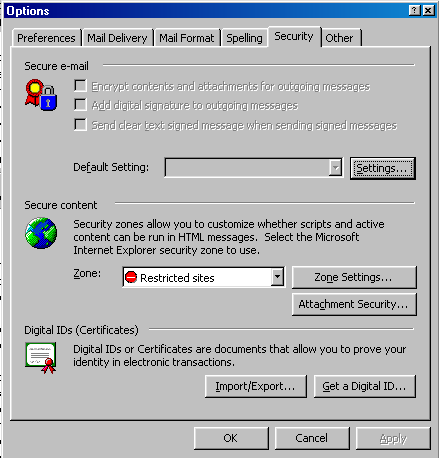
Figure 1: Select the "Security" tab in the Options window.
"Plugins" are small software programs that enable your Web browser and email client to view special content.
"Scripts" are small programs, typically written in JavaScript or VBScript, that run in your Web browser or email client and allow programmers to change the functionality of those programs. For example, if you've ever filled out a form and pressed "Submit", only to have a small box pop up warning you that you neglected to fill in your email address, then you probably just interacted with some JavaScript.
"Cookies" are small text files that track the Web sites you visit and the emails you read. Some cookies are necessary: as they remember your password when you next visit the site.
"ActiveX controls" are small programs that work over the Internet. it is quite possible to install and run an ActiveX control that will erase important data, or capture sensitive information and post it to some bad guy somewhere. Microsoft's security model for ActiveX controls involves "signing", which means that the author of an ActiveX control verifies that he is who he says he is. If you agree to allow signed ActiveX controls to install and run on your computer, then any control that states that it is authentic can run. The problems with this sort of "trust me" security should be obvious. Just to complicate things, Microsoft now forces all plugins written for Internet Explorer 6, which Outlook uses to view HTML email, to use ActiveX as their delivery mechanism.
"Java applets" are programs designed to run inside a Java Virtual Machine (JVM) on your computer. If you don't have Java installed, then you can't run Java applets. The JVM is more secure than ActiveX because it only allows programs to run inside a sandbox that restricts what they can do while preventing them from accessing key system resources.
Secure Content
On the "Security tab" of the Options window, take a look at the middle section, "Secure content". This is an important configuration, as it controls what your email program does with content that can cause problems, such as ActiveX controls, plugins, cookies, and scripts. First, change your zone to "Restricted sites".

Figure 2: Set zone to "Restricted sites"
Leaving your zone set to "Internet" is just too simple, as it still allows you to run ActiveX controls and plugins while letting scripting operate indiscriminately. You still need to customize your settings, so select the "Zone Settings ..." button. You will now see a dialog box warning that any changes you make are going to affect not just Outlook, but also Internet Explorer and Outlook Express. Due to the way in which Microsoft ties together all of its programs, changes made in one program may have effects on other programs.
After choosing "OK", you will be presented with the Security window, which lists the various "zones" along the top. Choose "Restricted sites" and then select the "Custom Level ..." button.
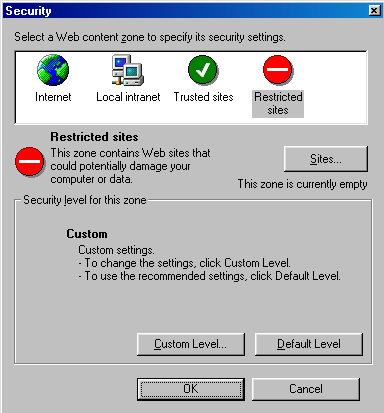
Figure 3: Security zones with "Restricted sites" chosen.
Once the "Security Settings" window is open, I recommend setting everything to "Disable", except the following, which you should set to "Prompt":
In addition, make sure that the "Software channel permissions" are set to "High safety", and "Logon" is set to "Prompt for user name and password". The "Software channel permissions" setting governs the automatic downloading of software from "channels", or subscription-based Web sites. Microsoft has pretty much abandoned this idea, so you don't need to worry too much about this anymore, but by setting the permission to "High safety" you will exercise as much control as you can over any such downloads. The "Logon" setting affects how your computer authenticates you with sites that require a username and password. Other settings don't give you fine-grained control when logging in, in some cases automatically logging you in with the name and password you use to sign in to Windows. By changing this setting to "Prompt", you will always be asked to enter a username and password.
Once you're finished securing everything, select "OK" to close the window, and then choose "OK" to close the Security window.
You should now be back on the Options window. Now select the "Attachment Security ..." button. When that Window opens, choose the "High" option. This warns you if any attachment will present a security issue.
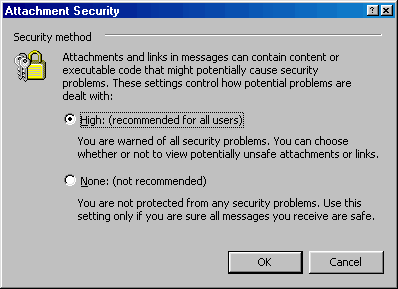
Figure 4: The "Attachment Security" window
Note that the "Attachment Security..." button only appears in versions of Outlook prior to Outlook 2002. With Outlook 2002, Microsoft changed how attachments are handled, so the user no longer gets that choice.
From Scott Granneman is a senior consultant for Bryan Consulting Inc. in St. Louis. He specializes in Internet Services and developing Web applications for corporate, educational, and institutional clients.