Uploading hotpotatoes projects and
making a link on your home page
- Save your JQUIZ
project as youname3 and your JCLOZE project as yourname4 to the desktop or
somewhere where you can find it easily
- go to
www.geocities.com on the web
- On the right,
you will see “Yahoo! member sign-in”
- Enter Yahoo!
ID: (almost the same as for angelfire, but without art3/) Password: (same as
for angelfire) Then press “Sign in”
- You will see
the Geocities page "Control Panel" and “Welcome englishviacomputer” Click on
"Manage"
- Click on “Easy
Upload” in blue on the left side. (Please don’t go to HTML editor or any
of the geocities tools because this is a class page and the index.htm and
other student’s files should not be changed.)
- You will now
see the Easy Upload page. Click on “Browse” and you will see a window with
the things in your computer, like this:
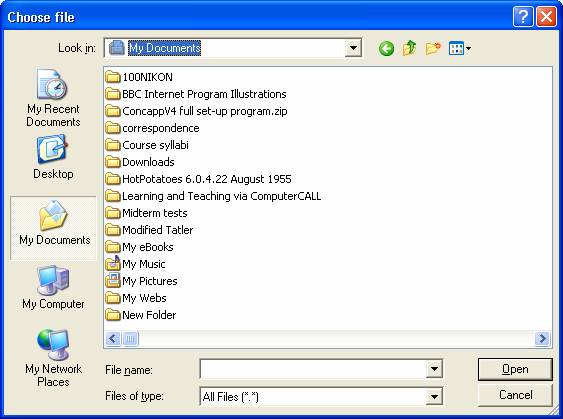
- Unless you had
your hotpotatoes file here, you will have to go up to the little triangle and
select the desktop, like this:
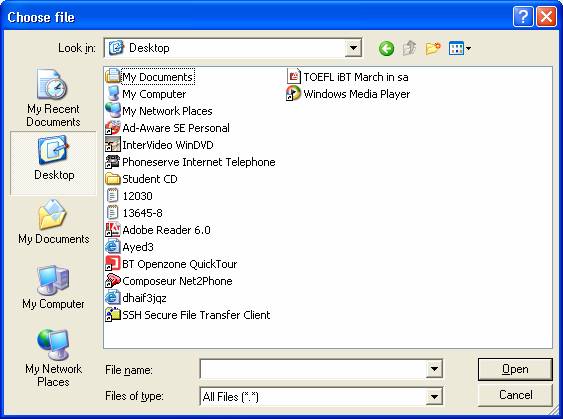
- Now choose the
blue e –for internet explorer—file you want to upload. For example, here I
have chosen Ayed3:
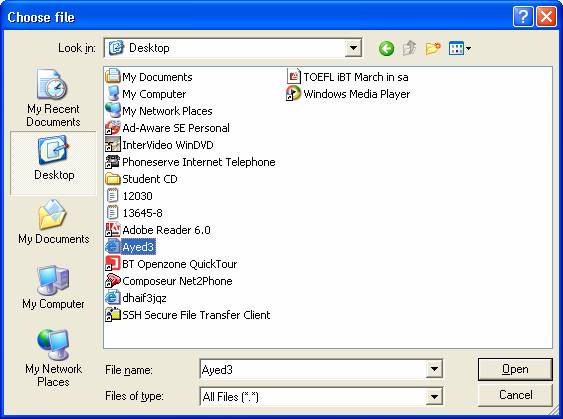
- Then press
“Open”
- Then you will
see something like this on geocities Easy Upload:
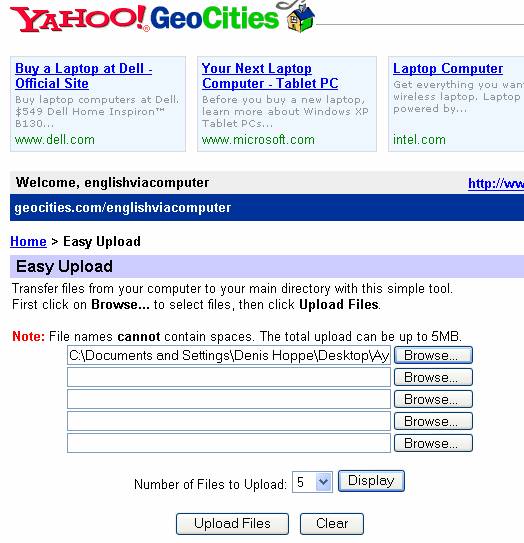
- Now just press
“Upload Files” and Presto! You’ve uploaded the file. You can upload your
other hotpotatoes file in the same way or at the same time with the second of
the five “Browse…”s
Now, when you put in
the link to your page with the picture in Front Page, you have to put in the
complete address of this geocities site where you uploaded your file.
- Open Front Page
https://www.angelfire.com/art3/englishviacomputer while you are still
connected to the internet. (use the special ID and password I gave you in
class, and the instructions)
- Go to
File>Insert hyperlink… but this time you must type in the complete address.
You must add .htm even though you can’t see it.
http://www.geocities.com/englishviacomputer/yourname3.htm
- Here is how I
did it for Ayad3:
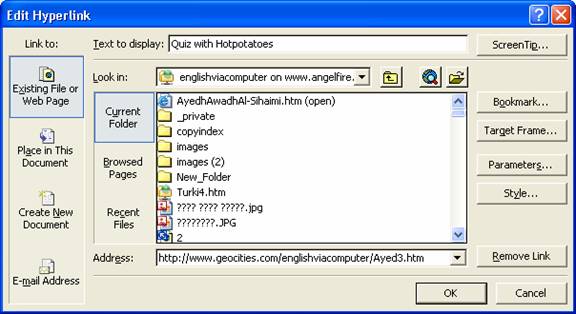
- Press OK and go
to File and “Save” not “Save as…” . This sends the link you made up to the
web site.