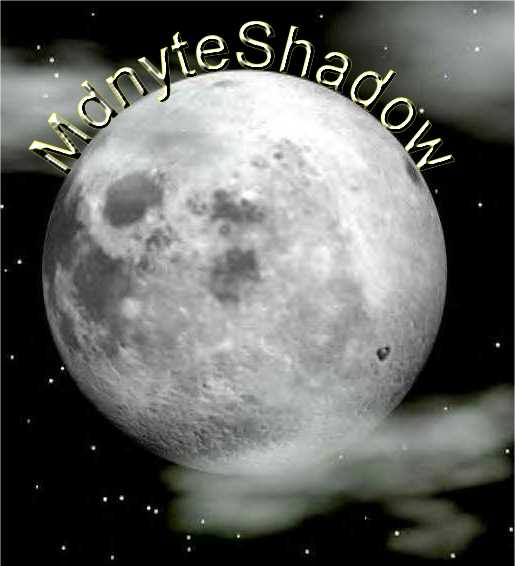
First I will show you how to do text on a circular path, and then I will show you how to apply that to a graphic or tag.
1) Start off with a new image 400 x 400 transparent.
2) Use your preset shape tools with these settings..
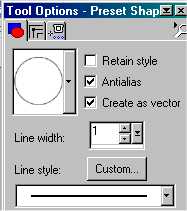
3) Set your forground color to black and turn off your background color

4) Now on your transparent image, draw a circle any size.. the size will determain how much your text will wrap, the smaller the circle the more your text will wrap around the circle, the bigger, the less it will...
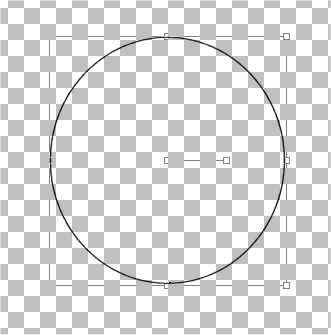
5) Now click on your text tool 
6.) Ok, now this is a really bad drawing but you will get the idea... Bring your "A" to the edge of the circle until it turns sideways and has a little "moon" underneath it. It will look similar to this.......
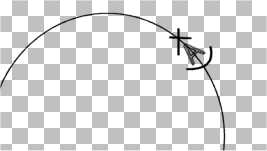
When you see the little moon under the "Moon'd A" left click to bring up your text box.
7) Enter the text you want to appear on a circular path. *Note* If you want your text filled be sure to turn the background back on!
Click ok, your picture should now look something like this...
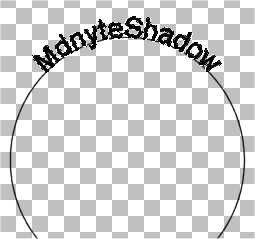
8) While the ants are still marching around your text you can add whatever effects you want to your text like a drop shadow or inner bevel. After you have done that deselect your ants. Selections, select none or the shortcut (Ctrl D). When you do this a box will appear that looks like this....
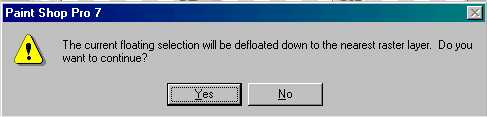 Click yes.
9) Now your text will be sitting on that circle still and you want to get rid of the circle...... simply hit your delete key and the circle is gone leaving only your text on a circular path.
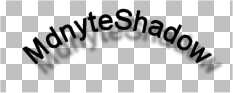
And that is how you do text on a circular path.
Now lets apply it to a graphic..... I have chosen this moon graphic, 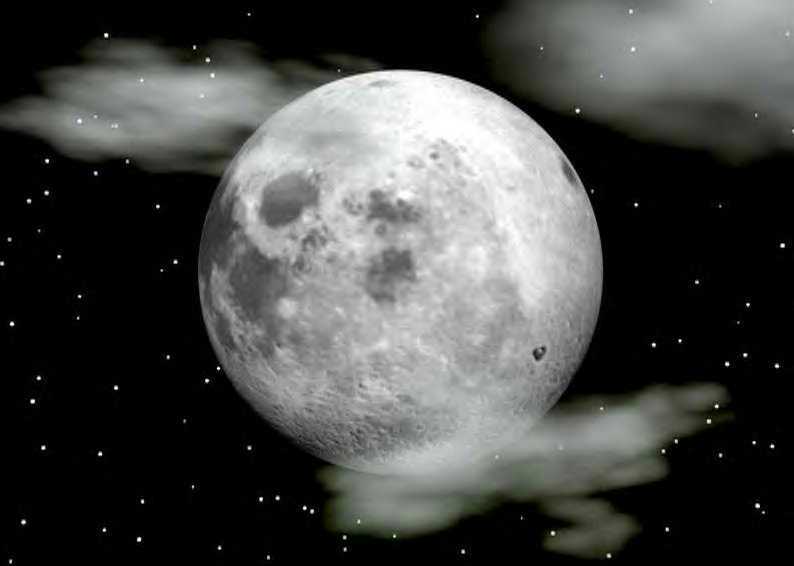
Using your preset shape tool just as before draw a circle around the graphic where you will want your text to appear, be sure your background is shut off again....... You can use the little nodes (thats the small squares in the box around your circle) to drag your circle to fit exactly around your image......
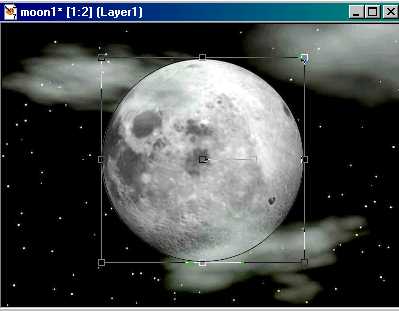
Now just click on your text tool and bring your "A" up to the edge of the circle once more until it has that little half moon under it and then left click. Apply your text and then click ok.....
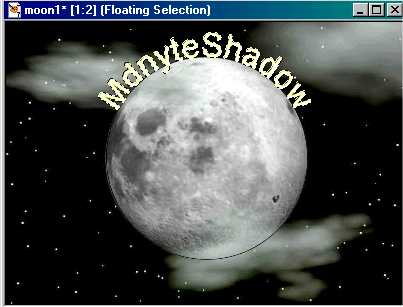
Again while the ants are marching add whatever effects to the text you want and then deselect (Ctrl D)
Click yes when that box pops up and then hit your delete key to get rid of the circle outline and you have text on a circular path in your graphic!
Be sure to go to layers, merge, merge all flatten!