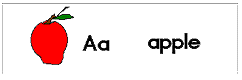
 |
Using a the simple tools of paint you can create a large number of
flash cards to use over and over again.
Click on the Paint Selection in the dialog box, and click open. |
 |
First draw the outside box of the flash card using the rectangle shaped
tool on the left.
Click the mouse button where you want the top left part of the box to begin. Hold the button down while pulling your box down and to the right. |
 |
To create an apple make a small circle. |
 |
Use the pencil tool to add the bottom shape of the apple. |
 |
Complete the stem of the apple with the pencil tool. |
 |
Use the eraser tool to carefully take out any lines that you may not want. |
 |
Click on the tool that looks like a paint bucket, and the color red
to color your apple.
If your apple has a hole in the line, the red will leak out. Before you begin this step make sure that your apple does not have holes. If it has a small hole, use your pencil tool to draw a line to close the hole. |
 |
Use the Type Tool to Add Words to your card. |
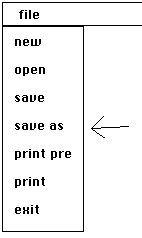 |
Click on the word file at the top of the screen when you are ready
to save your finished flash card.
Pull down to save as, and type the word apple Click save. |
 |
Then pull file down to exit |