The "Sakura--Perfect Edition" Forum Faq
Written by:

Introduction:
As some of you might not or might know, this FAQ was created to help you get around on the new message board. unfortunatly, this may or not help, but more likely, it will help^_^ This FAQ isn't complete yet, but for now, it contains the more important info first.
.:C O N T E N T S:.
basic help
How to sign up for the new message board?
How to Post Messages on the Board
Extra Stuff
How to Create my Own Profile Picture
How to Edit my Profile
1) How to Sign Up for the "Sakura--Perfect Edition" Board
Possibly the most frequently asked question of them all, here, you will recieve step-by-step instructions of how to sign up for the board...
Two Guides to help you here:
The More Detailed , and more complicated help
Step One--Open the Message Board: Just go straight to the mesage board.
Step Two--Click the link "Register Your Free Account"

Step Three--Go to the bottom of the next screen, and click on this picture:
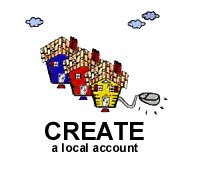
This will make you create a "local account" this allows me to keep track of registered users, and allows me to keep you guys up to date on information. Thus, if you take a global account, it won't work at all.
Step Four--Now, you are on the fillout form. To make sure you are on that form, you should see this menu on the page:
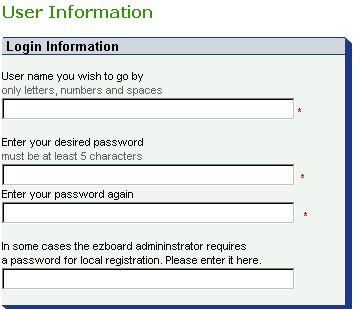
If you do not see it, click here
Step Five--Fill out the form, and click on "Create my ezboard account now!

Step Six--When you are done , just press cancel on the bottom of the next screen. This screen is just ads. On the following screen, you should see on the top something that says that "your account has been successfully created" or something like that.
Congrats, you are now a registered user for my message board!
2) How do I Post Messages on the Message Board?
How do you do what a message board is created to do, post? Here's all the info you'll need.
Step One--First, open a message board you want to post in. Try to keep on-subject^_^
Step Two--Press on the "post new topic" button:

Step Three--Fill in the form (Name, password, subject, message)
Step Four--Click "Add Topic" To add the message into the forum. It will appear in there. Also, you can spell check your message.
You have just posted a message!
3) How do I Create a Personal Picture for my Profile?
If you want to create a profile for yourself, you can use an image editor, or an image you like (the picture looks better at 60 x 60 pixels) in it. Here's a basic explanation of how.
Step One--First, go to ezboard.com, and log in with your name and password.
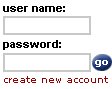
Step Two--Click on "Edit preferences"
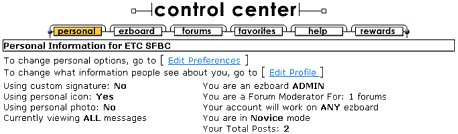
Step Three--Go to the area that says "Personal Photo". Type in the URL (Web address) of the image (Yes, the image must be stored online) . Then, go to the bottom of the screen, and click on "Submit Changes".
NOTE: If you send me your own profile picture, I will store it online for your use on the message board! Just e-mail me at UkyoSpatula@cs.com with the subject "Profile Picture"
You have just created a Web photo!
4) How to Edit my Profile
Do you want people to want to know more about you? Here is how you change / add information in your profile.
Step One--First, go to ezboard.com, and log in with your name and password.
Step Two--Click on "Edit Profile". When you are done, go to the bottom of the screen and press on "Submit Changes".
You have Just Edited Your Profile!

