|
Star Light,Star Bright

These cute little guys are always fun to work with. This tut has about 34 layers...
this will be your choice in the end of the tut if you want more glow you will have
more layers...so be prpared
Written by Dorothy
Dec 11/2004
Make a new folder to keep your saved images in
Open the template in PSP and open
the font and shrink it to the taskbar
Close off all layers except the bottom layer....this is a small tag so I suggest
you magnify it by 1 click....add a new layer and with the text tool set at size
26, font 101 Shining Star...stroke set at red...fill set at
yellow...here you can use your own colours...line set at 1...floating and
antalias checked...type your name and place it above the bear....close
to his head because he has short arms.....close off and re name text...drag it to the top
of the stack....now we need to type each letter of our name
on it's own layer and re name it by the letter.....now what you
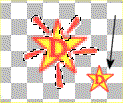
have to do is lasso each of the shine around the star and delete...
The small star shows what it looks like after deleteing the shine
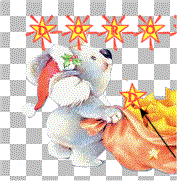
......place these one on
top of the other in the bears bag
Now we are all set to put it to gether
1)Open bear 2.....first letter of your name....layers>merge>
visible....save as image 1.......click undo button
2)Close off bear 2....open bear 1......put the first letter in his hand...open second
letter....
....layers>merge>
visible....save as image 2.......click undo button
3)Close off bear 2...open
bear 3.....put the letter in his hand.
..layers>merge...save as image 3....click undo
4)Close off bear 3...open
bear 2.....Close off first letter...open text...duplicate text...close off
original.....lasso all but the first letter of
your name and delete.....layers>merge...save as image 4....click undo
5)Close off bear 2..open bear 1....place letter in his hand...open next letter...
layers>merge>
...save as image 5 ....click undo
6)Close off bear 1...open bear 3...place letter in his hand....layers>merge...save as image
6...click undo
7)Close off bear 3...open bear 2.....close off letter....delete copy of text...open text...
duplicate and turn off original....lasso and delete all but the first 2
letters of your name....layers>merge...save as image 7....click undo
7)Close off bear 2..open bear 1.....place letter in his hand....
open next letter....layers>merge>
save as image 8....click undo
9)Close off bear 1 ...open bear 3....close off letter...delete copy of text...
open text...duplicate...close off original....lasso and delete all but the first letters
layers>merge....save as image 9...click undo
10)Close off bear 3...open bear 2...layers>merge...save as
image 10...click undo
11)Close off bear 2...open bear 1...place the
letter in his hand...open next letter...layers>merge>...
save as image 11....click undo
12)Close off bear 1...open bear 2...close
off letter....delete copy of text...open text....duplicate...close
off the original...lasso all but the first few letters of your name and
delete....layers>merge>...save as image 12
13)Close off bear 2...open bear 1....place
letter in his hand...open next letter....layers>merge
save as iamge 13...click undo
14)Close off bear 1...open bear 2...close off letter...
delete copy of text.....open text...duplicate and turn off original....
lasso all but the first few letters...layers>merge...
save as image 14....click undo
15)Close off bear 2...open bear 1....place the
letter in his hand...open next letter....layers>merge...save as image 15...
click undo
16)MOve the letter over and
turn it a little...effects...sharpen........layers>
merge....save as image 16...click undo
17)Close off bear 1....open bear 4...close off letter.
delete copy of text...open tex...duplicate
turn off original....lasso and delete all but the previous letters....
...layers>merge....
save as image 17...click undo
18)Close off bear 4...open bear 2...layers>merge....save as image 18...
click undo
20)Move the letter over and giver it
a turn...effects>sharpen.....layers>merge...save as image 20...click undo
21)Close off bear 1....open bear 4....move the letter over
more and give it another turn...effects>sharpen ....layers>merge...save as image
21...click undo
22)Move the letter over
to the end of the text...give it another turn....effects>sharpen...
layers>merge...save as image 22...click undo
23)Close off letter...delete copy of text....
open text....layers>merge...save as image 23...click undo
24)Duplicate text...close off
original....With the copy of text layer the active layer...go to
colors>adjust contrast and brightness...set the brightness at 80...
click ok...layers>merge...save as image 24...click undo
25)Close off copy of text...open text...layers>merge...save as image 25.....
...............Animation Shop............
Open animation shop...click on the
animation wizard
Same size as first image...click next
Transparent...click next
Upper left corner and with canvas color checked...click next
Yes repeat the animation indfinitely....put 31 in box...click next
Add images...click next
Click finish
Now is a good time to crop....click the crop tool...
click options....click surround opaque area....click crop....that's a much
better size.....
right click on the first frame and frame properties set at 125
Frame 11,12 and 13 set at 41
Click on last 2 frames to highlight them right click and copy....
right click on last frame and paste after current frame.....
right click on last frame
again and paste after current frame.....
right click on last
frame...frame properties set at 125...now click the
animation button and light up the sky
That's it! Your all done
Thanks for doing my tag
|