|
Happy Yuletide
This is a selections tut I made myself, I have always been fascinated
with the selection tuts, this is not very hard and does not have too
many selections and if you are just starting with selections, you should
have no trouble with this
Make a folder on the desktop for your selections...don't
put them in PSP because you will probably never use them again and we can
work from a folder on the desk or wherever it's good for you
Extract the selections to their own folder...extract the patch and the picture to a folder where you can find them..
Open your picture and re size to about 330 x 234...this is the size of mine...add a new layer...
add your text to the picture and then layers>merge...re name picture or text.....
shrink it for now. ..Open a canvas...400x400...transparent.....
Add a new layer...selections>load from disk...f1sel...flood fill with
your colour I added the peppermint patch which you are welcome to
use..... shrink it and you will find it in your patterns...set the scale at 50 and the angle at 51..
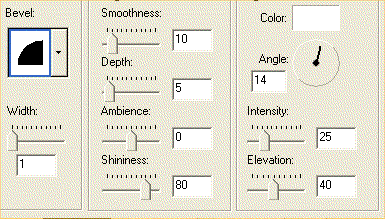
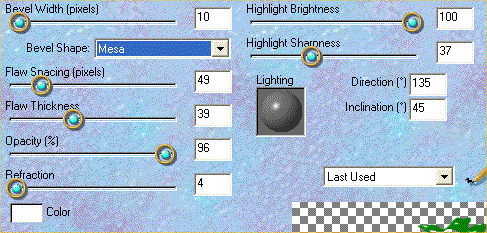
add an inner bevel
Select none....add a new layer...selections...load from
disk...inside frame.sel...selections.modify...
expand by 1....click on your picture...
edit>copy...click on the canvas...paste into selection...select none...layers> merge...
re name frame 1....duplicate this 2 more times.....for a total of
3 frames...and name them frame 2 and frame 3...close off frame 2 and 3...
With frame 1 the active layer...add a new layer....selections>load from disk...blink 1sel...flood
fill with white..( here you can flood
fill with any colour....I used a different colour on each
blink layer...your choice).select none...layers>merge...re name frame 1
Open frame 2...make sure it is highlighted...add a new layer...selections...load from
disk...blink 2.sel...flood fill with white....select none...layers>merge...re name frame 2
Open frame 3...make sure it is highlighted...add a new layer...selections...load ffom
disk...blink 3.sel....flood fill with white....select none...layers>merge...re name frame 3
Add a new layer...selections>load from disk...leaves.sel....flood fill with a deep green....
effects...eyecandy 3...glass
selections>load from disk....pointsetta.sel....flood fill with
deep red....add the eye candy effect....select none...
selections>load from disk...center1.sel...flood fill with bright yellow...add eye candy effect...
...selections>load from disk...center.sel...flood fill with black and
add eyecandy once more.....
making sure all the frames are closed off...layer>merge...close off and re name
flower...duplicate this layer 2 more times....re name flower 1 ,2 and 3
Open frame 1....drag flower 1 on top
of frame 1....layers>merge...close off and re name
Open frame 2....drag the flower on top of frame 2...
..layers.merge...close off and re name...
Open frame 3....drag flower 3 down on top of
frame 3......layers>merge...close off and re name
Open all layers...save as...open your image in animation shop....
now is a good time to crop it and save as
That's all there is to this one, not very great but it's a start
|