
|
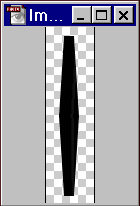 Click Here To Download The PSD shape 2. Next open the premade shape press CTRL+A and then Edit, copy or CTRL+C to copy the image. Now make a new image 200x200 pixels. next press CTRL+V or edit, paste, to paste the copied shape into the new image.  3. Now comes another easy but tricky part. If you dont have it open go to Window, Show Layers. There should be one layer. Right click on the layer and select "Duplicate Layer" or highlight the layer and go to Layer, Duplicate in the menu. Now you should have 2 layers. Next go to Edit, Free Transform. Hold down the shift key and rotate the image right 2 nothes. Use the picture below as reference.  4. Next go to the first and original layer. Keep Duplicating and Transforming like in layer 3 until you get the picture below. When finished you should have about 6 layers.  5. Next make a new layer ontop of all the other layers. Draw a circle selection use the circle selection tool from the toolbar. Try to get it as centered with the lines as possible, then fill it with black.  6. With the circle still selected, hold down CTRL+SHIFT keys and then click on all of the other layers to select them also. Pictured below is what your selection should look like.  7. Now make a new layer and make all the other layers invisible by clicking the eye next to each layer. Now you should have a blank selection, pictured below. Now go to select, modify, smooth. Enter about 2-3 for smoothing and then fill the selection with black. 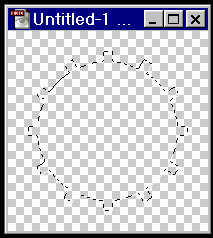 8. Now all the other layers dont matter so you can delete them or whatever you want. Next Make another Circle selection inside of the one you have, try to make it as centered as possible. Then press delete and you have the basic geer.  9. Add extra effect however you like. I used some lighting effects, cut out some circles, added a few things and got the geer below. Takes a while but these look great! 
Back To Main |
