|
Counting with numbers and pictures (Kindergarten) |
|
|
State Capitals (Grade four) Foreign Language Vocabulary |
|
|
Foreign Language vocabulary |
|
|
Chart an equation
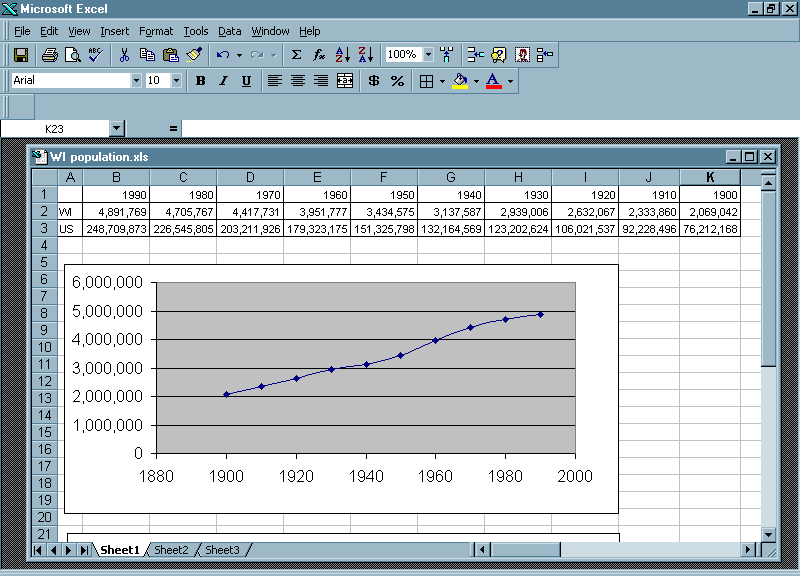
Chart the population of your state since 1900 and make predictions |
Access data on the Internet Math: Make a chart, equations and predictions. Social studies: Population, census |
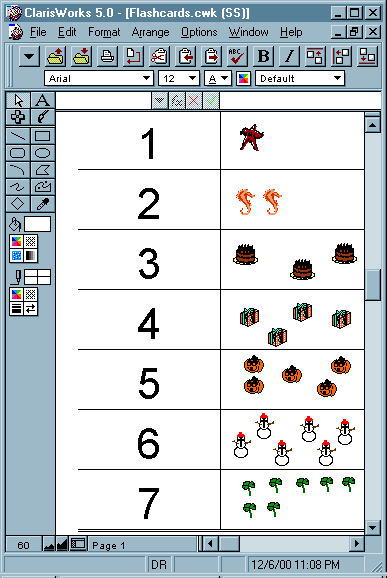
Students open the Flashcards template. (Make a template with borders formatted, print area set, and column width determined.) They enter numbers in the first column and put pictures in the second column. They put their name in the header, save and print a hard copy. They cut along the lines to get 14 flashcards and then glue the matching pieces together. See a sample of the completed assignment below:
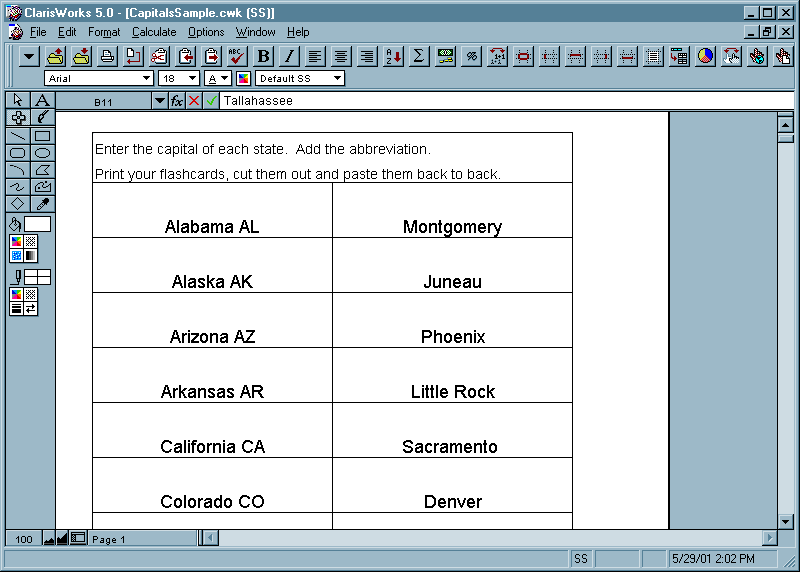
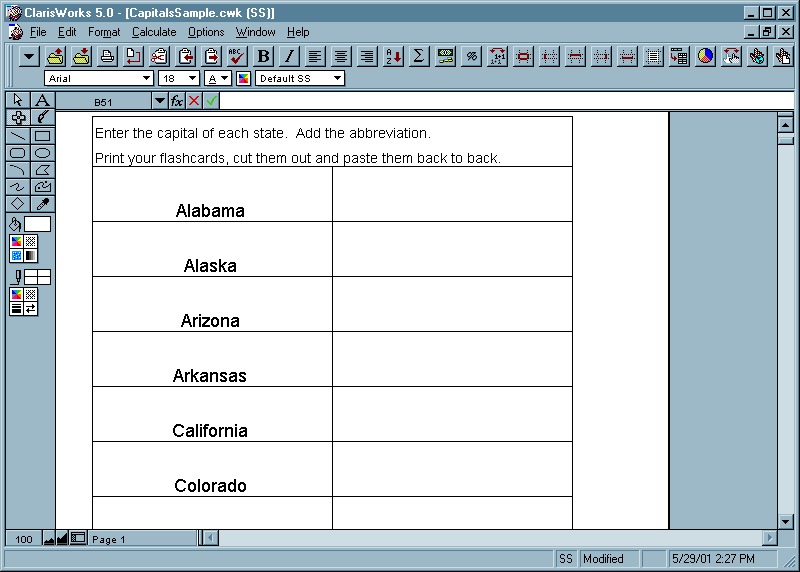
The Flashcards template can be used with older students for learning definitions of vocabulary words across the curriculum, and also for learning foreign language vocabulary. They can also use it for learning State capitals and abbreviations. See the template and sample below:
Flashcards: Student Instructions for AppleWorks
Highlight the words. Click on the Format menu. Click on Alignment.
Click on the Format menu, click on Borders.
Click on the Format menu, click on Insert Header, type in your name
Flashcards: Student Instructions for Excel
Highlight the words. Click on the Format menu. Click on Cells, Alignment and pull down next to Horizontal: to get Center.
Click on the Format menu, click on Cells and the Border tab.
Click on the View menu, click on Header and Footer, type in your name
Spreadsheet can be used to generate random bingo cards. Use vocabulary words and spelling words in the mother tongue or a foreign language.
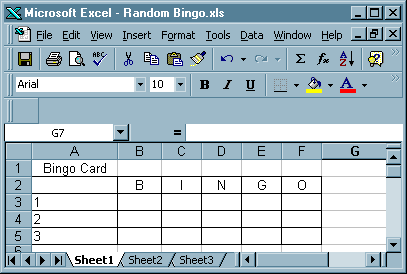
Enter vocabulary words in cells A7 to A27. (for 20 words)
Enter the formula =RAND()*20 in cell B7. (That is, the formula for a random number between one and twenty, = lets the computer know that a formula is being entered, RAND generates a random number, followed by open and close parentheses, multiply by twenty makes the random number between one and twenty.)
To fill this formula down, click on cell B7. Hold down the mouse and highlight from B7 through B27.
Click on the Edit menu and click on Fill Down. (See the example showing formulas below).
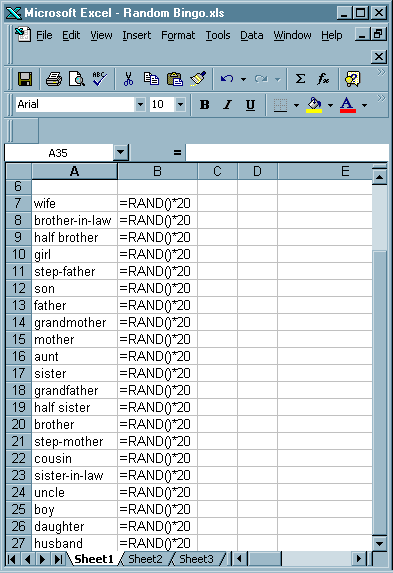
Enter the formulas shown below to place the words from cells A7 through B27 on the bingo card. Highlight cells A7 through B27. Click on the Data menu and on Sort. Sort in ascending order for column A.
Set the Print Area is set for cells A1...F5, so that only that will print out. Do not delete words in A7 through B27, or the words on the bingo card will disappear.
Resize Columns A to F by highlighting columns A through F and click on the Format menu, on Column Width, and choose an appropriate width for the words in those columns, so that all columns are the same width.
Print the card.
Change the number in A7 and all other numbers will change and a different bingo card will be generated.
Below see the Bingo Card spreadsheet showing formulas and the bingo card showing data.
Excel: To show/hide formulas, click on the Tools menu, Options, View Tab and add a check mark next to Formulas to show formulas. AppleWorks: Click on the Display menu, Options, and add a check mark next to Formulas to show formulas.
Back to Spreadsheet AssignmentsChart an equation
y=3x+2
1. Open a new Spreadsheet document and fill in the value of y if x = -1, 0, 1, 2, 3, 4, 5
2. Highlight the values and click on the Insert menu and on Chart.
3. Select XY (Scatter) and choose Scatter with data points connected with smooth lines.
|
|
y |
|
-1 |
-1 |
|
0 |
2 |
|
1 |
5 |
|
2 |
8 |
|
3 |
11 |
|
4 |
14 |
|
5 |
17 |
Chart the Population of your State from 1900 to today