
http://scottthompson.pwp.blueyonder.co.uk/. Please redirect any bookmarks etc. to the new address.
There are many things that a Smartphone can do which although fairly straightforward, are outside or beyond the scope of the user manual that comes with the phones.
There are also many users who wouldn’t refer to a manual after a brief flick through to see what the phone can do and how long they have to leave it in the charger before they can start playing with it.
I have written this guide primarily because it’s something I wanted but could not find, so I have created it myself. It is intended to explain what you can do with your phone, particularly if you want it to do something that the manual doesn’t explain how to do.
The guide has been designed to be as Smartphone-friendly as possible, so that you can consult it while on the move. To navigate, click on the chapter headings at the top of the page, which will take you to the relevant chapter, then click on the section heading to go to the relevant section.
Please note that this is not a comprehensive guide to everything that can be done with a Smartphone (which would be almost as ambitious as a comprehensive guide to everything you can do with a computer), but is intended to cover the kind of questions you would be likely to ask in the first few weeks of owning a new Smartphone.
There are 2 operating systems for Smartphones at the time of writing- 2002 and 2003. There are then further differences in the way they are set up, as Microsoft write the initial operating system, the handset manufacturer then modifies it to work with their particular phone, and then sell the phone on to the network operators who then set the phone to work how they want it to work (ie. On their network.) This tends to include adding some more software from yet another source.
With that in mind, this guide has been written based on a Motorola MPx200 running Smartphone 2002 set up to run on the UK Orange network. Although most of it should apply to other Smartphones and networks, there may be some differences due to different software, settings or hardware.
It has been written using Notepad using HTML. (Although this isn't the most straightforward way of putting something like this together, it is a good way of getting to grips with the language.)
Thanks go out to the members of the MoDaCo forums, from where I have got virtually all of the information presented here, and also where I would recommend going for help and advice about Smartphones.
The Motorola MPx200 is a tri-band mobile phone in a "clamshell" style. It uses the Microdoft Smartphone 2002 operating system, which includes stripped down versions of Internet Explorer (for browsing the internet), MSN Messenger and Media Player (for playing audio and video files, including MP3, WMV and WMA.) The main TFT screen is 220x176 pixels, and can display up to 65,536 colours. There is also a black and white external LCD which can show the date, time and caller ID. There is a SD/MMC slot on the side for using removable storage cards, currently supporting up to 1Gb cards. It also supports several message formats, including SMS, MMS, and emails using POP3, SMTP and IMAP.
What are the buttons?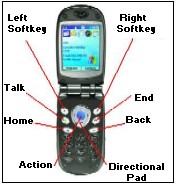
There is also a button and "rocker" switch on the left of the phone- the button is the power button, and the rocker switch adjusts the volume when moved up and down, and activates the voice recorder when pressed.
If you have installed a file explorer on your phone, or have connected it to a computer with Activesync and are looking at it in Windows Explorer, you can see that there are 4 main folders on the phone;
• Windows- This folder contains files fundamental to the phones working. While it is possible to change some of these (for example, if you want to change the skin for Media Player), everything will revert back the way it was the next time you switch your phone off.
• IPSM (“Storage” on Smartphone 2003.) This is effectively the phones hard drive.
• Storage Card- if you have a Secure Digital (SD) or MultiMedia Card (MMC) in the phone. Note that it’s best to change or remove cards when the phone is switched off.
• Temp- this is a system folder, and is best ignored.
It’s best to use the storage card whenever possible for storing files. To get the most out of your phone, get the biggest storage card you can afford rather than several smaller ones- this is especially true if you want to carry around music or videos as well as programs. (Less than 32MB and you won’t be able to store more than about an albums worth of music at just under CD-quality recording. A 128MB will give you enough space for plenty of software with enough space for a couple of hours worth of music, and maybe two or three music videos.)
Contacts are stored in a similar manner to Outlook. Each contact has several data fields, where you can store as little as a name and phone number or, if you prefer, several phone numbers, email addresses, physical addresses, websites, family names, birthdays and more.
Messages are stored in folders- the Inbox (for received messages), Sent Items (for messages which have been sent), Drafts (for messages which have not yet been sent), and the Outbox (usually for messages which are in the process of being sent.) The phone does not make a distinction between different types of messages- SMS, MMS and emails are all stored in the same folders.
There is a quick way, and several more complicated ways to make calls, usually depending on what sort of call you want to make.
To call a new number (ie. one you haven't previously used), simply dial the number and press either the “Talk” or “Action” key.
The quickest way to call someone saved in your Contacts list is simply to key in the name that your contact is saved as from the homescreen, in the same way that you would type it into a text message using the predictive input (known as “t9”.) as soon as you press a number key the Contacts list automatically opens up. Each key you press narrows down the list- ie. if you start by pressing “2”, the list that appears will be every contact stored on your phone beginning with A,B or C. Pressing the Call or Action buttons will then dial the default number for that contact.
Alternatively, you can press the “Contacts” softkey, which brings up the list of contacts. The difference with this method is that the "Call" button will dial the default number, while the "Action" button will open up the contact, allowing you to select which number for the contact you wish to use (ie. mobile, home, work etc.)
Alternatively, press the “Action” button to go into the contact information and select whether you want to call their mobile, work, home, send them a text, email, or see what their spouses name is (of course, this assumes that you’ve put all that information under your Contact!)
Go into the Inbox and select “New Message” from the menu (right softkey), then “insert contact” from the menu (right softkey again.) The phone will use the type of contact information you select and what the message contains to decide whether it should be sent as an email, SMS (text message) or MMS (media/picture message.)
Alternatively, go into the Contacts menu and select the contact (as if you were going to call them)
Press the Action button, and select whichever contact information you want to send the message to- this will open up a new message ready to send to your contact.
If you install Activesync (supplied on a CD with the phone, or downloadable from the Microsoft website), and connect the phone via the USB cable, the phone will become visible in Windows Explorer and Media Player for copying and moving files. Activesync needs to be installed for the computer to recognise the phone.
Apart from music and videos, one of the main selling points of the Smartphone is the data connections- it’s possible to use your phone to check WAP sites, websites, or check email. To set these up, you will need a service provider, which will usually be the network you use- speak to their customer services about setting up a data service.
GSM is the mobile communications network standard used throughout most of the world.
GPRS stands for General Packet Radio Service, and is currently the best method to connect to data services. It is basically a service which is related to, but separate from, the GSM connection which your phone uses for normal voice calls. You will need a GPRS subscription from your network to use this service.
It offers several advantages to GSM data connections, including;
-Faster data connections than over GSM
-The connection is “always on”- you are charged for the amount of data you download, as opposed to the length of your call. (When you aren’t downloading data, the connection is open, but no information is being transmitted, so you aren’t running up a bill or wasting battery power.)
-Leaves the phone line open, so you can make and receive calls while connected to a data service.
I am not aware of any advantages of a GSM connection over GPRS; in short, if you want to use your phone for data connections, you will want to use a GPRS service.
GPRS packages are usually arranged in a similar way to mobile packages, in that you get a certain allocation per month of free data (a certain number of megabytes), and then a fixed rate for any additional data you download. The more you pay for your package, the more free data you get and the cheaper the additional data.
HTML stands for Hypertext Markup Language, and is the usual language used to create web pages.
WAP stands for Wireless Application Protocol, and was originally created as a kind of “stripped down” version of the internet, specifically designed for mobile connections. Because the language is less complicated than HTML, the pages are smaller in size- meaning faster downloads, and using less of your GPRS package. (In fact, the language is actually closer to XML- the language used to create Homescreens- than HTML.)
Pocket Internet Explorer (installed as standard on Smartphones) can also view some HTML pages. However, this is not without it’s disadvantages- web pages are usually designed to be viewed on a computer screen, using mouse and keyboard to navigate. Viewing such pages on a Smartphone tends to involve a lot of slow scrolling around to get the part of the page you want to view on the screen, and has been compared to looking at an art gallery through a toilet roll. In addition, some HTML features (such as frames) are not supported by Pocket Internet Explorer.
WAP sites, on the other hand, are designed specifically for mobile viewing, meaning that they will rarely have large adverts, will not need any sideways scrolling to view, and will usually be fairly small in size. Also, as the pages are so much smaller, they take up less of the phones memory, meaning that moving around the page is much smoother than with HTML.
Simply plug the hands free kit into the socket on the phone- the phone will automatically change to the appropriate profile. (Note that there appears to be a bug that means this doesn’t always work in mid-call.)
You can only turn this on while actually in a call (eg. immediately after answering or dialling a number)- press and hold the “Talk” button on the left (that looks like it’s a ringing phone) until an icon appears in the icon bar- you’ll probably hear a “click” sound too. The main drawback is that it is quite battery intensive.
This depends on many factors, such as what you want to do with your phone, and whether you are willing to run unsigned software (such as beta versions and freeware) on your phone,
However, the software I would consider to be either essential or highly useful would include;
Some sort of GPRS logging software, so that you can see how much of your GPRS package you are using (such as iMeter, by Twyx.)
A File manager, for finding, copying and deleting files from your phone without having to connect to a PC with Activesync (such as Smart Explorer by Binarys.)
X-Bar; this lets you switch between applications using the "record" button (which on the MPx200 you get by pushing the volume switch on the left of the phone inwards- it can be a bit fiddly, and you will probably find yourself inadvertantly changing the volume setting.
There are several different ways of installing software- instructions will usually be given with the software itself;
-From a PC: the software might be packaged in a program which you run from your PC, while the phone is connected via Activesync. When run, the PC will install the software onto the phone. Simply follow any instructions given.
-CAB file: The software might be packaged in what is called a CAB file (the filename will end with the letters ".cab") Simply copy this file to the IPSM/Windows/Start Menu folder- it will then appear in the Programs menu on the phone. Run the file from the Programs menu, follow any instructions given, and it will install itself on the phone. If the CAB file in on the internet, it will automatically install if you download it directly onto the phone using Pocket Internet Explorer.
-SD/MMC Card: The software might be on a SD or MMC storage card. If this is the case, the software installer will usually start up automatically when the card is put into the phone- simply follow any onscreen instructions.
A good website to start looking for software to download is http://www.monolithix.org and a good place to find beta versions, news, updates etc. is http://MoDaCo.com
Orange (and other network providers I assume- I don’t know) don’t particularly like people playing around with their phones. Obviously, having paid for your phone and given it to you for free, only for you to decide 12 months later that you don’t like it anymore and want a new one with a colour screen/built in camera/radio, they want you to use it as much as possible, so if you happen to take it on holiday they want you to use it with their network at added cost, rather than put a foreign SIM card in and pay local rates.
You might have discovered that while you can swap other networks phones and SIM cards around to your hearts content, you don’t have the same freedom with Orange phones. The reason for this is because Orange have a special lock that they put on their phones to stop them being used on other networks. (Actually it’s something already installed on the phone, which many networks choose to leave off.)
Similarly, they provide their MPx200 phones with what’s called an Application Lock switched on. This means that if you want to put install some software on your phone, then it needs to be digitally signed as a trusted source. One possible reason for this is because Orange want to protect their customers from nasty things like viruses, hackers and so on. Another is that if someone elses software makes your phone go funny, it’s their customer services staff who get angry phone calls from the people who can’t use their mobile phone anymore and want to know why.
However, this also means that there is a world of software out there which you can’t install on your phone without unlocking it- you should be able to find the software to do this on a website such as MoDaCo.com
One of the things you can do with an unlocked phone is edit parts of the registry. This contains a variety of settings, from the way the phone vibrates to where parts of the graphics can be found, to how the phone connects to the network. Although it’s useful to be able to change things here, it can also do things that you won’t be able to undo without wiping the phone clean and starting agin. With this in mind…
While the value of a phone bought on a cheap/free upgrade may not seem that much, the value of a phone number/address/message on the phone that cannot be replaced is easily overlooked. If you don’t regularly synchronise your phonebook etc. with a computer, Orange provide a very helpful service whereby you can back up your contacts, SIM info, calendar etc. etc. over the network, so that should you somehow lose or wipe your phone, you won’t lose all the irreplaceable information that is on it. (Which I didn’t discover until after I had unlocked my phone and promptly piled all the software I could find onto it, it locked up and I lost all my contacts, messages, reminders etc…)
Although the ringtone, message alert sounds etc. can easily be changed in Settings, if your phone is Application Unlocked and has a registry editor installed, it is also possible to customise some of the system sounds.
First, store the sounds you wish to use in a folder of your choice- it's best to put them on the storage card, but if you want them on the phone (for example, if you use more than one storage card), the best one to use is IPSM/Application Data/Sounds as this is where any custom ringtones etc. should be saved.
Next, you will need to edit the registry to tell the phone to use your sounds instead of the default files. To do this, select the relevant registry entry (listed below), select "Value" (the left softkey if you're using PHM Registry Editor), then select "Sound" with the Action button and put the FULL path name of your custom sound in the value data (note- make sure you put a forward slash ("\") at the start- eg. \IPSM\Application Data\Sounds\Filename.wav")
The Registry Keys are;
HKEY_CURRENT_USER/Control Panel/Sounds/LowBattery
HKEY_CURRENT_USER/Control Panel/Sounds/SMS
HKEY_CURRENT_USER/Control Panel/Sounds/E-Mail
HKEY_CURRENT_USER/Control Panel/Sounds/MenuPopup
HKEY_CURRENT_USER/Control Panel/Sounds/MenuCommand
HKEY_CURRENT_USER/Control Panel/Sounds/SystemExclamation
HKEY_CURRENT_USER/Control Panel/Sounds/SystemAsterisk
HKEY_CURRENT_USER/Control Panel/Sounds/SystemQuestion
HKEY_CURRENT_USER/Control Panel/Sounds/Warning
HKEY_CURRENT_USER/Control Panel/Sounds/CallDrop
HKEY_CURRENT_USER/Control Panel/Sounds/Dialing (make sure category is set to InCall)
There are two images that appear at the top of the screen when making a call- one while dialling, one while in-call. By default, these are set to an operator (ie. Orange) logo, but you can change them to images of your own.
First, you will need to create the image you wish to use and save it somewhere on the phone. The images must be GIF file(s) and 176 pixels wide by 20 pixels high.
To change the image that appears while dialling, start your registry editor and select;
HKEY_LOCAL_MACHINE/Software/Microsoft/Shell/Rai/:MSCdial
Select "Values" (left softkey if you're using PHM Registry Editor), then "BannerImage" (using the Action key), and change the Value to the full path of your customised GIF image (eg. /IPSM/Image/Logo.gif )
To change the image that appears during a call, start your registry editor and select;
HKEY_LOCAL_MACHINE/Software/Microsoft/Shell/Rai/:MSCprog
Select "Values" (left softkey if you're using PHM Registry Editor), then "BannerImage" (using the Action key), and change the Value to the full path of your customised GIF image (eg. /IPSM/Image/InCall.gif)
You will have to soft reset your phone for the changes to take place.
OTHER SCREENS: HKEY_LOCAL_MACHINE/Software/Microsoft/Shell/RaiSometimes if something goes wrong with your phone, you will have to reset it. There are two types of reset;
A Soft Reset is simply switching the phone off and on again. It will clear anything in the memory, but leave the settings, registry, files etc. untouched.
If that doesn't solve your problem, then you may have to do a Hard Reset. This will clear everything on your phone and leave it in a "factory fresh" state. To perform a hard reset, simply turn the phone off and remove any SD or MMC card you have in. Then hold down the blue Action button while turning the phone on again. (Hopefully if you have to do this, you will have taken my advice earlier on and backed up your data!)
Probably not, I’m afraid. As far as I can tell, the battery is the MPx200’s Achilles heel, and frequently dies after less than 48 hours (apparently, this relatively short lifespan is mainly a result of running the large colour display.) In this sense, it is certainly closer to a PDA than a traditional mobile phone. However, there are a few ways to maximise the life you get out of the phone, and generally getting the best performance possible out of your phone.
A lot of people find that removing the Caller ID program helps the battery last a longer, as well as removing any other software that you don’t think is necessary. (remove software by going into the Programs menu, selecting “Settings”, “More” and “Remove Programs.”) Switching to Aeroplane Mode when out of a signal (eg. underground), or if you don’t want to be disturbed but don’t want to switch your phone off is also a good idea (eg. if you’re attempting a record-breaking Tetris score…), as it also stops the phone from sending out signals in search of the network, which some people have found seems to noticeably drain the battery.
You may find that having put your XML file together, messed about with a whole bunch of plugins and put it back on your phone- but then found that it's not on the list. It's named right, it's in the right folder and everything, but the phone is just refusing to see it.
This happens when there is a flaw in the XML coding- more often than not, a missing piece of punctuation such as a backslash or quotation mark.
Fortunately, this doesn’t mean that you have to go through the XML file with a fine toothcomb- if you try to open the “bad” file with Internet Explorer (either on the phone or on a PC), it will come up with an error message pointing out what is wrong with the file, and where the problem is. (However, if there's more than one problem, it will only come up with the first one.)
The Registry is a database used to store settings and options for the Smartphone operating system for the hardware and software.
To edit entries in the registry, your phone will need to be Application Unlocked, and have a registry editor installed (eg. PHM Registry Editor- available from http://www.PHM.lu)
The registry entries are arranged in much the same way as file folders. It is strongly advised that you don't change anything in the registry unless you know what you are doing and know how to change it back- a simple spelling mistake could cripple your phone!
Shortcuts on the phone work in the same way as shortcuts on a PC. If you are connected to a computer with Activesync, then you can create a shortcut using Windows Explorer- click on the file you wish to llink to, then select "Create Shortcut" from the file menu. To make the file accessible from the Programs menu, cut and paste the shortcut to the IPSM/Windows/Start Menu folder. If you have a file explorer program installed, you may be able to create shortcuts on the phone using that.
Although Media Player can't create playlists by itself, it does support ASX files, which can be put together using a simple text editor like Notepad, and saved using the naming scheme "MyName.asx". It must then be saved in the same folder as the media files that you want the playlist to refer to.
This is an example of the contents of an ASX file for playing the Stone Roses album. Note the opening and closing tags which must be present, and the tags containing the filenames of the tracks;